Room Access#
Only room members can access a room — to view its recordings or to join a meeting in it, becoming a participant. Room members can be users, identified guests or anonymous guests, all described in detail in the Room Members feature.
Each kind of member reaches the room through a different kind of access link, and gets a set of permissions determined by a role:
- Anonymous guests access the room through a shared anonymous access link tied to a predefined role —
ModeratororSpeaker— and always get that role's permissions. - Users and identified guests are added to the room explicitly with a base role that sets their default permissions, which can then be customized individually for each member.
Anonymous guest access#
Anonymous guests access the room through shared anonymous access links that require no OpenVidu Meet account. There is one link per role:
- The
Moderatorlink, which grants the moderator role. - The
Speakerlink, which grants the speaker role.
These links can be shared freely with anyone, unless anonymous access for that role has been disabled for the room. You can enable or disable anonymous access per role when creating or editing a room. Before joining the meeting, each anonymous guest is asked to choose a name.
Sharing the anonymous links#
From the OpenVidu Meet app#
Users with permission to manage a room or share access links can copy and share the anonymous access link for each role from the "Rooms" or "Room Details" page.
From an active meeting#
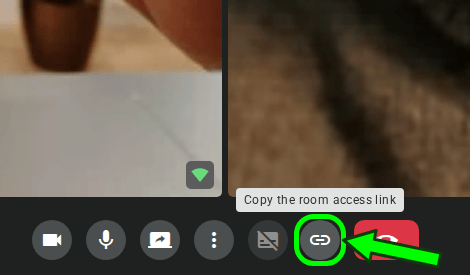
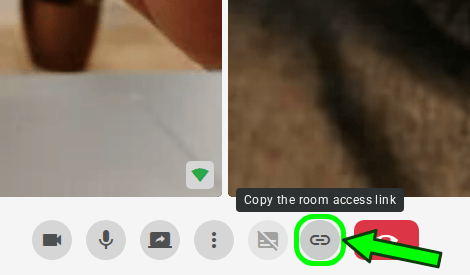
Participants with the roomShareAccessLinks permission can share the room access link from the active meeting view.
Info
Links copied from the meeting view grant anonymous access with Speaker role. Participants with the participantPromote permission can promote others to Moderator during the meeting. See Role Management.
From the REST API#
The anonymous access links are available in the properties access.anonymous.moderator.url and access.anonymous.speaker.url of the MeetRoom object.
User and identified guest access#
Unlike anonymous guests, users and identified guests are explicitly added to the room as members — from the "Room Members" tab or the Room Members REST API. They access the room through different links:
- Users all access the room through the same user access link (property
access.user.urlof MeetRoom ). They must log in with their OpenVidu Meet credentials. - Identified guests each receive a unique personal access link (property
accessUrlof their member object) that grants access with no login and should be delivered privately to that person.
In addition to users added explicitly as room members, other users can also access the room:
- Admins and the room owner (the user who created the room) always have access to the room, with all permissions granted.
- If a room is configured to be accessible to all users, any user can access — even without being an explicit member — with
Speakerpermissions.
See the Room Members feature to add and manage users and identified guests, and the Users feature to manage the accounts themselves.
Predefined roles#
Every room member has a role that determines their default set of permissions. The role comes from the link used (for anonymous guests) or from the base role assigned to the member (for users and identified guests).
Moderator#
Grants full meeting permissions by default:
- Meeting management: join the meeting, read its live state and end it for all participants.
- Recording control: start and stop recordings, and list, play, download and delete them.
- Participant management: promote other participants to moderator, mute their microphone, camera or screen share, kick them, and share room access links.
- Media publishing: publish video, audio, and share screen.
- Communication: send chat messages, change virtual background.
Speaker#
Grants basic participation permissions by default:
- Meeting access: join the meeting and read its live state.
- Recording access: list, play and download the room's recordings — but not start, stop or delete them.
- Media publishing: publish video, audio, and share screen.
- Communication: send chat messages, change virtual background.
Info
The default permissions for Moderator and Speaker can be customized per room when creating or editing it, and per member through custom permissions. Every permission is independent: none is implied by another. For the complete list of available permissions, see the MeetPermissions schema.