Creation & Management#
Users with permissions to create and manage rooms (admins and room managers) can create, configure, browse and delete rooms from the "Rooms" page of the OpenVidu Meet app. Every operation described below can also be performed through the REST API.
Info
Room member users can only access the rooms that are available to them, as they do not have room management permissions. See
Create a room#
Create a new room from the "Rooms" page with the "Create Room" button. There are two ways to create it:
- Basic creation: just give the room a name and create it immediately with default settings.
- Advanced creation: open the configuration wizard to fine-tune the room before creating it.
The advanced wizard guides you through the following steps:
| Step | What you configure |
|---|---|
| Room Details | The room name and an optional auto-deletion date. |
| Meeting | The meeting configuration (a participant limit, a duration limit and whether participants join with the microphone and camera on) and the in-meeting features: End-to-End Encryption, Live Captions, Chat and Virtual Backgrounds. |
| Recording | Whether meetings can be recorded and, if so, the trigger that starts the recording, its layout and anonymous recording sharing. |
| Room Access | Enable/disable anonymous access per role (Moderator / Speaker), allow all users to join, customize the default permissions of the Moderator and Speaker roles, and add room members. |
Info
Learn more about access control and the predefined roles in Room Access, and about who can create and manage rooms in the Users feature.
Edit a room#
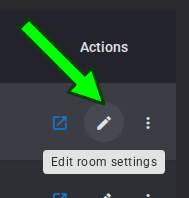
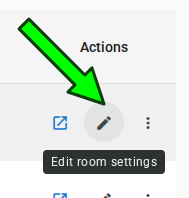
Reopen the configuration wizard for an existing room from the "Rooms" page or the room details page to change its meeting, recording and access settings, as long as no meeting is currently active.
Info
The room name and auto-deletion settings cannot be modified after a room is created. To change them, delete the room and create a new one with the desired configuration.
Room status#
Every room has a status that controls whether it can host meetings:
- Open: the room is available; opening one of its access links and pressing the join button starts a new meeting or joins the ongoing one.
- Active meeting: a meeting is currently in progress in the room.
- Closed: the room no longer accepts new meetings, but it is kept (along with its recordings).
Managers can close or reopen a room at any time from the "Rooms" page or the room details page.
List & filter rooms#
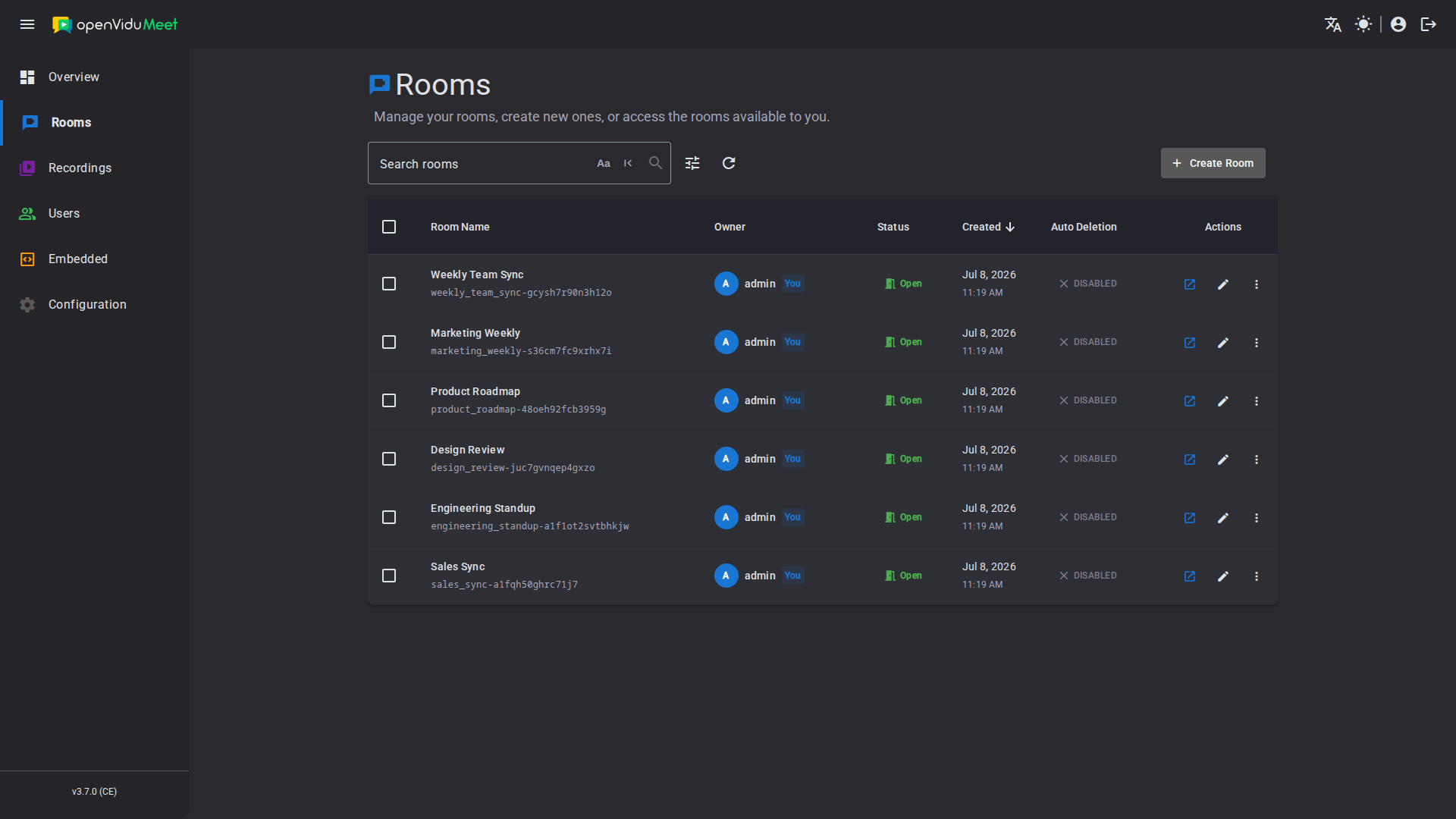
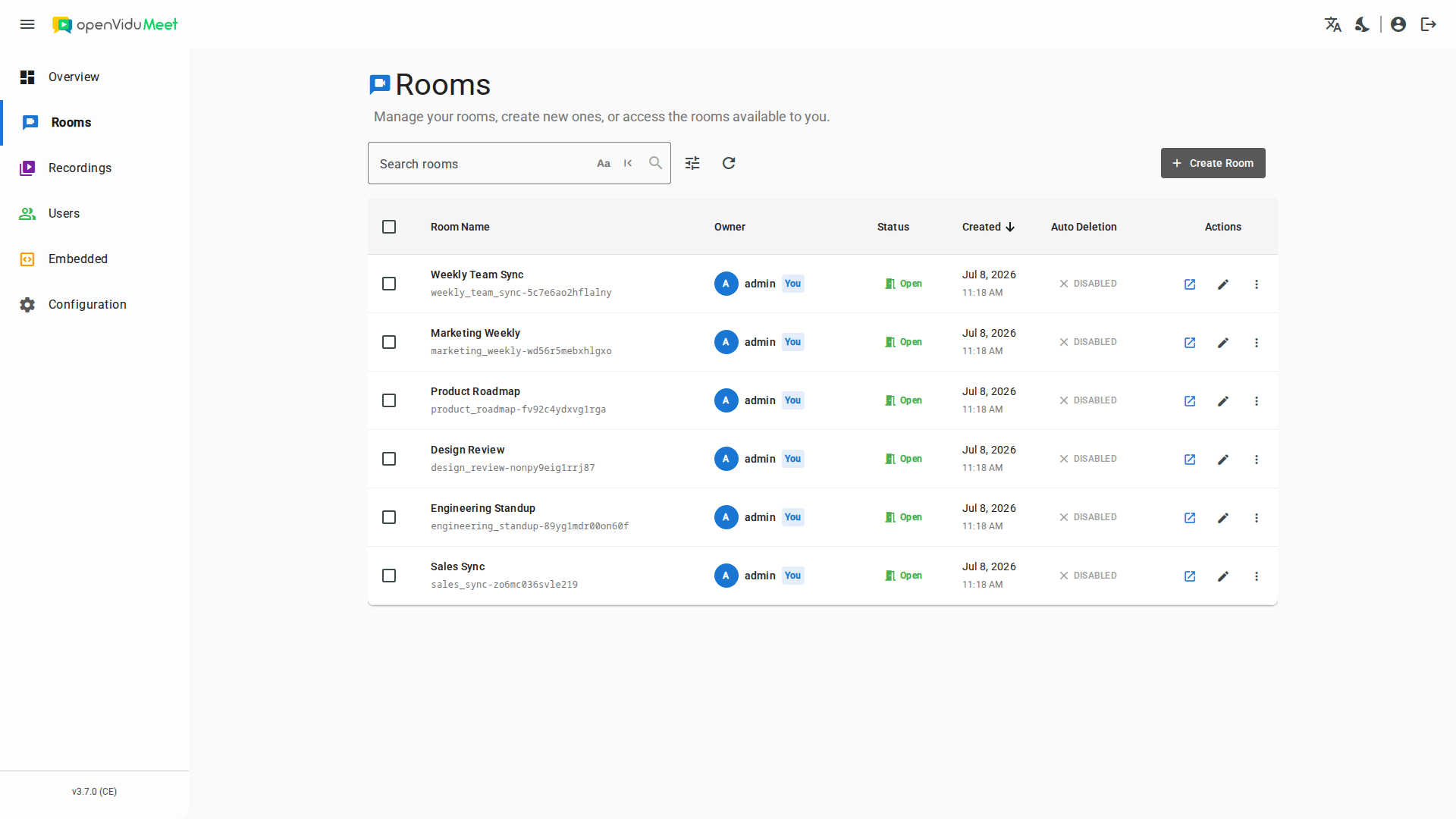
The "Rooms" page lists every room available to you, with its owner, status, creation date and auto-deletion date. From here you can:
- Search and filter rooms by name, status, owner, membership or whether they are open to all OpenVidu Meet users.
- Copy the room ID, the identifier the REST API and the webhooks refer to the room by.
- Access a room, to join the meeting.
- Open the room details page.
- Edit a room (if no meeting is active) or change its status.
- Delete rooms individually or in bulk.
- Share room access links.
Room details#
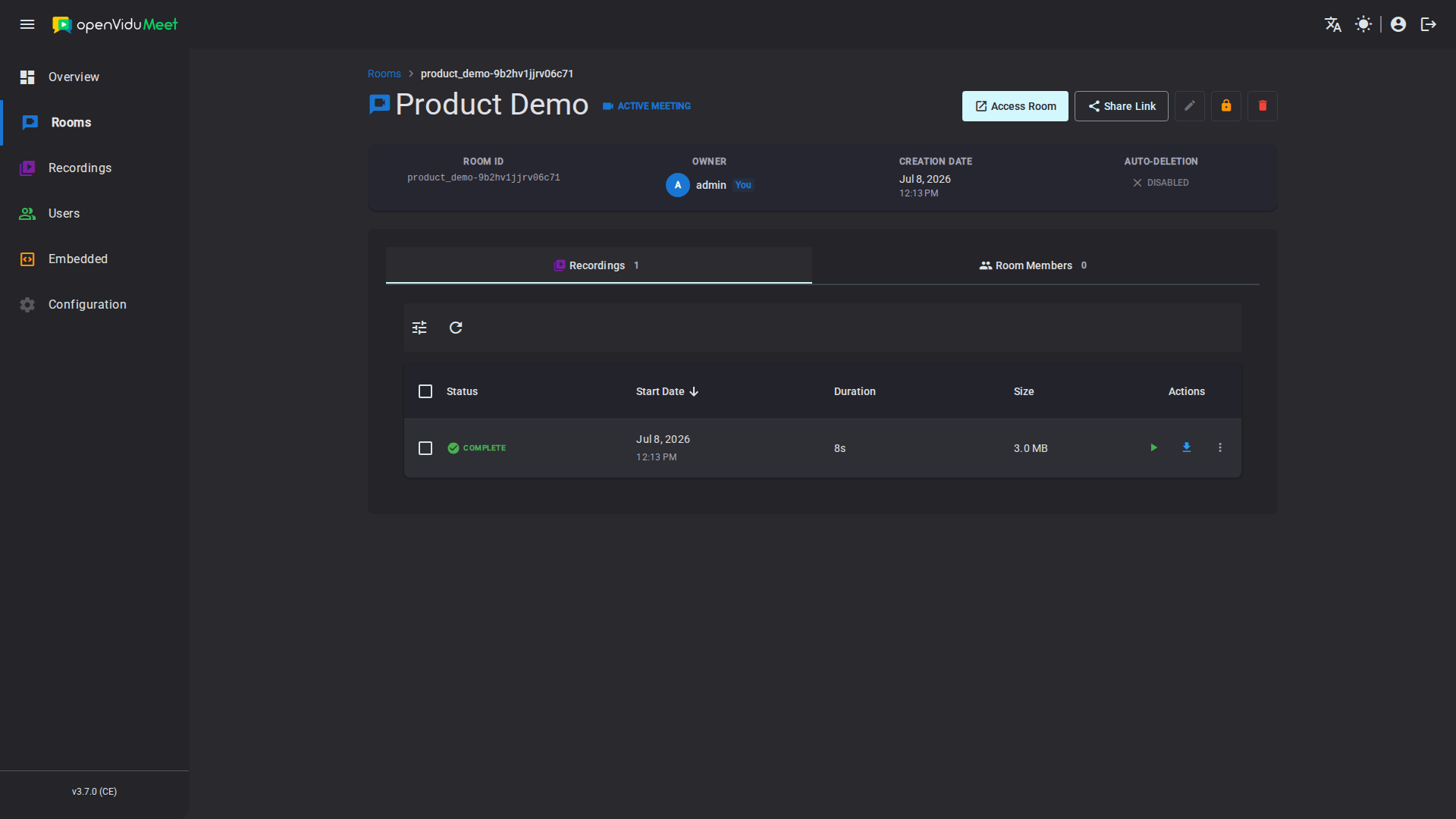
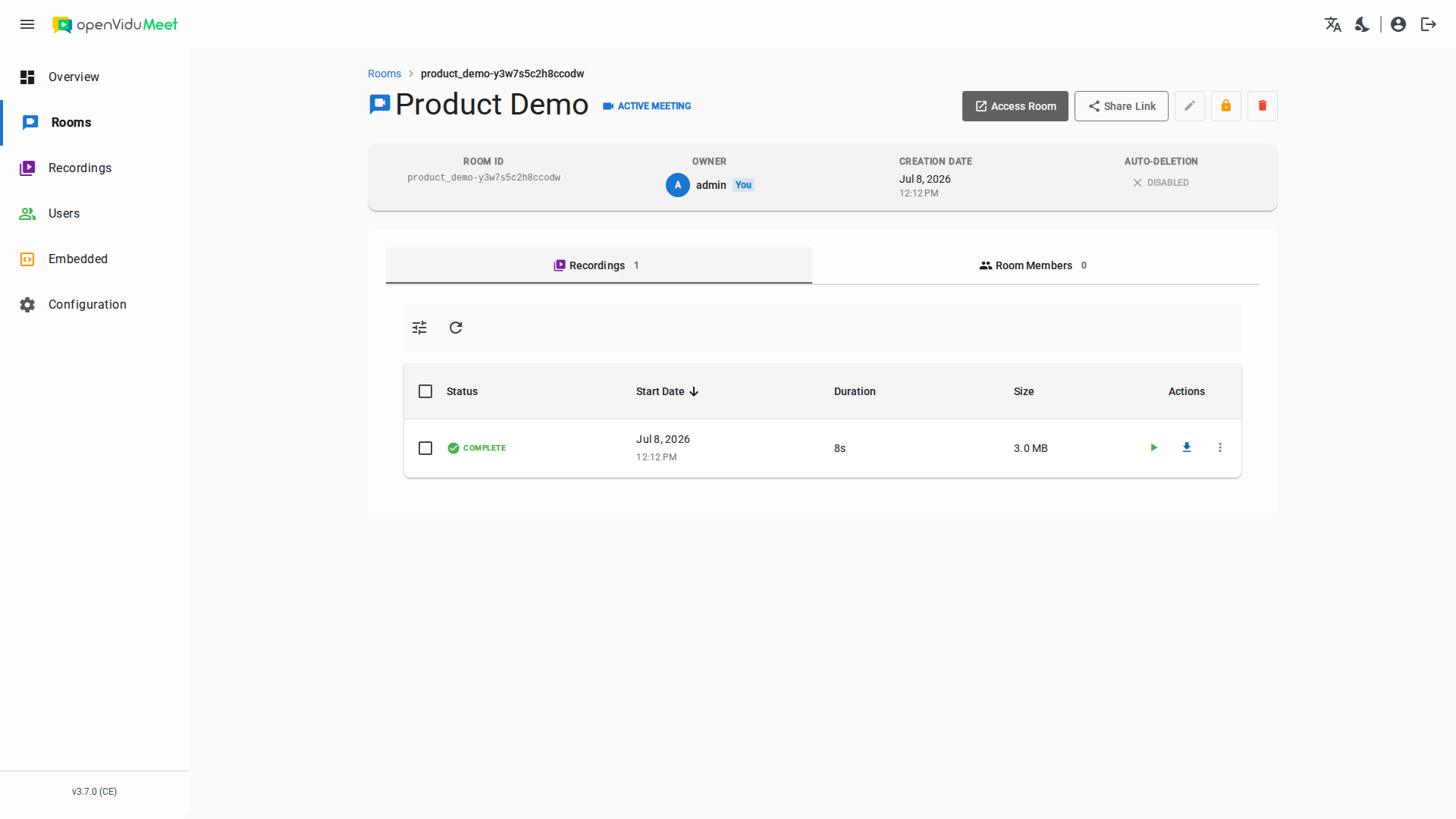
Clicking a room opens its details page, which shows the room information and available actions such as accessing the room, sharing the access links, editing, closing/reopening, or deleting it. It also organizes the room's content in two tabs:
- Recordings: the recordings generated in this room, with play, download, share and delete actions (subject to recording permissions).
- Room Members: the users and identified guests explicitly added to the room. See Room Members › Creation & Management.
Delete rooms#
Rooms can be deleted individually or in bulk from the "Rooms" page. Deleting a room removes it and all associated data (meetings, members and recordings).
Warning
If the room has an active meeting or associated recordings, the deletion will not proceed immediately. Instead, a dialog will ask you to choose a deletion policy to specify how OpenVidu Meet should handle these:
- For active meetings: whether to force-end the meeting and delete the room, or wait for the meeting to naturally end.
- For recordings: whether to delete them along with the room, or close the room instead (keeping the recordings).
If you cancel the policy dialog, the deletion is cancelled.
Room auto-deletion#
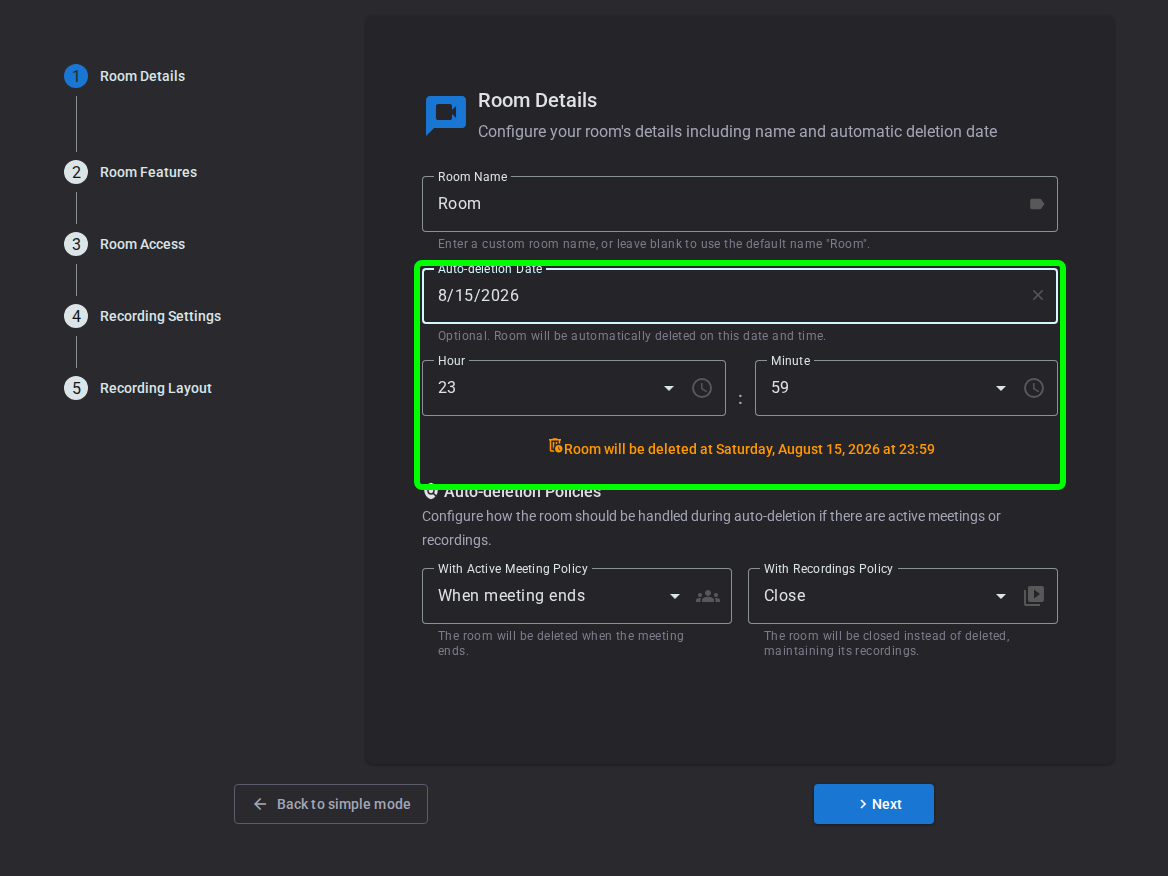
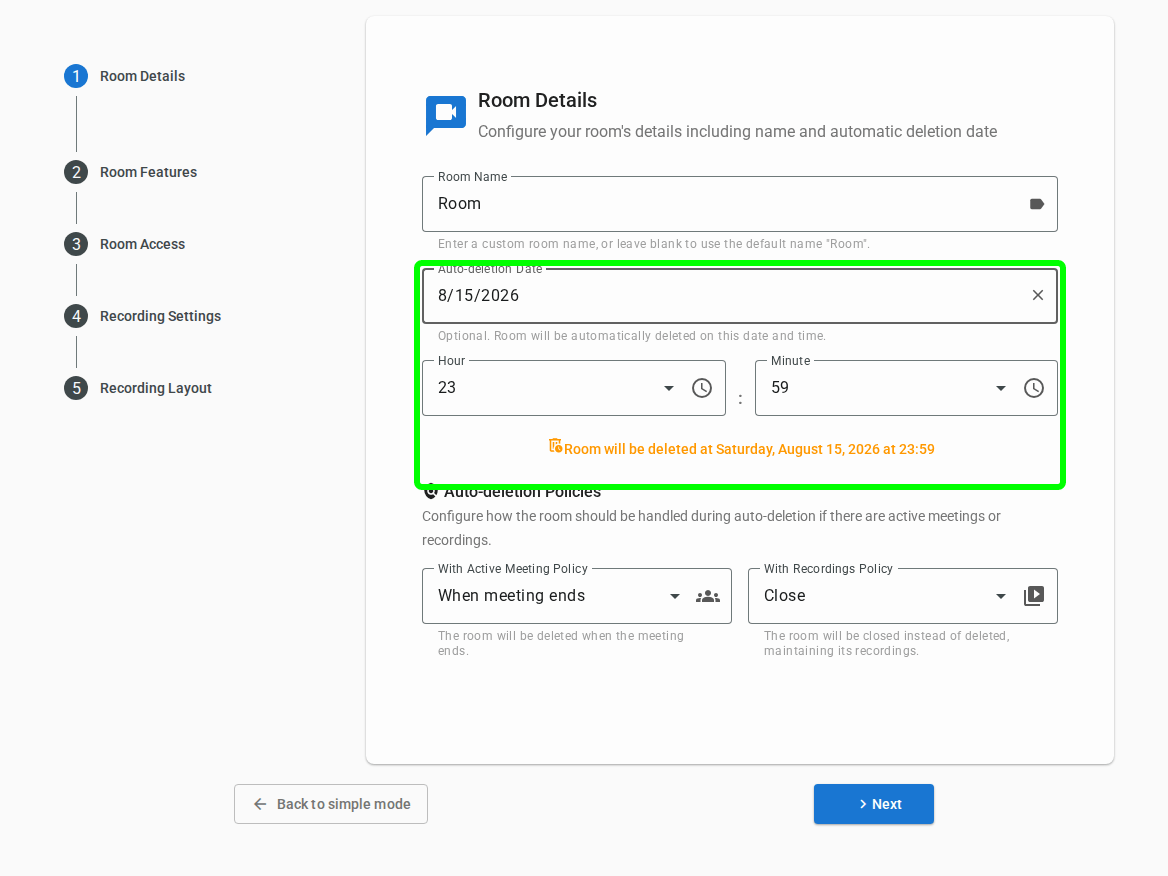
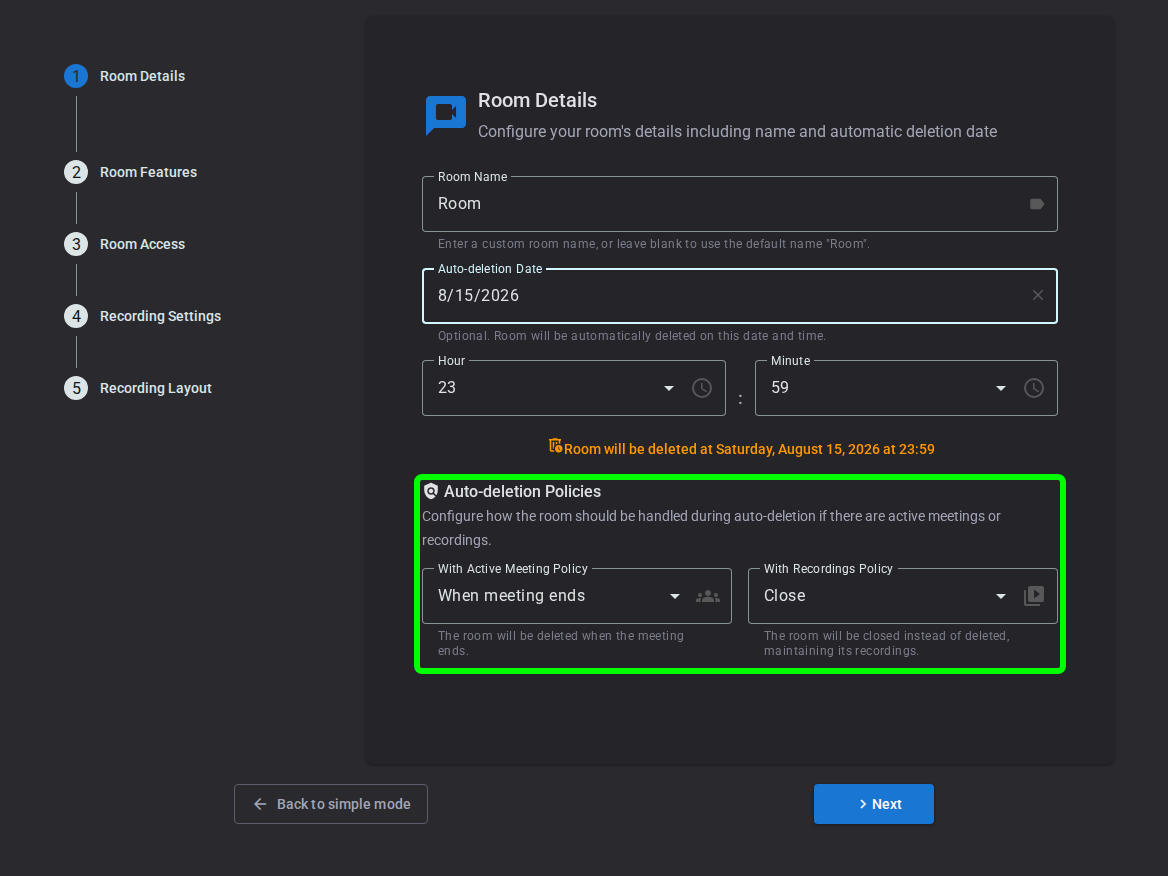
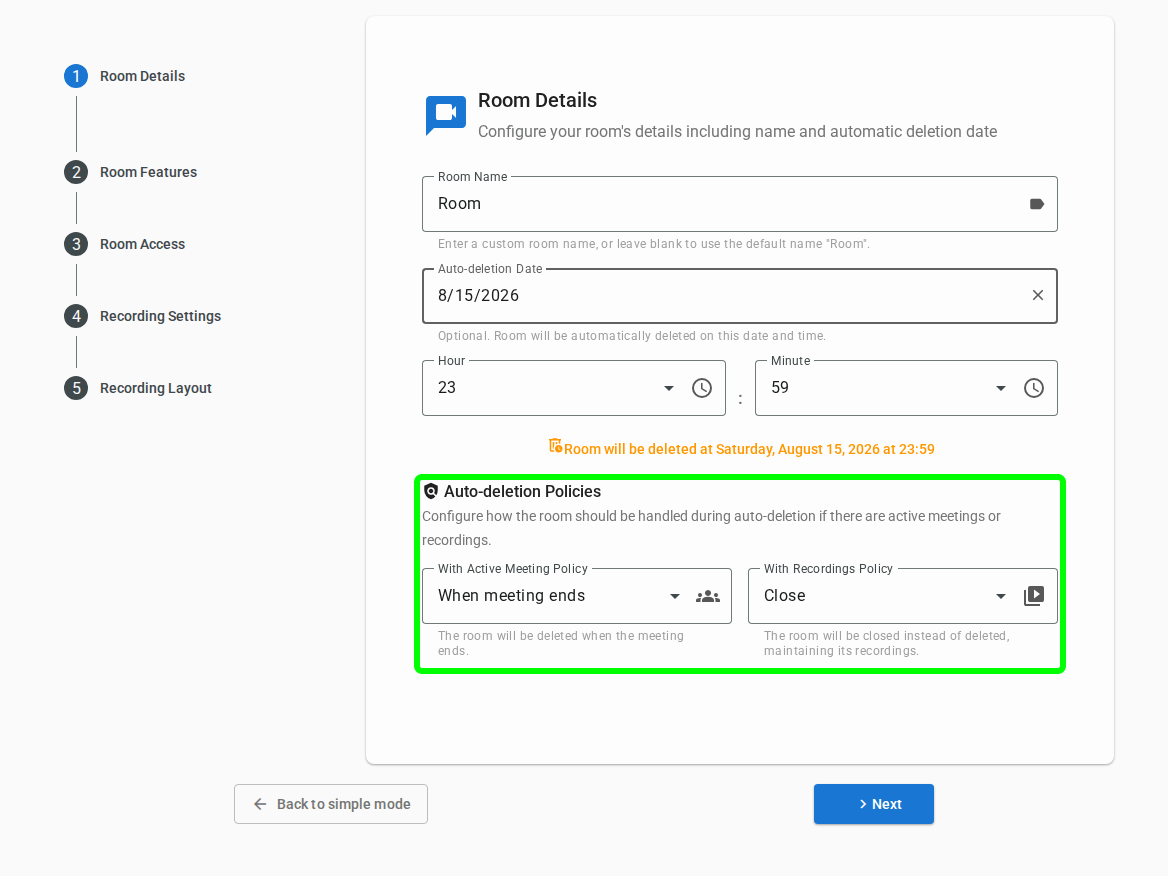
Rooms can be configured with an auto-deletion date. You can set this date when creating a room. This helps keeping OpenVidu Meet clean and organized, avoiding clutter from old rooms that are no longer needed.
Room auto-deletion policies#
When the auto-deletion date is reached, the room will be deleted. The Auto-deletion policies determine how to handle active meetings and stored recordings when the room is being processed for deletion due to its auto-deletion date. You can set these policies when creating a room:
- Active meetings policy
Force: the meeting will be immediately ended without waiting for participants to leave, and the room will be deleted.When meeting ends: the room will be deleted after the active meeting ends.
- Recordings policy
Force: the room and all its recordings will be deleted.Close: the room will be closed (no more meetings will be allowed in it) instead of deleted, maintaining its recordings.
Room Appearance#
The visual appearance of your rooms (the color scheme of the meeting view) is configured globally for the whole app from the "Configuration" page of the OpenVidu Meet app — not per room. The color scheme you set there applies to every room.
Info
Room appearance can only be changed by admin users from the "Configuration" page. Unlike the rest of the room settings, it cannot be modified through the REST API.
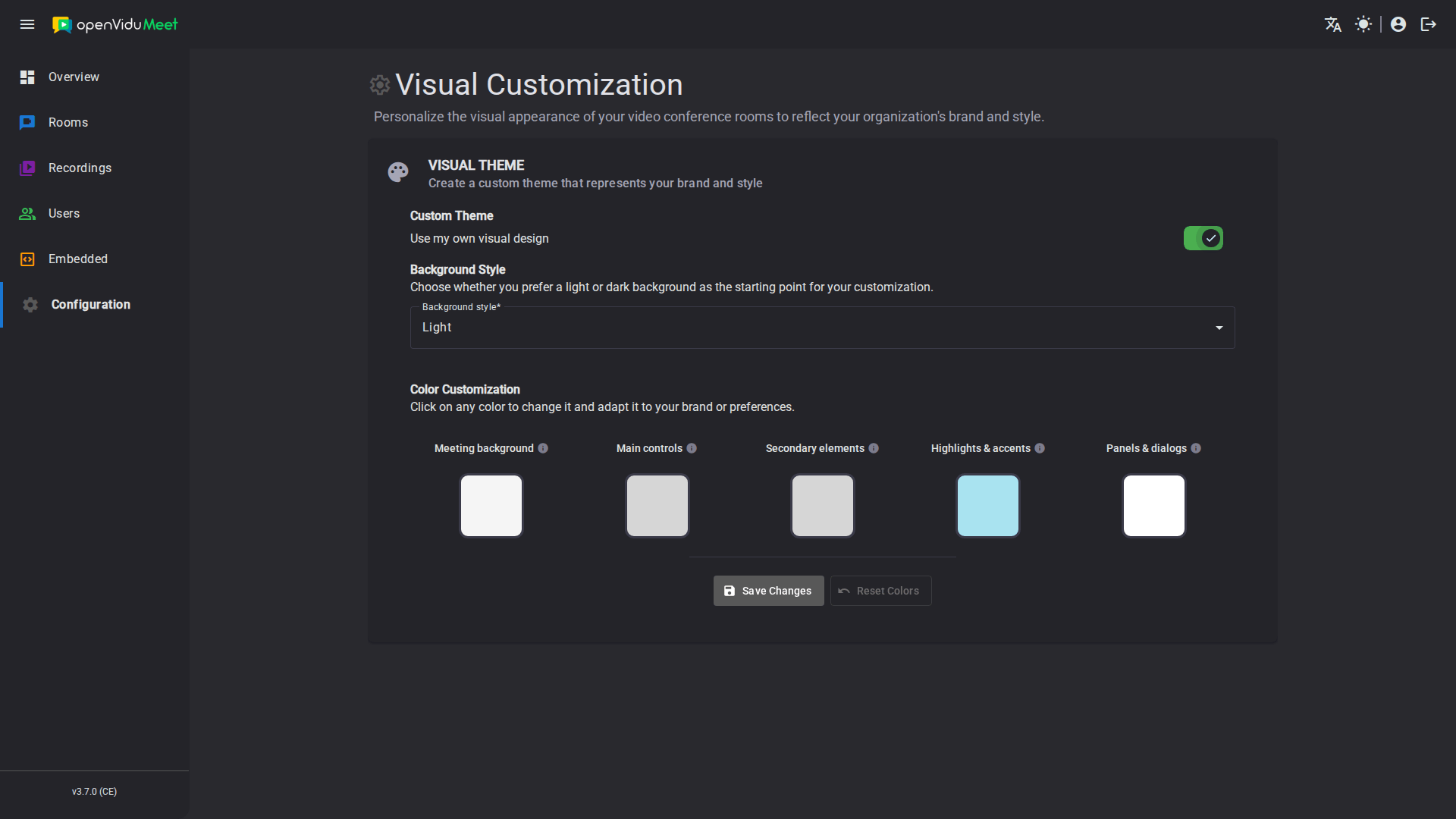
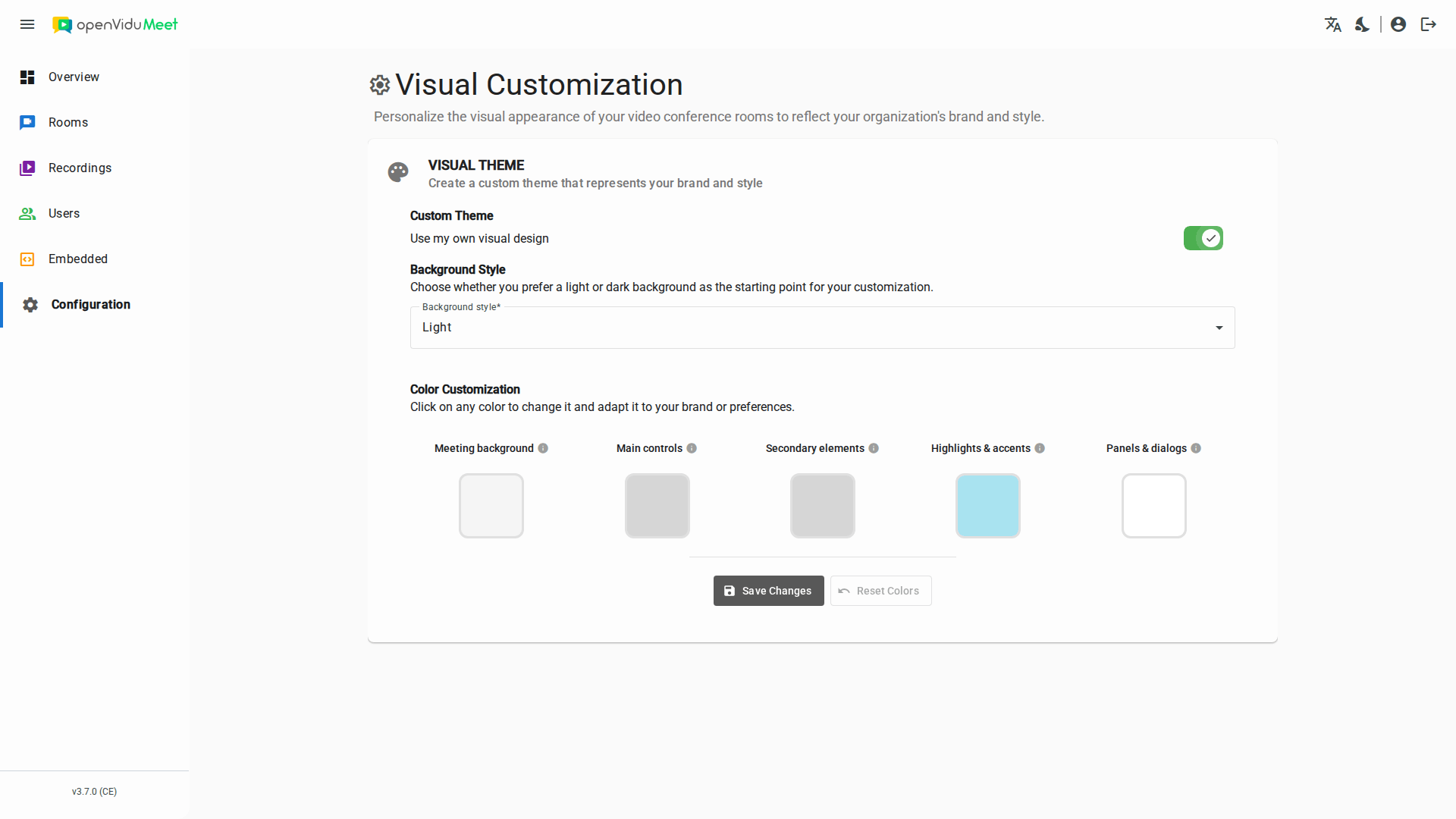
You can set separately the color of:
- Main background: background color of the meeting view.
- Main controls: colors for the main control buttons (mic, camera, etc.)
- Secondary elements: colors for logos, icons, borders and subtle details.
- Highlights & accents: colors for active states and highlighted items.
- Panels & dialogs: background color for side panels and dialog boxes.
You can also choose between a light and a dark background style, to ensure the displayed text is always readable after applying your color scheme.
REST API reference#
All of these operations can also be performed programmatically with the OpenVidu Meet REST API. See the REST API specification for the full list of available endpoints, request bodies and response schemas.
| Operation | HTTP Method | Reference |
|---|---|---|
| Create a room | POST | Reference |
| List rooms | GET | Reference |
| Bulk delete rooms | DELETE | Reference |
| Get a room | GET | Reference |
| Delete a room | DELETE | Reference |
| Get room config | GET | Reference |
| Update room config | PUT | Reference |
| Update roles permissions for a room | PUT | Reference |
| Update room access config | PUT | Reference |
| Update room status | PUT | Reference |