Creation & Management#
Create Rooms#
OpenVidu Meet internal users with permissions to create and manage rooms can create a new room directly from the "Rooms" page in the OpenVidu Meet console. Each room requires a name and can be customized with Advanced Setup options:
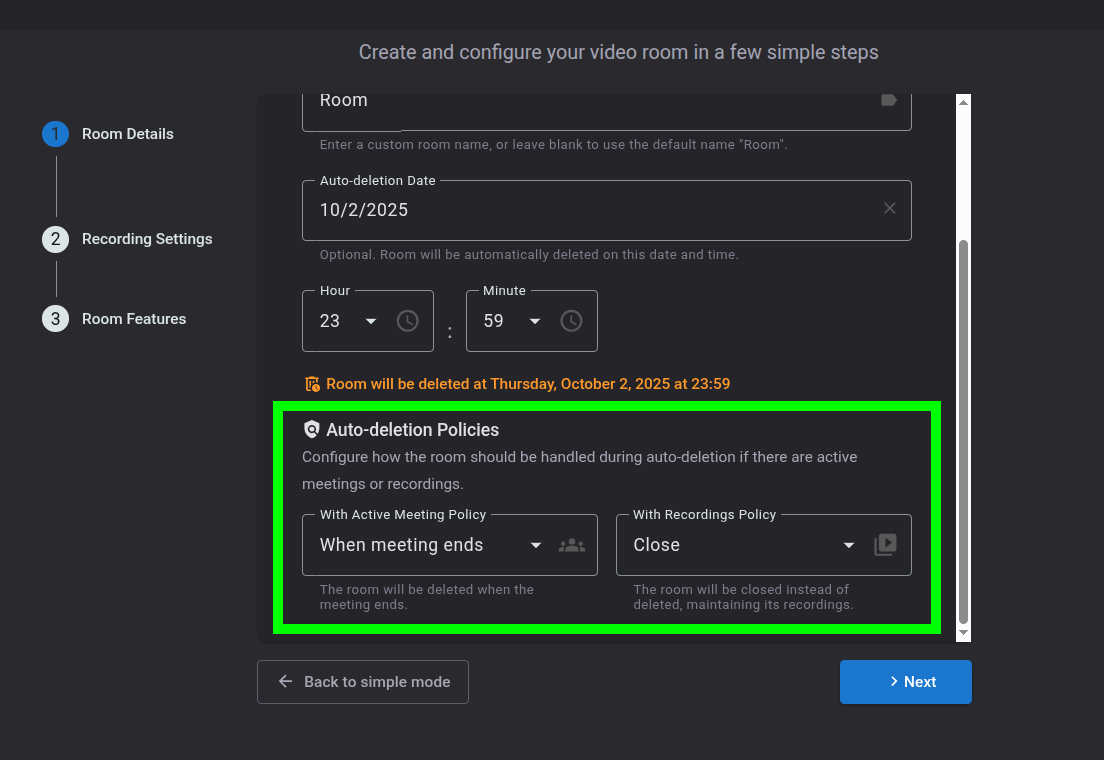
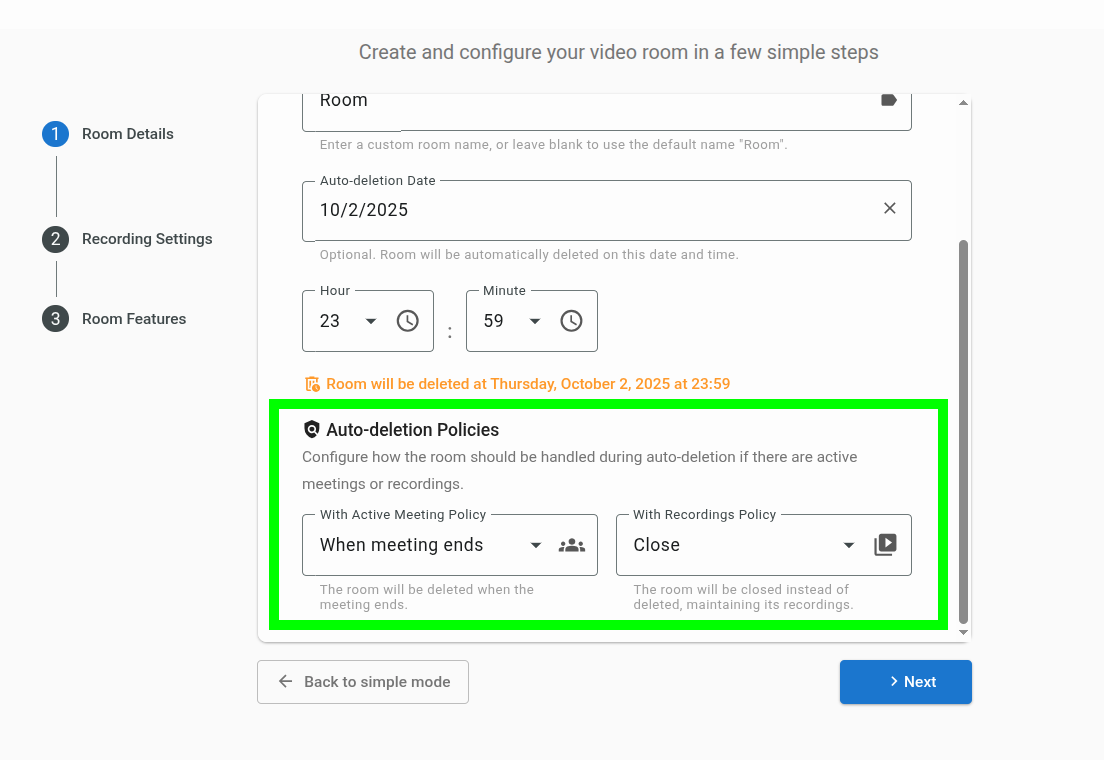
- Set up an auto-deletion date and configure auto-deletion policies.
- Enable/disable features like recording, chat, virtual backgrounds, and E2EE (end-to-end encryption).
- Configure default permissions for each role (
ModeratorandSpeaker). - Enable/disable anonymous access for each role.
Info
Learn more about OpenVidu Meet internal users and their permissions in OpenVidu Meet internal users.
Edit Rooms#
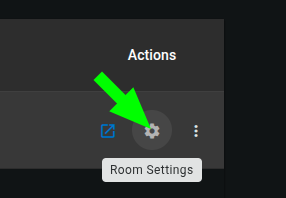
Modify room settings anytime from the Rooms page, as long as no meeting is currently active. You can update:
- The room name.
- The auto-deletion date and auto-deletion policies.
- Enable/disable features like recording, chat, virtual backgrounds, and E2EE (end-to-end encryption).
- Default permissions for each role (
ModeratorandSpeaker). - Anonymous access settings for each role.
List Rooms#
The Rooms page lists every available room and lets administrators:
- Start a meeting in a room.
- Edit room settings anytime (if no meeting is active).
- Delete rooms individually or in bulk.
- Access recordings.
- Share room links with different permissions.
Delete Rooms#
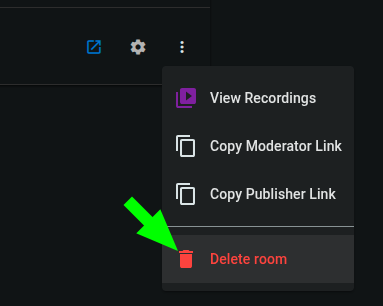
Rooms can be deleted individually or in bulk from the Rooms page. Deleting a room removes it and all associated data.
Room auto-deletion#
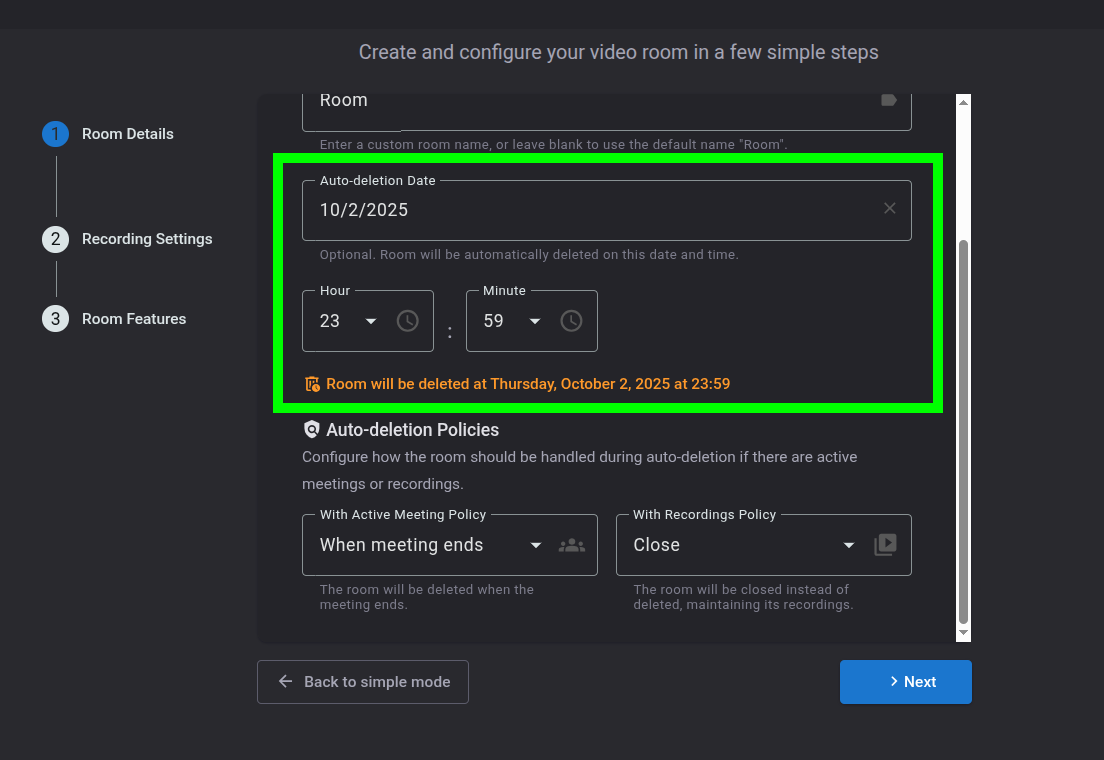
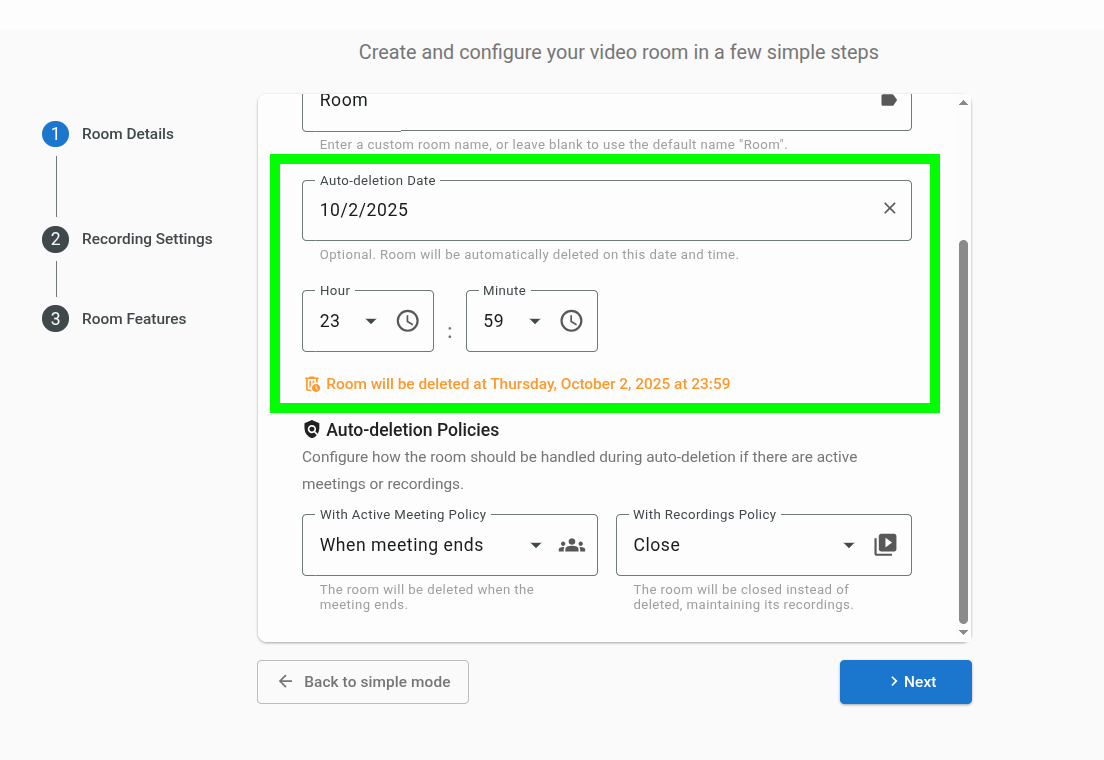
Rooms can be configured with an auto-deletion date. You can set this date when creating or editing a room. This helps keeping OpenVidu Meet clean and organized, avoiding clutter from old rooms that are no longer needed.
Room auto-deletion policies#
When the auto-deletion date is reached, the room will be deleted. The Auto-deletion policies determine how to handle active meetings and stored recordings when attempting to delete the room:
- Active meetings policy
Force: the meeting will be immediately ended without waiting for participants to leave, and the room will be deleted.When meeting ends: the room will be deleted after the active meeting ends.
- Recordings policy
Force: the room and all its recordings will be deleted.Close: the room will be closed instead of deleted, maintaining its recordings.