Creation & Management#
Start / Stop recording#
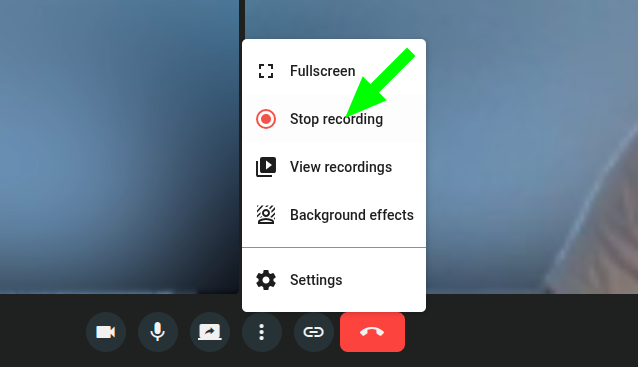
Recordings must be started by a participant with the canRecord permission in the meeting view (see Role Management).
While the recording is active, all participants in the meeting will see an indicator in the bottom left corner.

To stop the recording, a participant with the canRecord permission must simply click the "Stop recording" button. The recording will be automatically saved in the OpenVidu Meet server.
List Recordings#
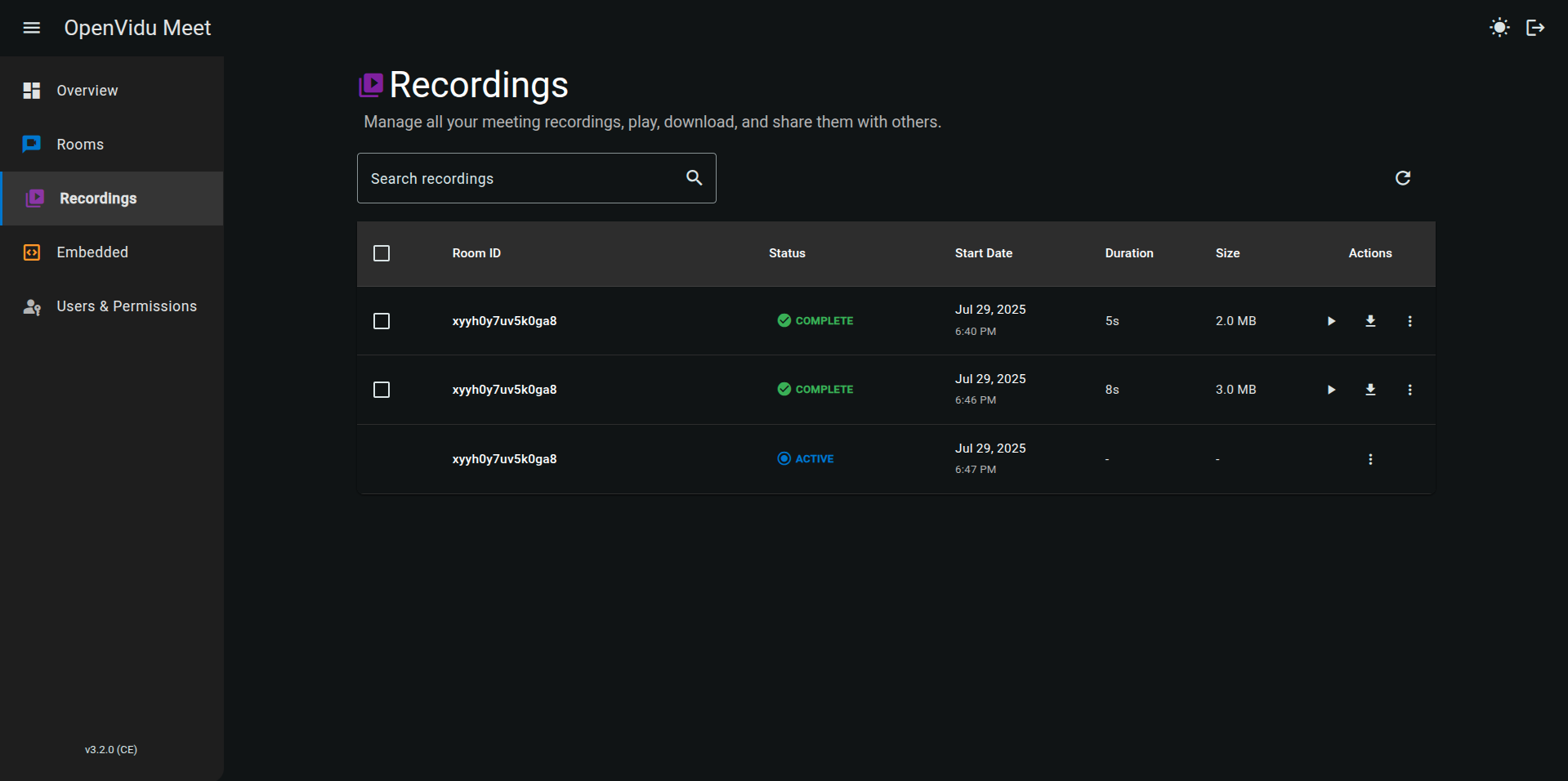
OpenVidu Meet console can be used to manage all recordings from the "Recordings" page. It is possible to see all recordings, play them, download them, delete them, and share them via a link:
By default, recordings share the same access permissions as their rooms. Whenever a user uses a room link to join a meeting, they will also have the possibility of accessing the list of its previous recordings (if any):
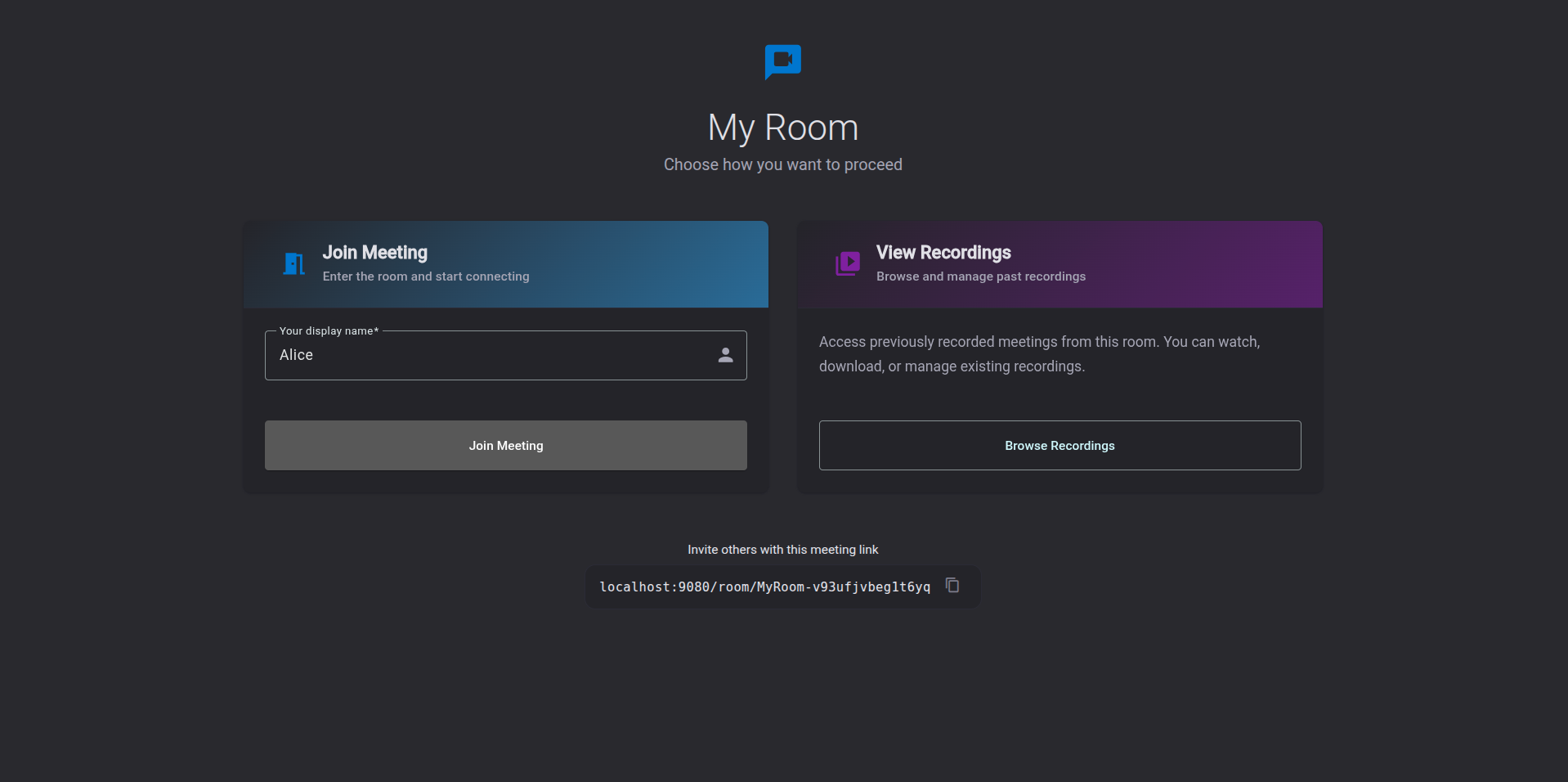
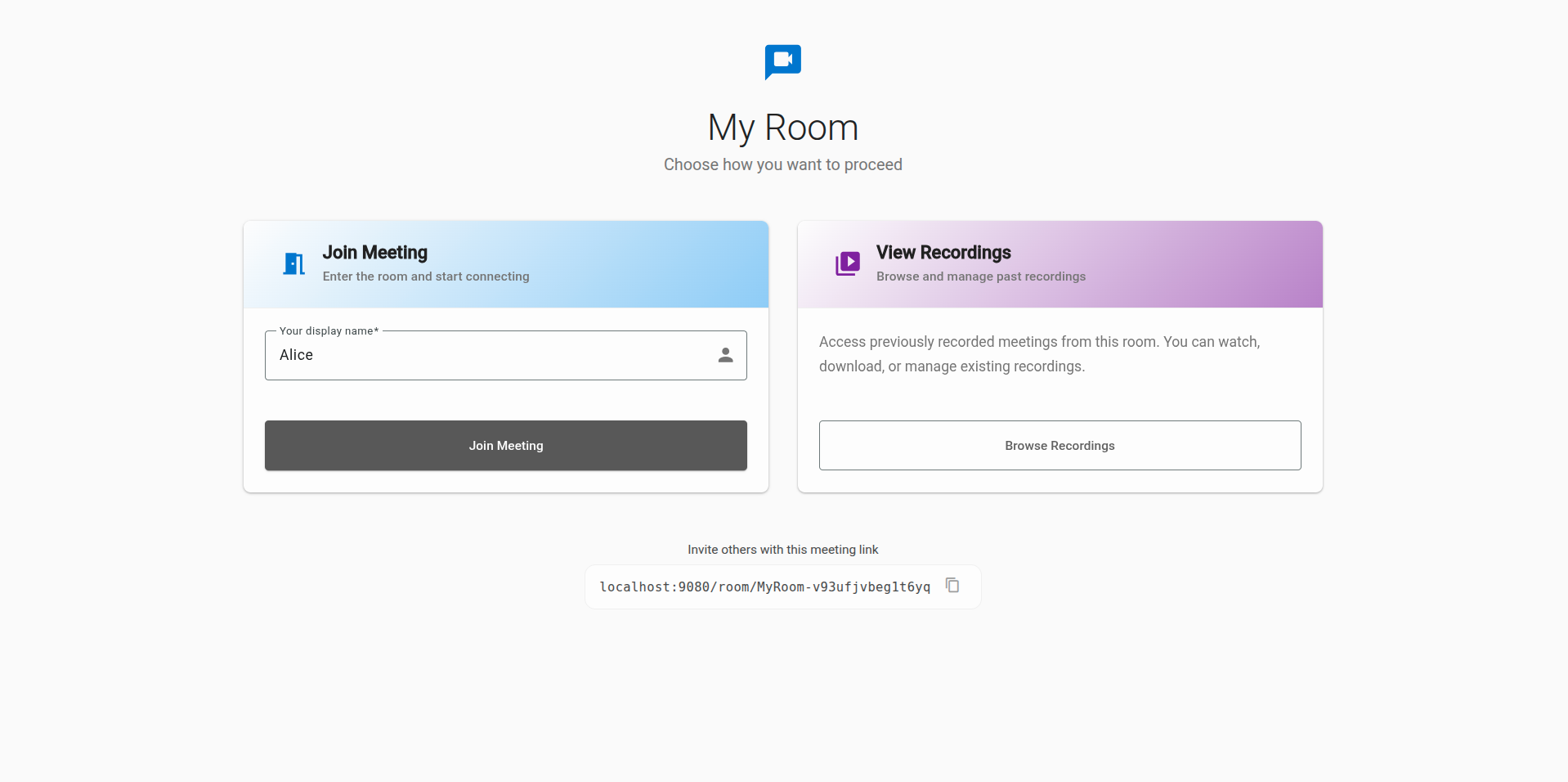
The recording list shows every recording of that particular room:
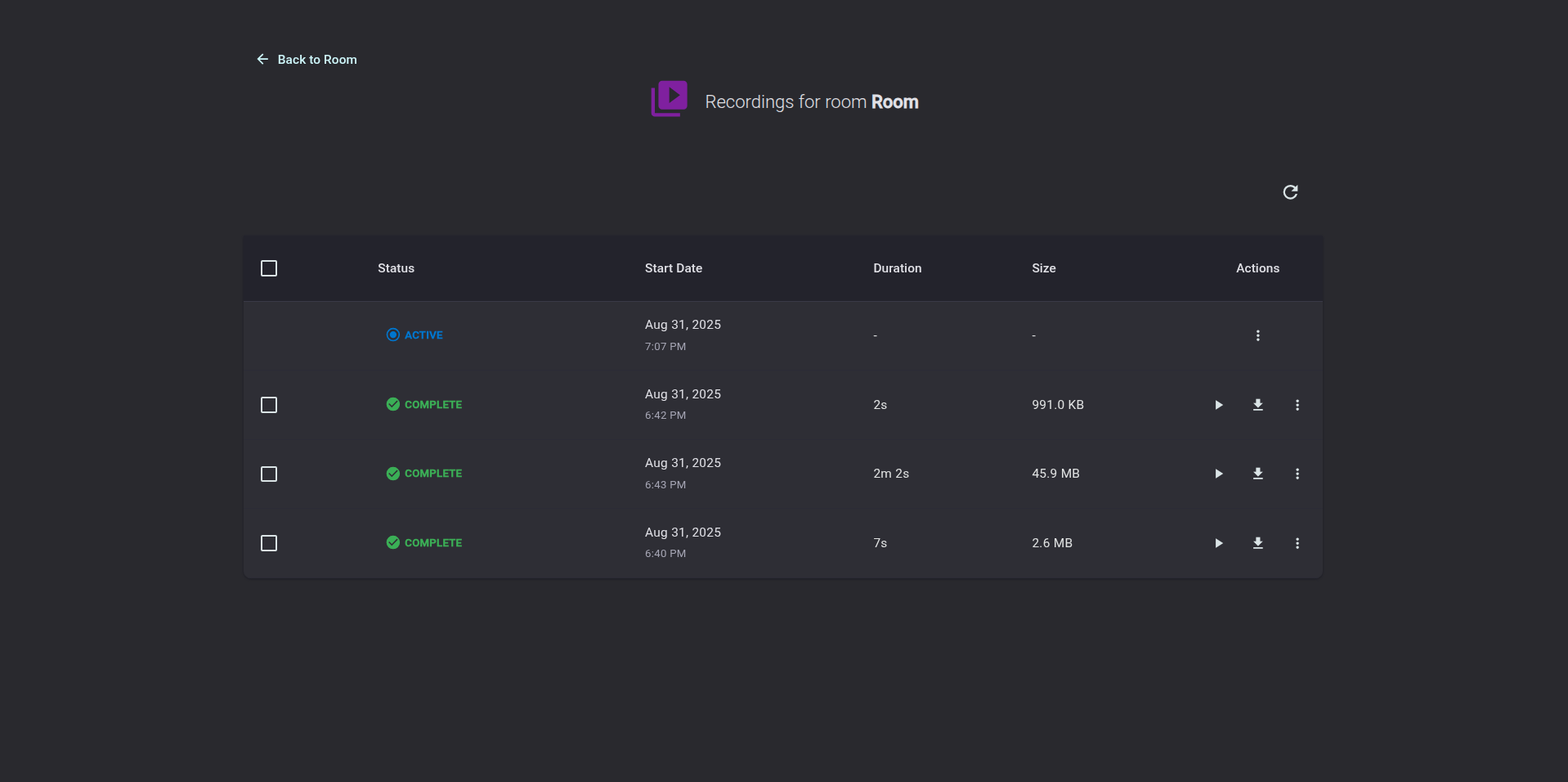
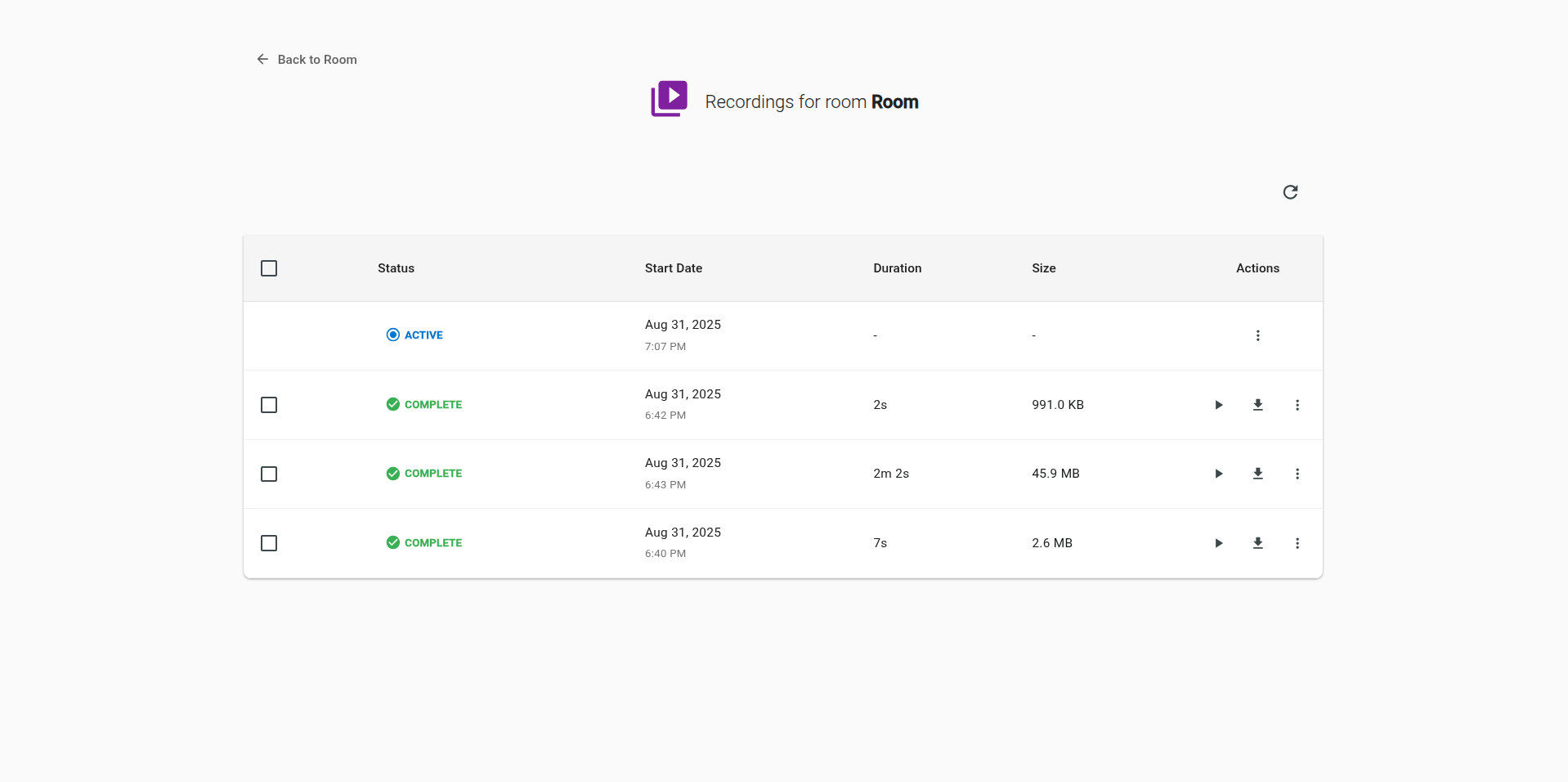
Participants can also open the list of recordings for that room directly from the meeting view:
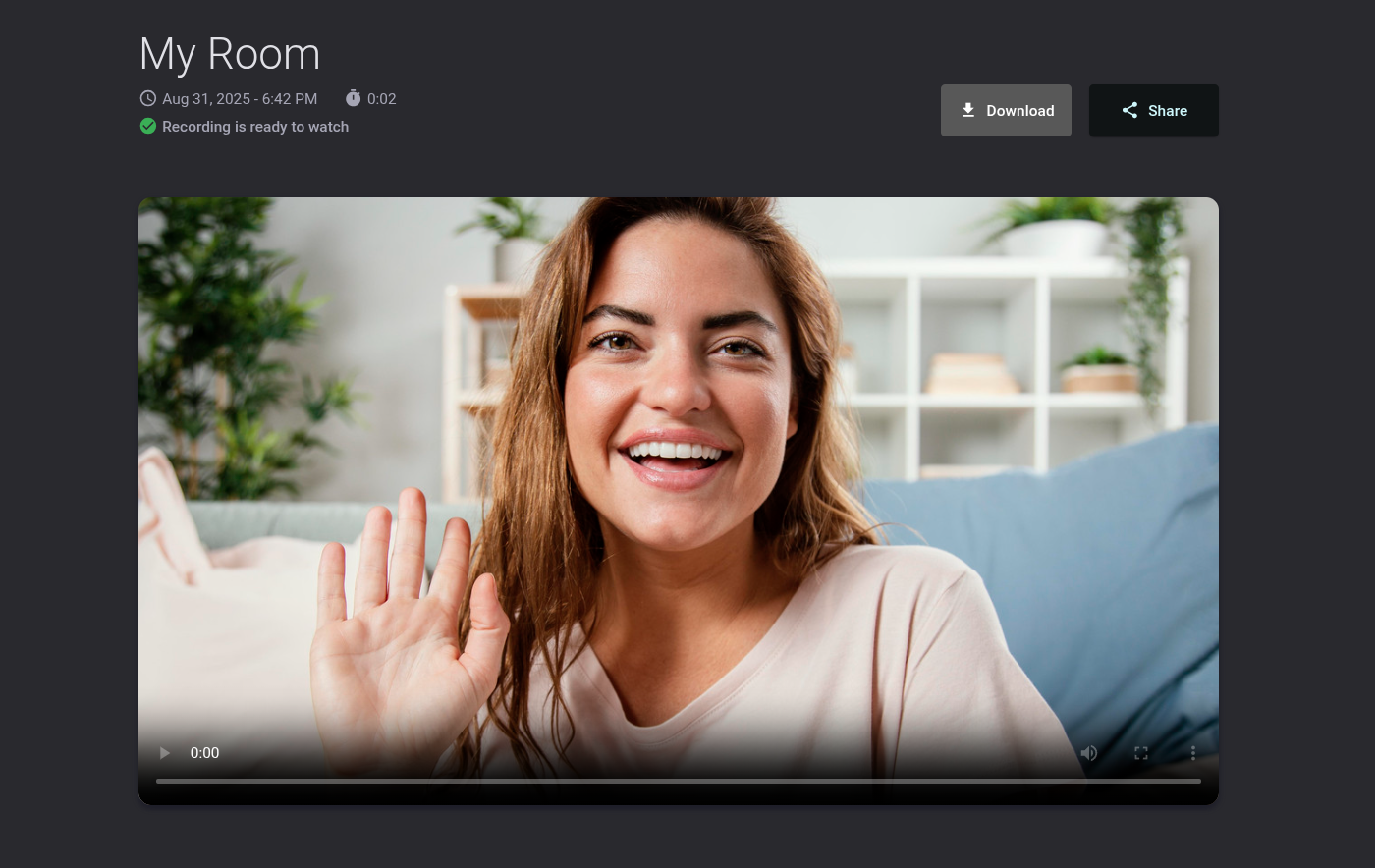
The recording view allows playing the video, downloading it or creating a shareable link:
Access permissions for recordings#
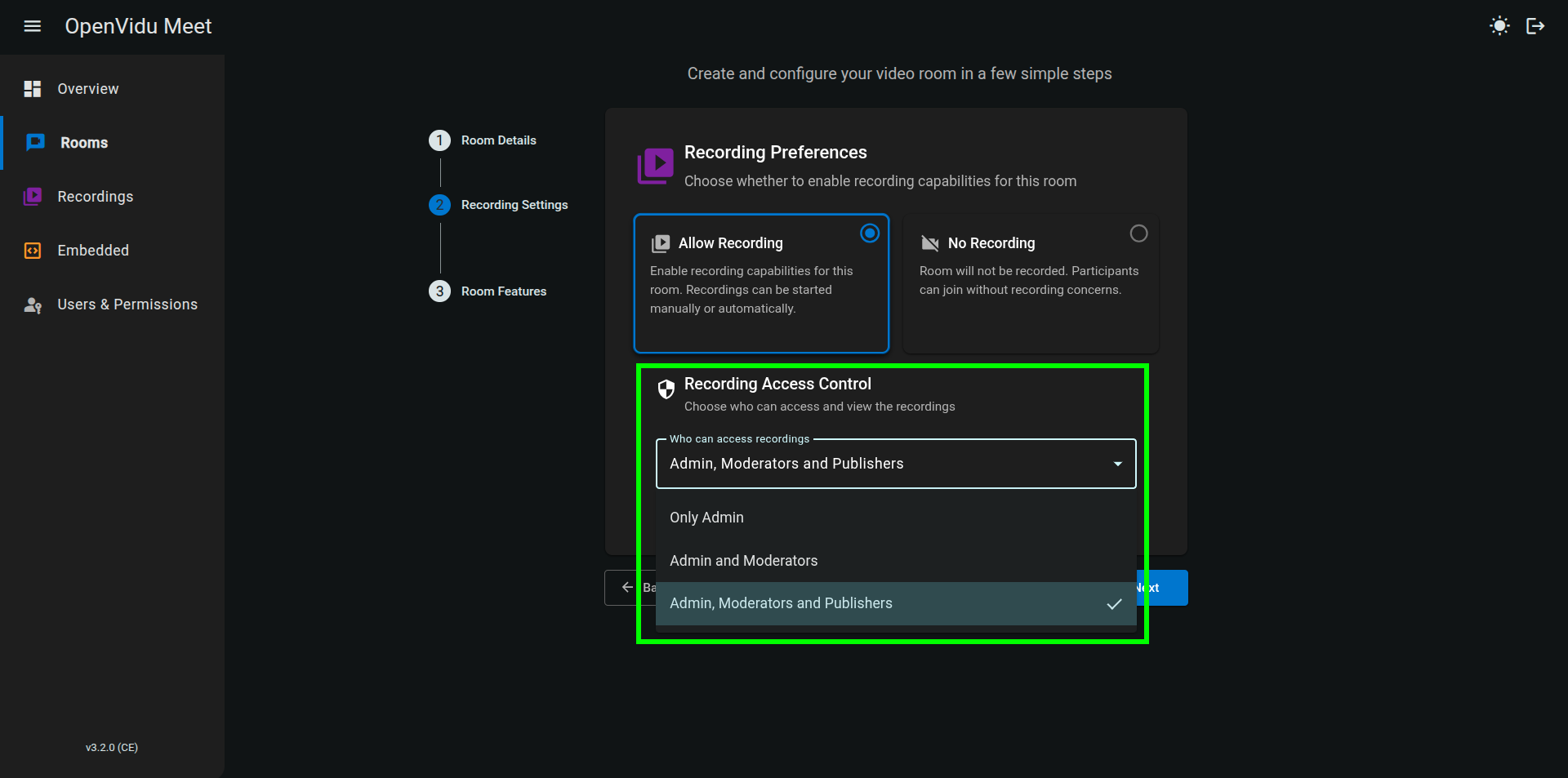
When creating a new room, you can define who is allowed to access and manage the recordings generated within that room. This access control system helps ensure privacy, security, and proper role-based permissions for recorded meetings.
Available access options#
-
Only admin Restricts access to recordings exclusively to OpenVidu Meet administrators. This option provides the highest level of security and is ideal for sensitive meetings. Administrators always retain access to recordings from any room.
-
Admin and moderators Grants recording access to administrators and participants assigned the Moderator role. This configuration allows trusted meeting leaders to review or manage recordings while maintaining controlled access.
-
Admin, moderators, and speakers (default) Allows administrators, moderators, and participants with the Speaker role to access recordings. This default setting offers a balanced approach, promoting collaboration while still enforcing role-based permissions.
Info
Participants with role "Speaker" may only play recordings. Administrators and participants with role "Moderator" can also delete them.
Share & Download#
Specific recordings can be shared through a link:
-
Users can generate a shareable link from the recording list.
-
Users can generate a shareable link from the recording view.
-
From OpenVidu Meet console it is possible to generate shareable links for any recording.
Recordings can also be downloaded from the recording view and from the "Recordings" page, as well as from the REST API.
Delete Recordings#
Recordings can be deleted individually or in bulk from the "Recordings" page in OpenVidu Meet console, as well as from the recording view (if the user has the required permissions). Recordings can also be deleted through the REST API.
Info
Only administrators and participants with role "Moderator" can delete recordings. See Access permissions for recordings.