Live Broadcast#
A meeting can be streamed live to an audience outside it, on YouTube, Twitch, Facebook or any RTMP server, without a separate streaming tool. Webinars, town halls and classes reach everyone who follows the channel while the meeting goes on as usual for its participants.
A meeting streams to as many destinations at once as you choose. Each destination is its own broadcast: it starts, goes live, and stops or fails without touching the others, so a channel that drops its connection never takes the rest of the broadcast with it.
Default destinations of a room#
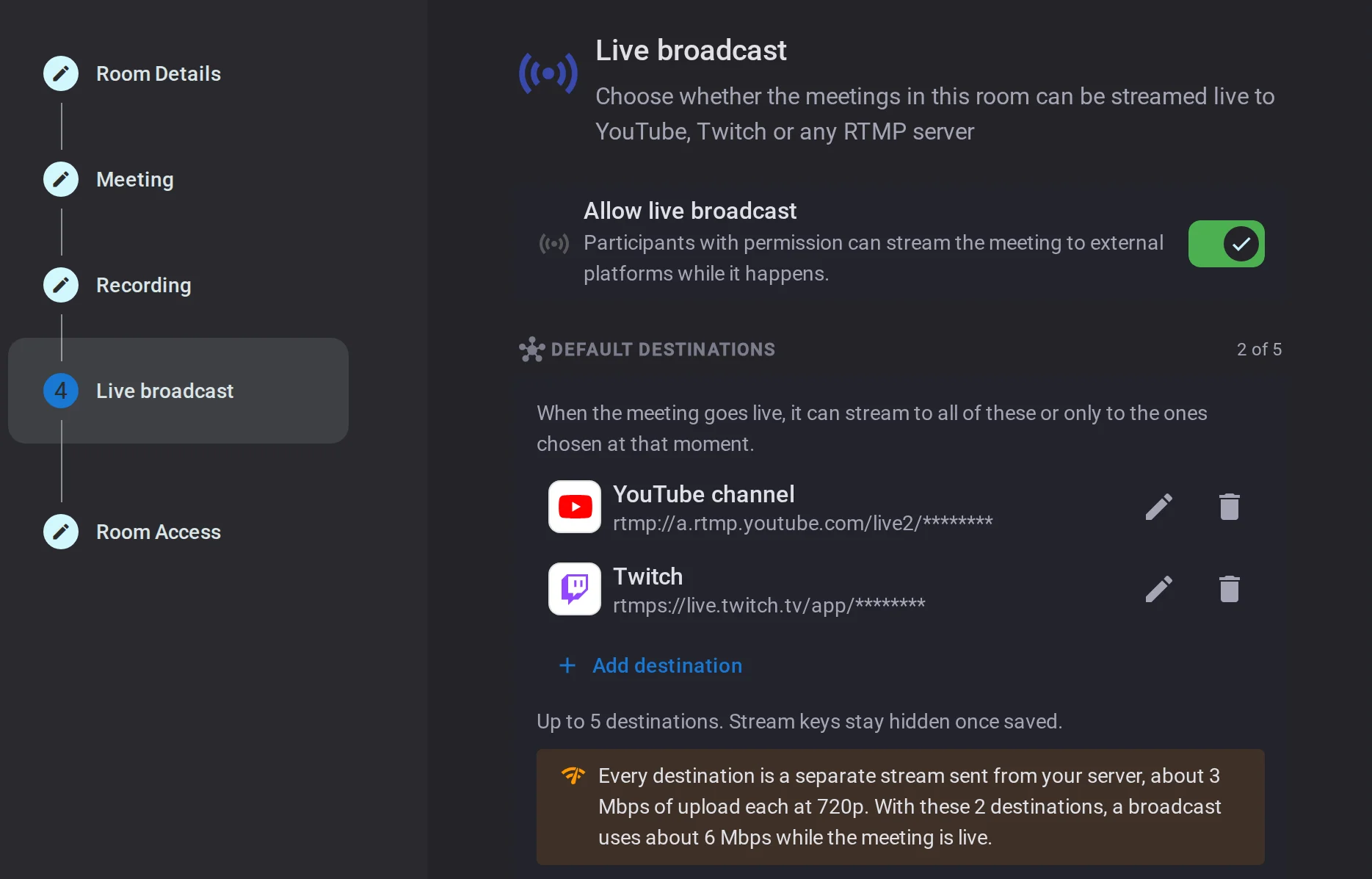
Live broadcast is turned on per room from the Live broadcast step of the room configuration wizard, when creating or editing a room. The Allow live broadcast toggle needs at least one default destination: the channels the room's meetings go live to.
Each destination has a name and the stream URL the platform gives you, of the form rtmp://host/app/key or rtmps://host/app/key, stream key included. The wizard recognises the URLs of YouTube, Facebook, Instagram, X, Vimeo, Twitch and Kick, and shows each destination with its platform's logo. A room saves as many destinations as you need, each with its own stream key.
Stream keys
A stream key is a secret that identifies the channel to the RTMP server. It is never shown in full after it is saved, and it is never sent to the browser of any participant. Two destinations with the same stream key are rejected.
The same step chooses the layout of the stream, with the same options as recordings: a grid of every participant, the active speaker with the others below, or the active speaker alone.
Server upload
Every destination is a separate stream sent from your OpenVidu deployment, about 3 Mbps of upload each at 720p. The wizard and the meeting show the estimate for the destinations chosen. Live broadcast runs on the deployment's egress service, the one that also produces recordings, so the egress host needs outbound access to the RTMP servers.
Going live#
The Live broadcast activity sits in the Activities panel of the meeting, next to recording. It lists the room's destinations under Stream to, all of them selected. Clear the ones this meeting should leave out and press Go live: each selected destination starts its own broadcast.
The More options menu of the toolbar offers Start live broadcast and Stop live broadcast too, which go live to every room destination or stop every broadcast at once.
A meeting goes live only while someone shares audio or video. Each destination shows Connecting… until the platform receives the meeting, and then Live. Every participant gets a notice when the meeting goes live and when the broadcast ends, and the status rail at the top of the meeting shows a LIVE mark for as long as the meeting is broadcast, with the time on air since the first destination received it. Clicking the mark opens the activity.
Controlling each destination#
While the meeting is live, every destination is controlled on its own from the activity:
- Stop one destination: its broadcast ends at once and the others go on.
- Start a destination that was left out, or one stopped before: it starts a new broadcast while the others go on.
- Retry a destination that failed, for example because the platform rejected its stream key or lost the connection. The activity shows why it failed.
- Stop broadcast ends every broadcast of the meeting.
Add destination streams the meeting to a URL the room does not have, for this meeting only: give it a name and paste its full stream URL. It is never saved in the room, and only the browser that added it knows its stream key, so it can be started again only from there.
A broadcast never outlives its meeting: when the meeting ends, every broadcast ends with it.
Who can go live#
Two room member permissions control live broadcast:
broadcastControl(Go live): start and stop the broadcasts of the room's destinations, all of them or only some.broadcastEdit(Add destinations): stream the meeting to a destination the room does not have.
Both are granted by default to the Moderator predefined role of every room created, and not to the Speaker role. Rooms and room members that existed before live broadcast start without them, so they have to be granted explicitly in the room's role permissions or in the member's custom permissions. They are independent, so a room can let its moderators choose among vetted channels without allowing them to stream anywhere else. Without broadcastControl, a participant sees the activity and the LIVE mark but cannot start or stop anything.
Not available with end-to-end encryption
A room with end-to-end encryption cannot be broadcast: the server cannot decrypt the meeting to stream it. Turning live broadcast on turns encryption off for the room, and the other way round.
From your application#
When OpenVidu Meet is embedded, the host application controls the broadcasts on behalf of the local participant with the broadcastStart, broadcastStop and broadcastStopAll commands of the Web Component and the iframe. Without options, broadcastStart goes live to every room destination the meeting is not streaming to yet; broadcastStop stops the broadcast whose broadcastId it is given, and broadcastStopAll stops the broadcasts running at that moment. destinationIds picks some of the room destinations, or none with an empty list, and destinations adds destinations for this meeting only, by name and URL. The broadcastStarted, broadcastUpdated and broadcastEnded events report each broadcast of the meeting, whoever started it.
const openviduMeet = document.querySelector('openvidu-meet');

// Every room destination not streamed to yet
openviduMeet.broadcastStart();

// Only a destination for this meeting, none of the room's
openviduMeet.broadcastStart({
    destinationIds: [],
    destinations: [{ name: 'Own media server', url: 'rtmp://media.example.com/live/stream-key' }]
});

openviduMeet.on('broadcastUpdated', (event) => {
    if (event.status === 'active') {
        console.log(`Live on ${event.destination.name}`);
    }
});
A backend controls the broadcasts of any room with the REST API , shaped like the recordings one: start the broadcasts of a room, list them, read one by its broadcastId, and stop one, or several at once by their broadcastId, each on its own. The broadcastStarted, broadcastUpdated and broadcastEnded webhooks report each broadcast as it starts, goes live and ends, with its final status: complete, failed with the reason, or aborted when no media reached its destination. The meeting info says whether a broadcast is in progress with broadcastActive.