Locked Room#
In a locked room, participants do not enter the meeting directly: they ask to join and wait until someone with permission admits or rejects them. It suits classes, consultations and public meetings, where the host wants to see who is asking before letting anyone in.
Locking a room#
Rooms are unlocked by default. Lock a room from the Locked room section of the Room Access step of the room configuration wizard. An optional message, up to 500 characters, is shown to everyone who waits: use it to say what the meeting is or when it starts.
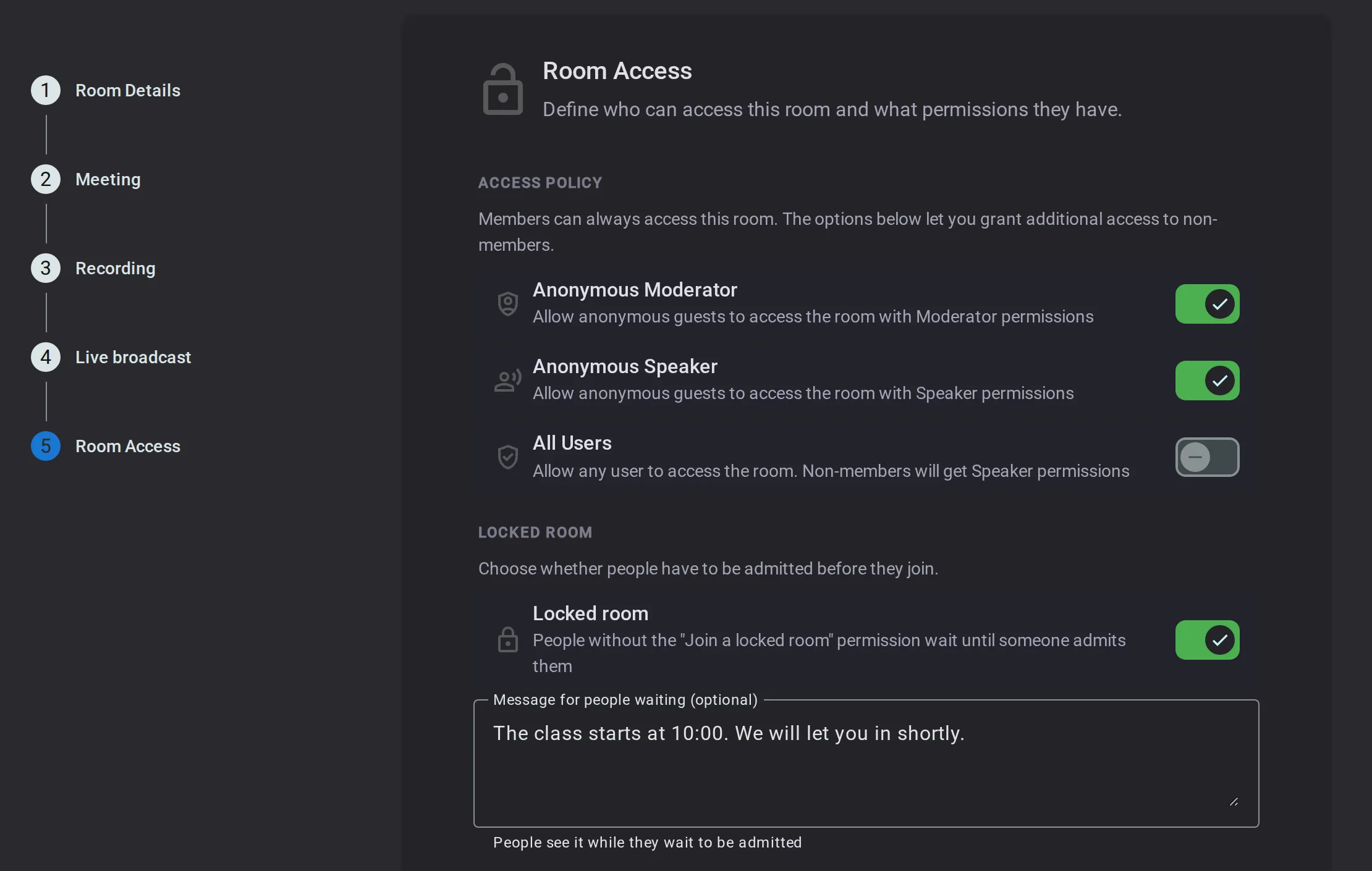
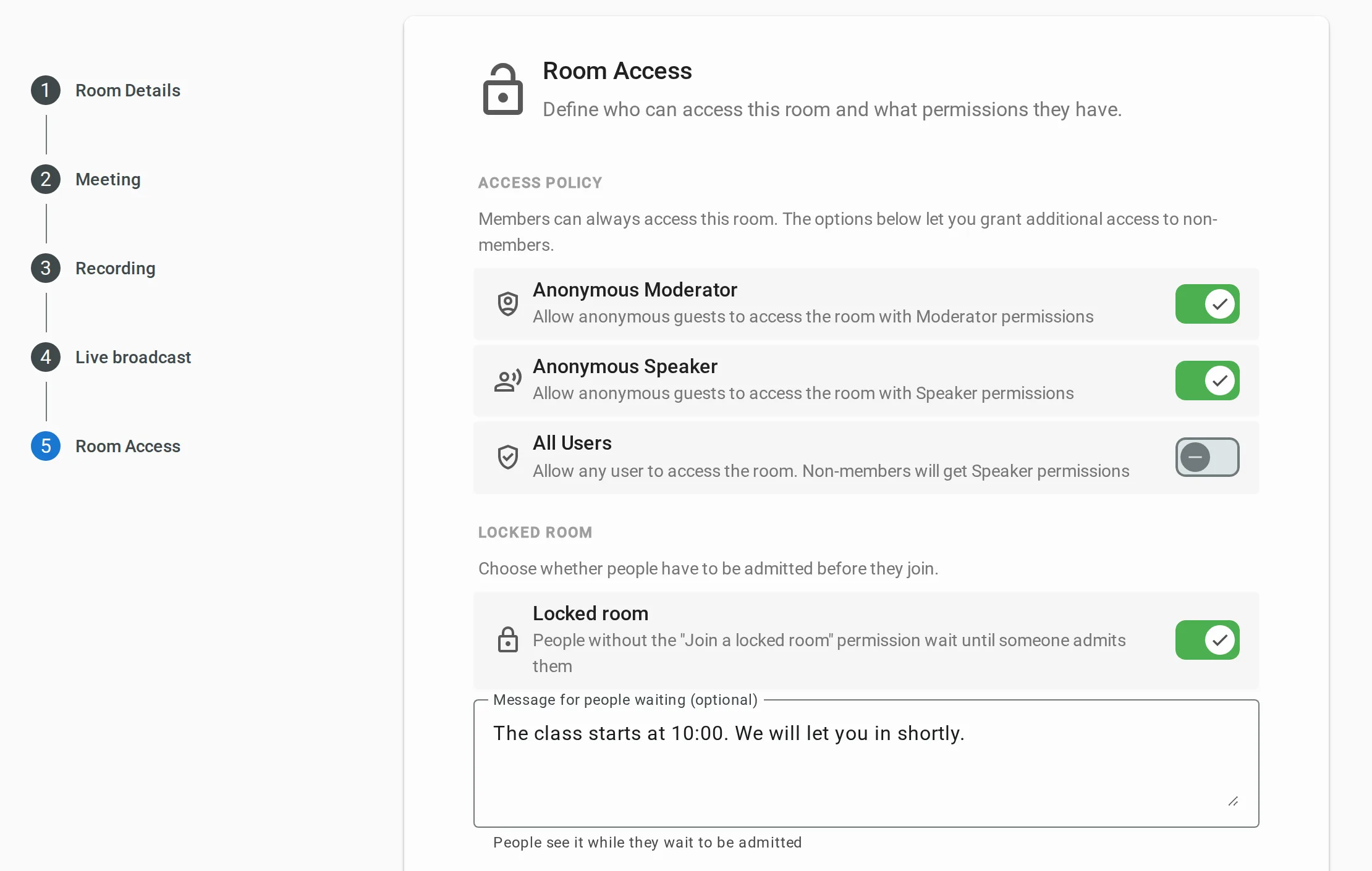
With the REST API, the lock is the lock property of the room's access settings, sent to roomUpdateAccess or roomCreate . A message of null removes it:
{ "access": { "lock": { "enabled": true, "message": "The class starts at 10:00. We will let you in shortly." } } }
- The lock changes only while no meeting is running, like every access setting.
- Changing it invalidates the room member tokens issued before: whoever held one opens the room again, and waits if it is now locked.
- Unlocking the room lets everyone waiting in.
Who waits#
Two independent permissions decide it:
| Permission | Name in the interface | What it allows |
|---|---|---|
accessBypassLock |
Join a locked room | Joining directly, without asking. |
waitingParticipantAdmin |
Admit participants | Seeing who waits, and admitting or rejecting them. |
The Moderator role has both by default and the Speaker role neither, so speakers wait. Admins and the room owner never wait. A participant with waitingParticipantAdmin but without accessBypassLock waits like anyone else, and admits the others once inside.
The usual join checks (closed room, disabled link, meetingJoin) run before anyone waits. The participant limit is checked when the participant is let in.
Waiting to be let in#
In the Join view, the button of a participant who has to wait reads Ask to join. Pressing it starts the wait at once, without the Device view.
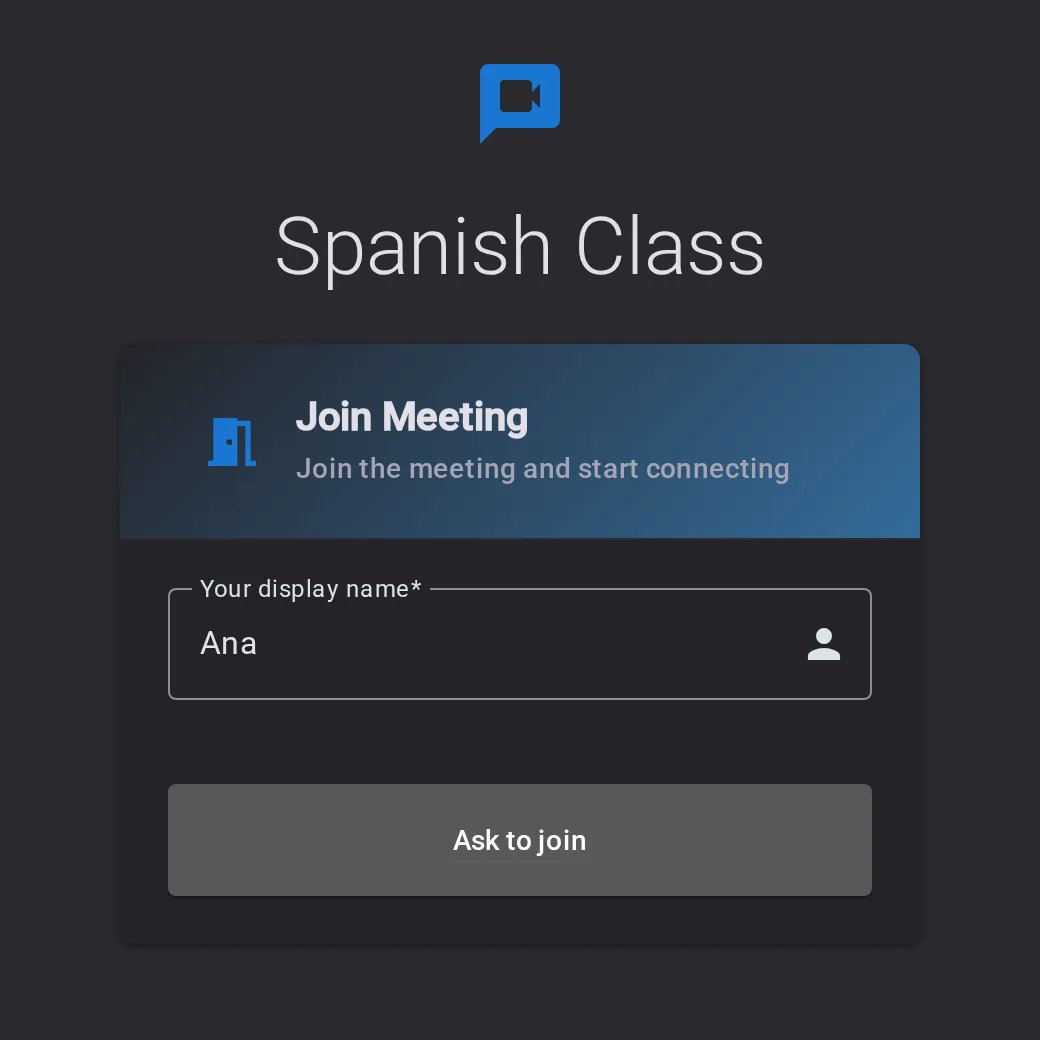
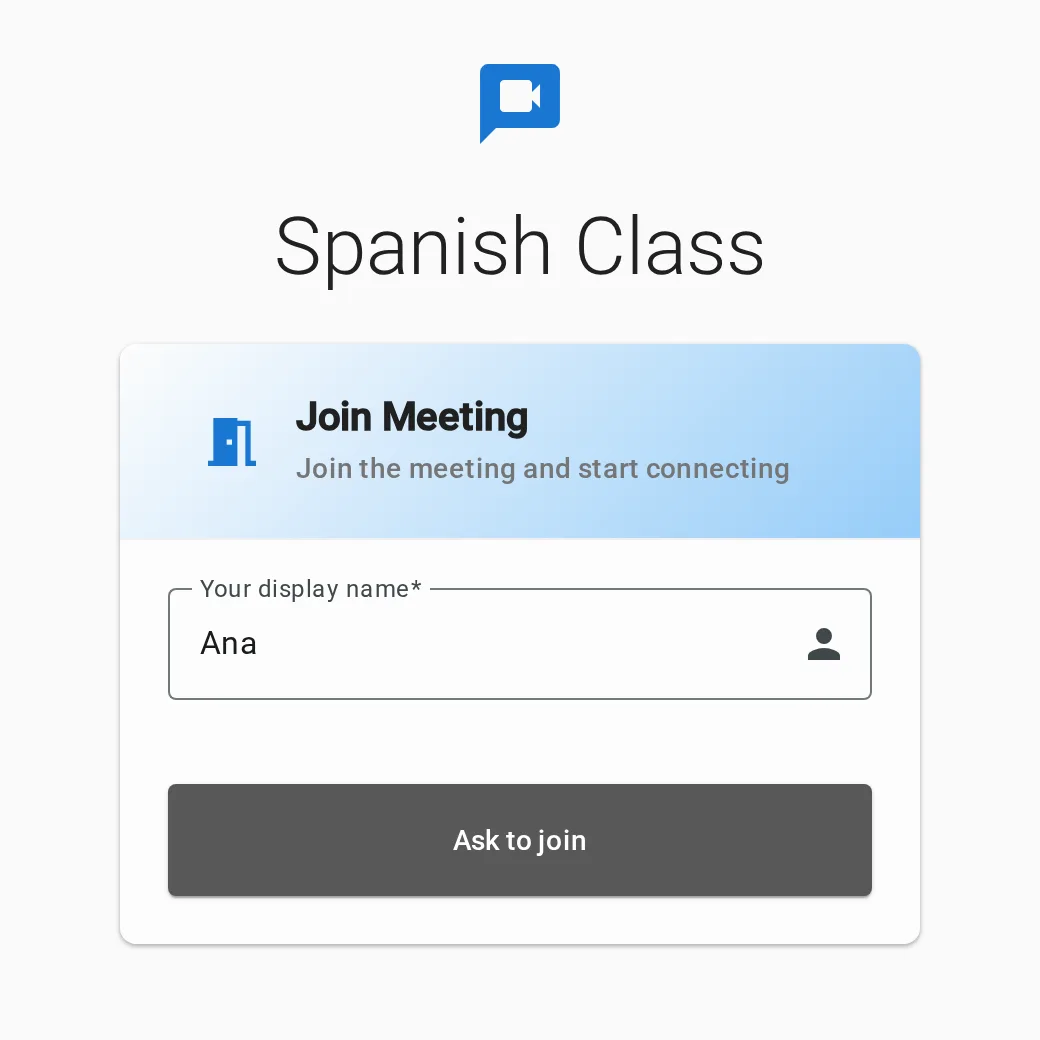
While waiting, the participant sees how long they have waited, the room's message, whether the meeting has started, a Stop waiting button and a camera preview to set up their camera, microphone and virtual background. They see nothing of the others who wait. Once admitted, they join without reloading the page, with the devices they chose.
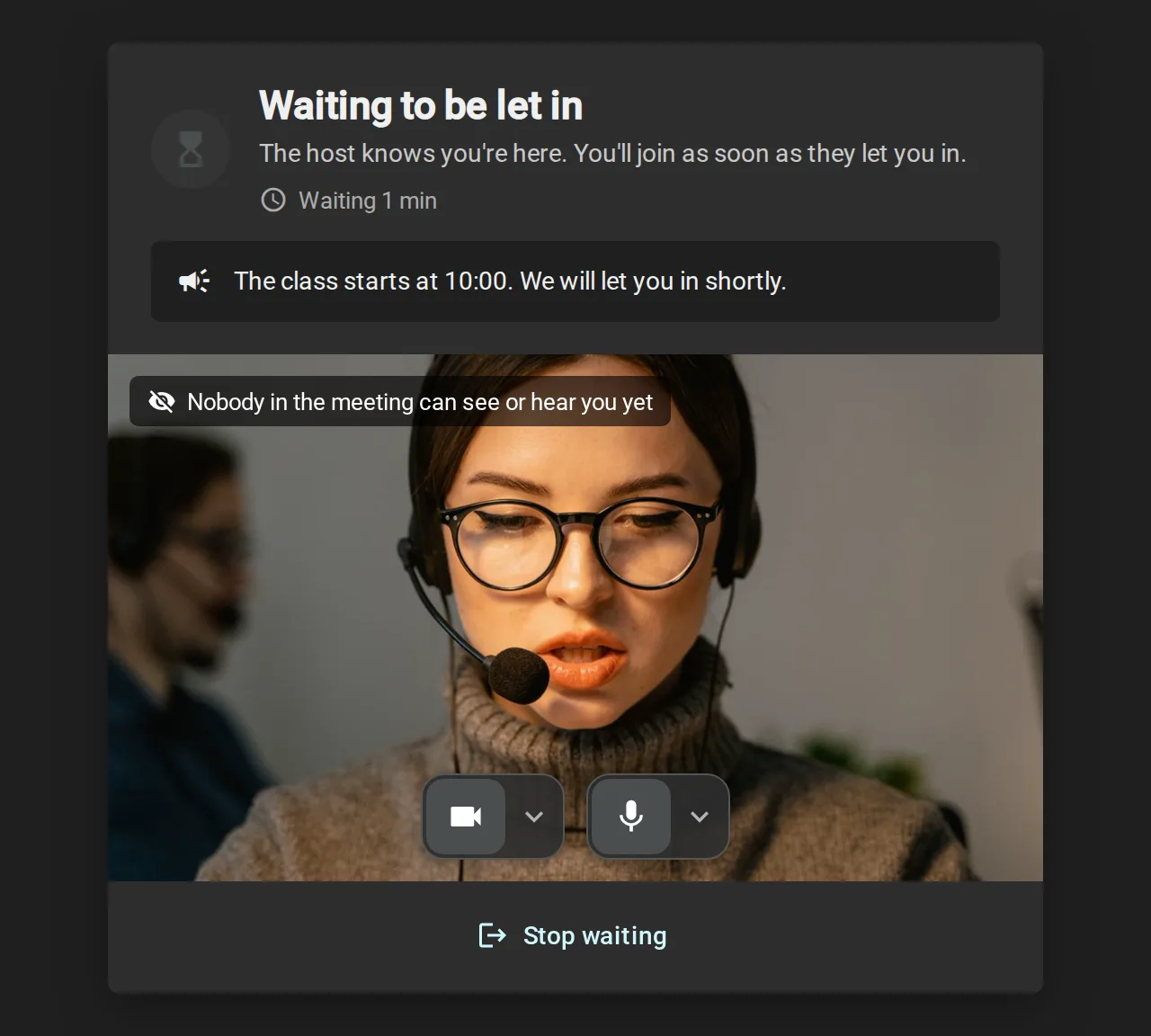
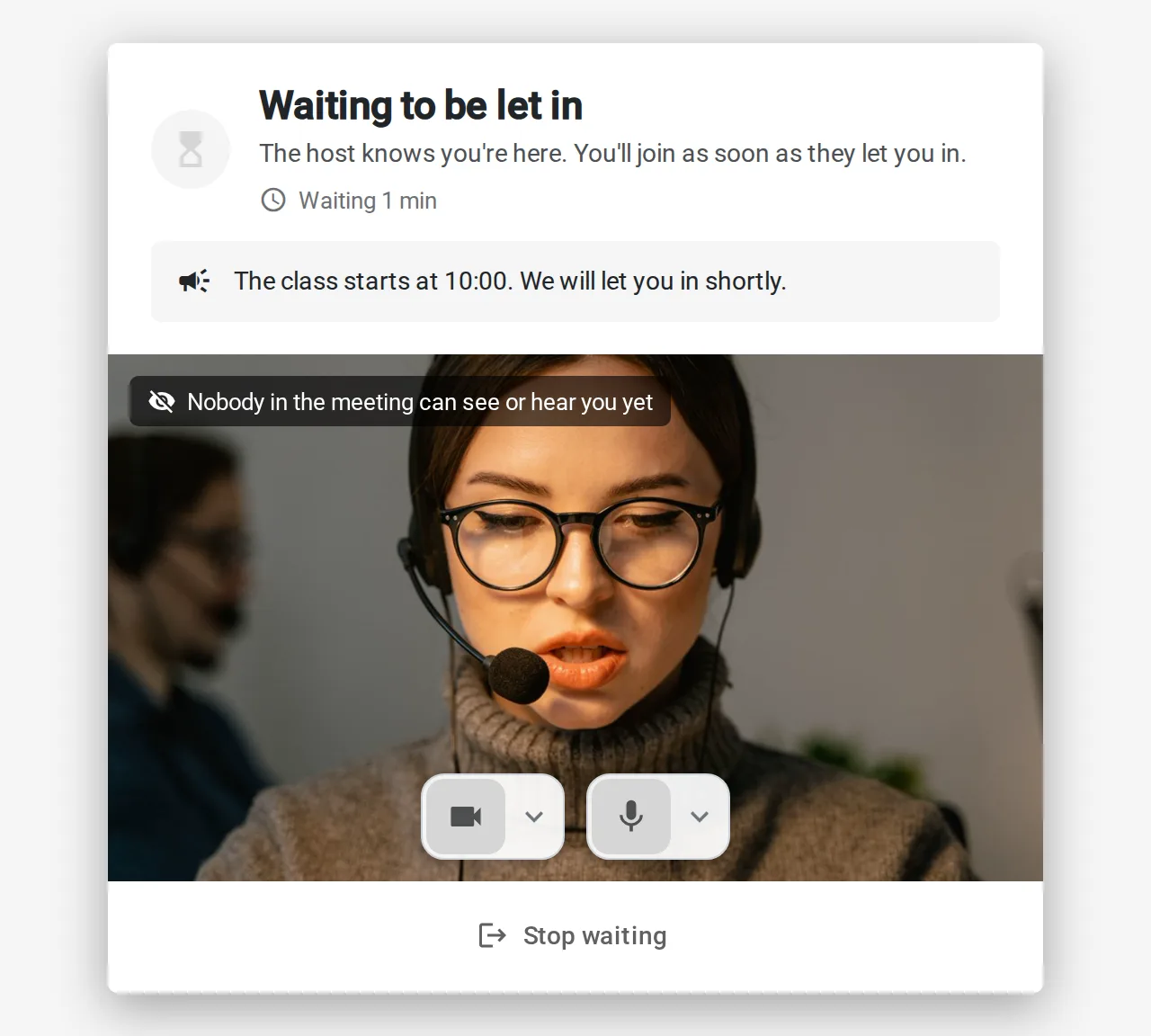
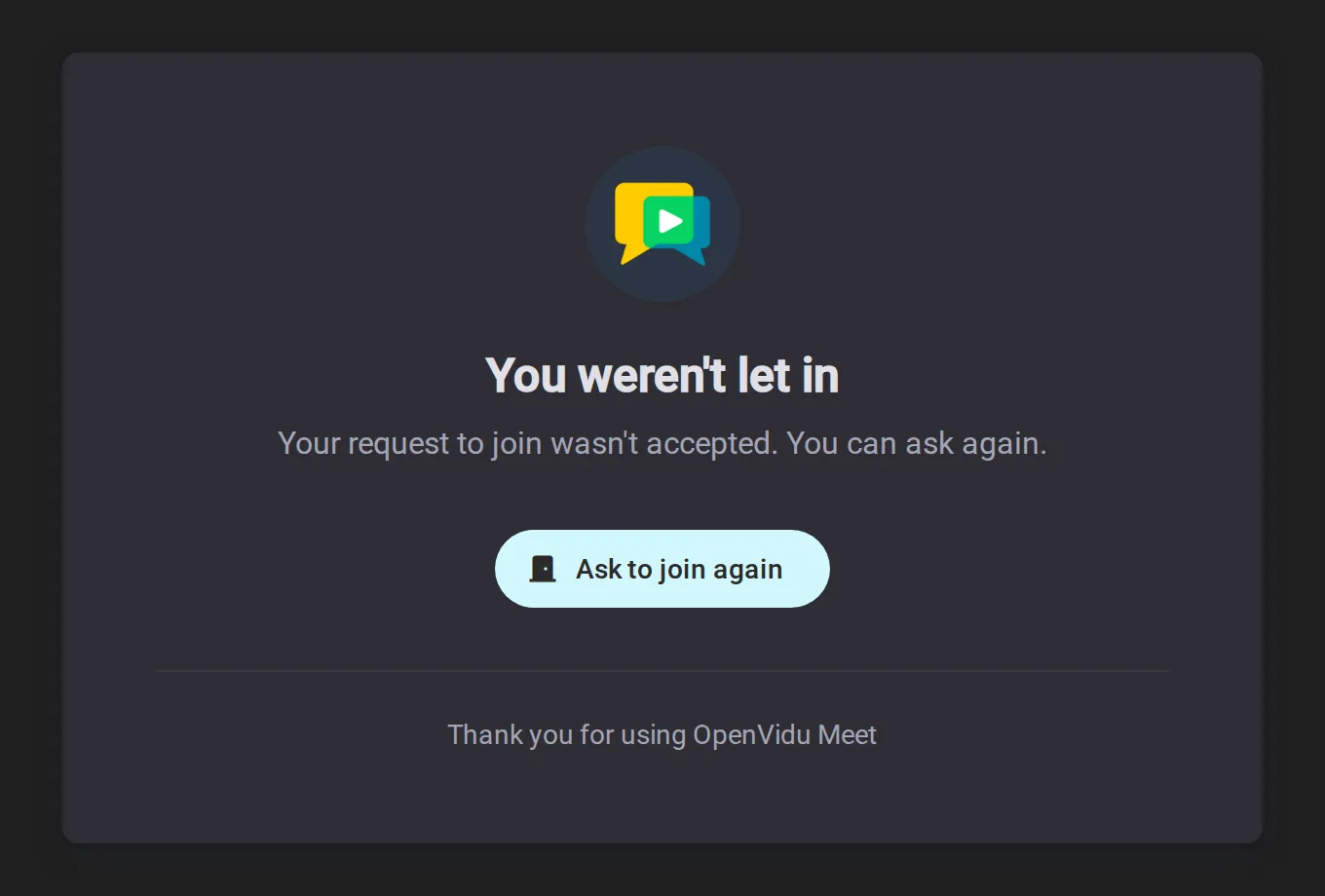
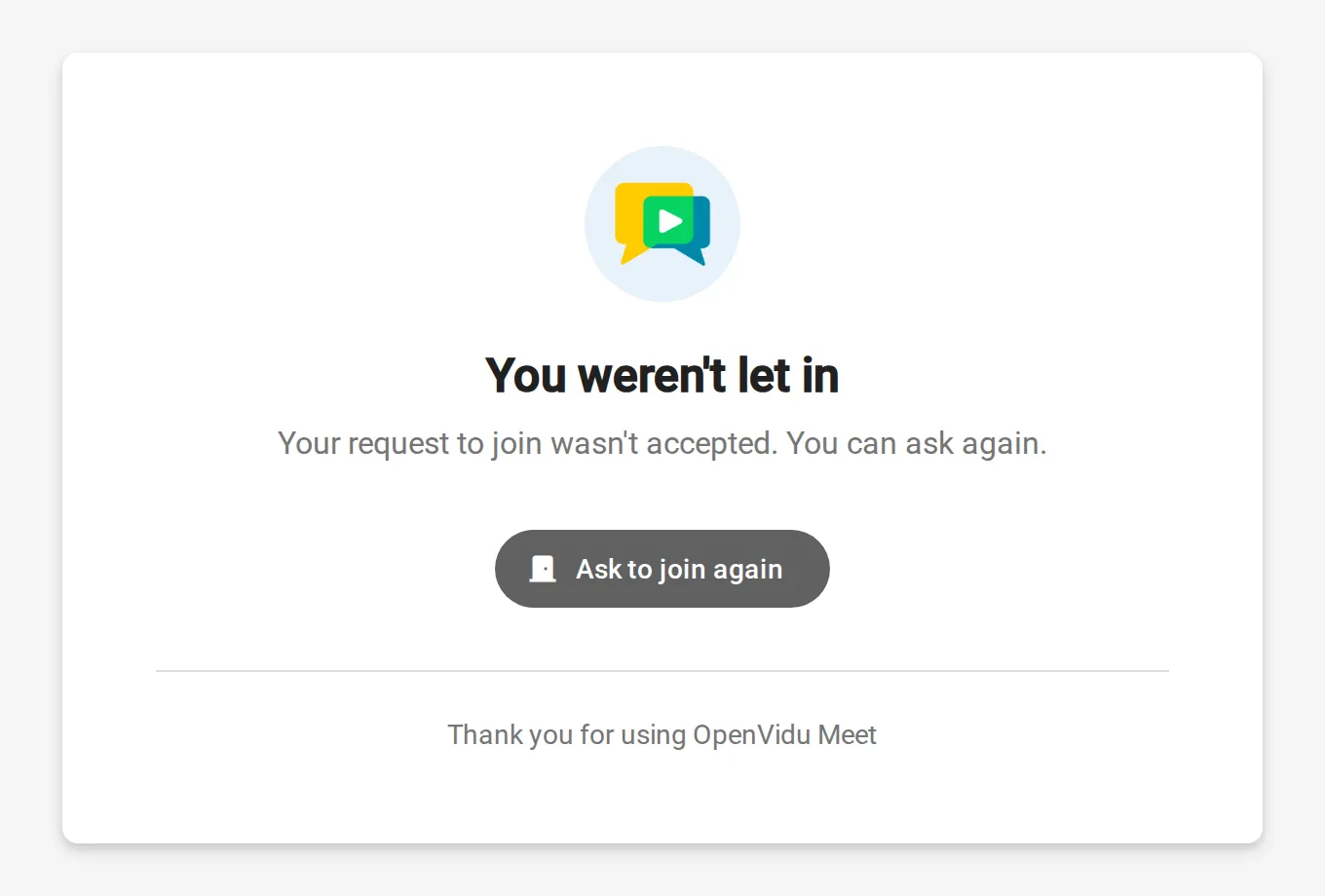
When the wait ends without a place, the view says why: they were rejected, they lost their place, the meeting ended, the room was closed, they stopped waiting, or too many people are waiting (100 at most). Most of these offer Ask to join again, which starts a new wait: nobody is blocked.
Keeping a place#
A wait lasts while the participant's page stays connected:
- A connection lost for less than about a minute keeps the place.
- Closing, reloading or leaving the page ends the wait at once. A reload asks to join again on its own, as a new wait.
- Asking again from another tab or device ends the earlier wait.
A page that never manages to connect shows a connection error instead: see the troubleshooting note.
Admitting and rejecting#
Participants with waitingParticipantAdmin see who waits, live. Nobody else in the meeting does.
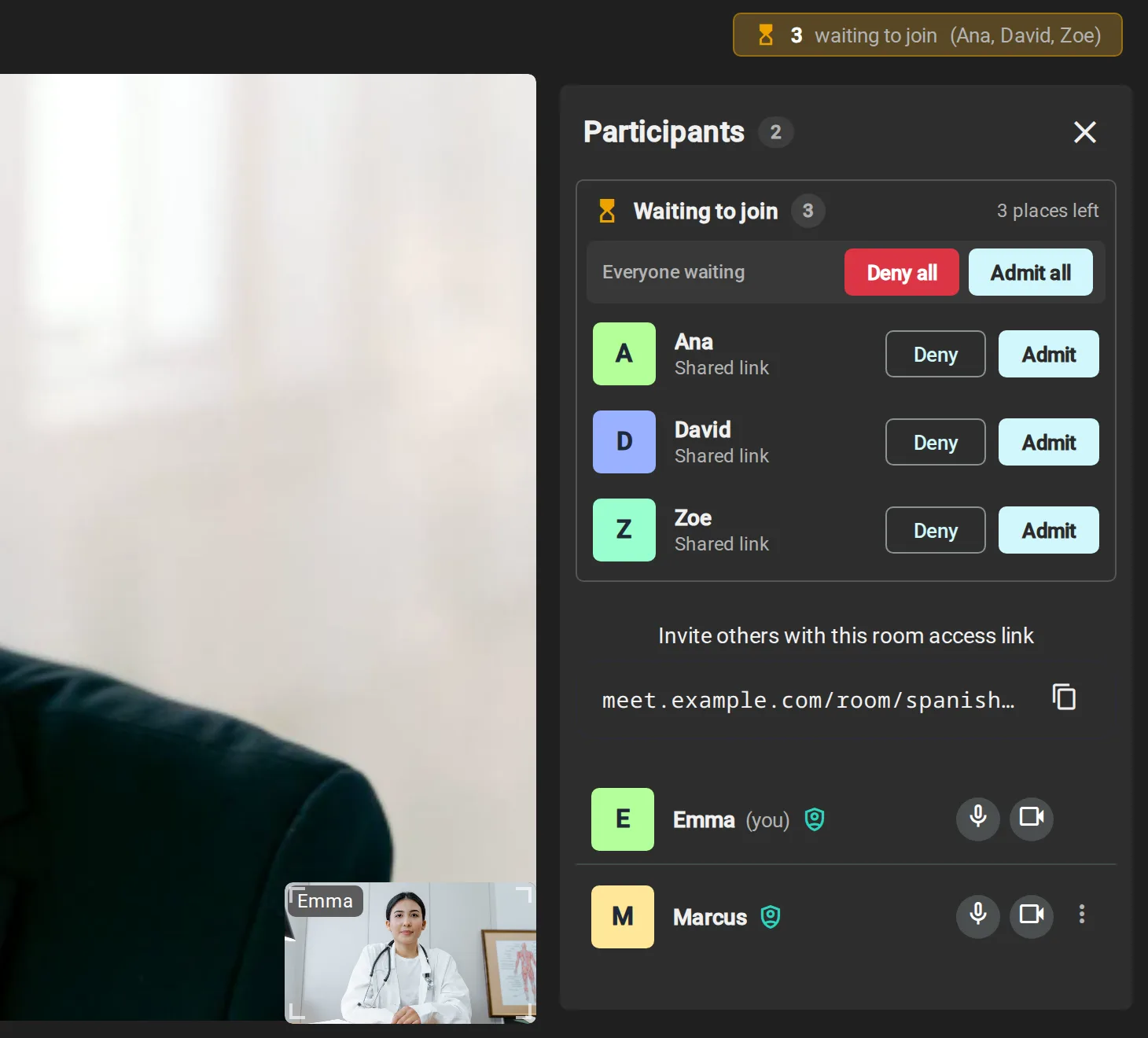
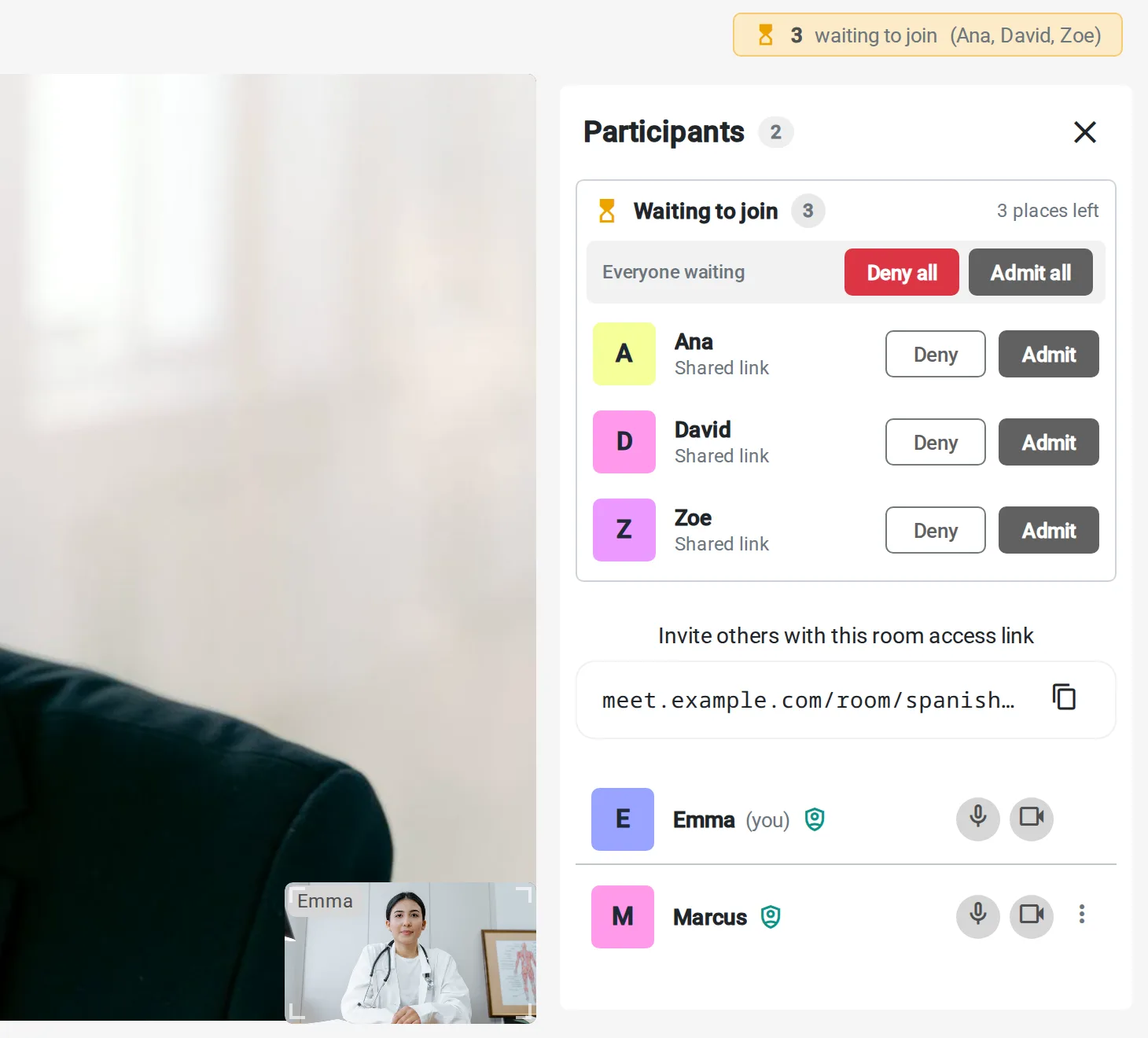
- The Waiting to join section of the Participants panel lists them, each with Deny and Admit, and the free places when the room has a participant limit. A Shared link label marks those who asked with a shared room link, where anyone can type any name.
- From two waiting, Deny all and Admit all act on everyone. Admit all admits all of them or nobody, so it is disabled while more wait than places are free.
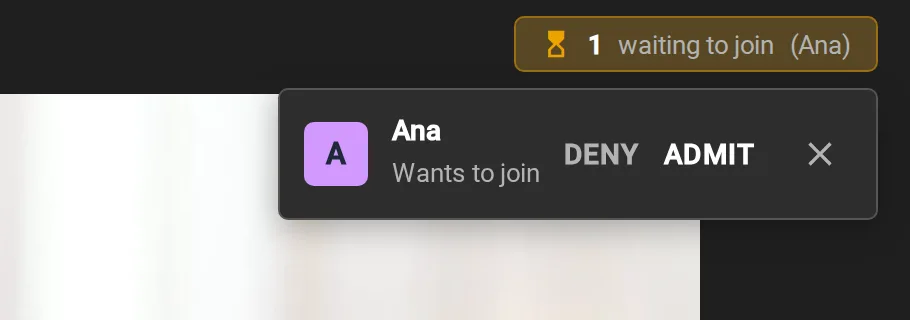
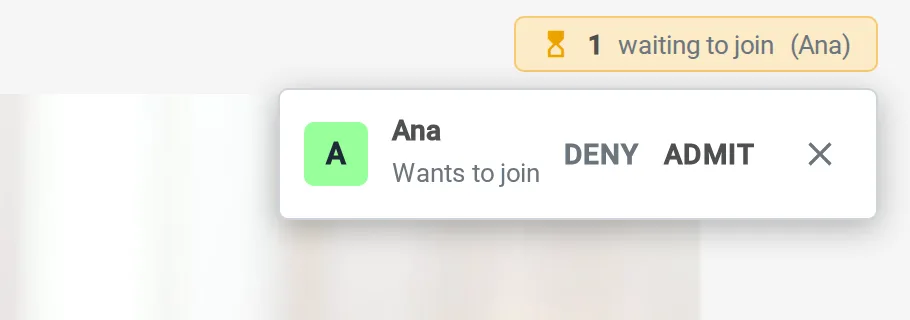
- A chip in the status rail counts who waits, and a notification announces each new request while the panel is closed.
Participants can wait before any meeting runs; the first one admitted starts it when they join. A meeting that empties keeps its waiting participants for the next one. Only ending the meeting for everyone ends their waits.
Capacity#
- The free places are the participant limit minus the participants in the meeting and those admitted who have not joined yet. An admission not used within a minute is lost, and frees its place.
- Two moderators admitting at once never both take the last place.
- An admitted participant who finds the meeting full when joining goes back to waiting.
- Unlocking a room where more wait than fit lets in whoever connects first; the others see "Meeting full".
Acting on a locked room#
In a locked room, a room member token acts on the meeting (reads it, moderates it, controls recordings and broadcasts, admits) only if its holder was let in. A token obtained without joining keeps only the recording permissions and roomShareAccessLinks, so a waiting participant cannot admit anyone, themselves included. A backend acting on its own uses the API key, which keeps full access.
externalId and metadata prove nothing
They are whatever the participant's client sent. To admit automatically, trust the type (user, identified_guest or anonymous) and the participantIdentity of a member or user, which the server derives from their account or personal link.
A leaked link can keep the waiting list full
Anyone with a shared link can open up to 100 waits. The remedy is to end the meeting and disable the leaked access link.
From your application#
When OpenVidu Meet is embedded, the host application uses the commands and events of the Web Component and the iframe:
- For those who admit (holding
waitingParticipantAdmin, in the meeting): thewaitingParticipantAdmit,waitingParticipantAdmitAll,waitingParticipantRejectandwaitingParticipantRejectAllcommands, and thewaitingParticipantKnocked(a new request),waitingParticipantListUpdated(the whole list) andwaitingParticipantStatusChanged(how each wait changed, whoever changed it) events. - For the participant who waits:
waitingParticipantStatusChangedreports their own wait, andmeetingJoinedconfirms the admission.meetingLeavestops the wait.
A host page with a Content Security Policy must allow the WebSocket connection to OpenVidu Meet: see Content Security Policy.
REST API and webhooks#
A backend runs a locked room with the Meetings REST API, under /api/v1/meetings/{roomId}/waiting-participants. These operations require waitingParticipantAdmin and work whether or not a meeting is running.
Reading a live meeting with extraFields=waitingParticipants also returns its waiting participants, only while a meeting is running and only to a caller holding waitingParticipantAdmin: without it the request succeeds and the field is left out.
| Operation | HTTP Method | Reference |
|---|---|---|
| List the waiting participants | GET | Reference |
| Get a waiting participant | GET | Reference |
| Admit a waiting participant | POST | Reference |
| Admit all the waiting participants | POST | Reference |
| Reject a waiting participant | DELETE | Reference |
| Bulk reject waiting participants | DELETE | Reference |
Webhooks#
waitingParticipantKnocked: a participant asked to join.waitingParticipantStatusChanged: a wait changed, one per participant. Itsstatusisadmitted,rejected,left,expired,meeting_ended,room_closed, orwaitingfor an admitted participant who found the meeting full.origintells who caused it, andreasonadds why when needed.
{
  "creationDate": 1620000012000,
  "event": "waitingParticipantStatusChanged",
  "data": {
    "roomId": "room-123",
    "roomName": "room",
    "participant": {
      "participantIdentity": "ana-a1b2c3",
      "participantName": "Ana",
      "type": "anonymous",
      "role": "speaker",
      "knockDate": 1620000000000
    },
    "status": "admitted",
    "origin": "moderator"
  }
}
admitted is not the join: the participantJoined webhook confirms it. The time waited is creationDate minus knockDate.