Raise Hand#
Participants raise their hand to ask for a turn without interrupting whoever is speaking. Raised hands form a queue, ordered by the moment each hand went up, and every participant sees the same queue.
Raising your hand#
Click the Raise hand button in the toolbar, or press the R key anywhere outside a text field. Click it or press R again to lower your hand. In a meeting embedded with the Web Component, the key works once you have clicked inside the meeting, not while you are using the rest of the page. On phones, the button is in the More options menu.
Your camera tile is highlighted and shows your place in the queue. When a hand ahead of yours goes down, your place moves up.
Following the queue#
Every participant sees who is waiting and in which order:
- The camera tile of each raised hand is highlighted and shows its place in the queue.
- The status rail at the top of the meeting counts the raised hands, including those of participants that Smart Layout keeps off the grid. Clicking it opens the Participants panel.
- The Participants panel lists the raised hands first, in queue order, with a hand on their avatar.
Participants who can lower hands also hear a sound and get a notice when a hand goes up. The hands raised while that notice is on screen are gathered into it, as in "David and 2 more raised their hand", so many hands going up at once never pile up notices.
Lowering other participants' hands#
A participant with the participantLowerHand permission lowers the hands of the others, from the Participants panel:
- Lower hand in the menu of a participant whose hand is raised. The notice of a single hand offers the same action.
- Lower all hands in the Raised hands section at the top of the panel.
The participant is told that a moderator lowered their hand.
participantLowerHand is granted by default to the Moderator predefined role of every room, including the rooms created before this feature existed, and to the room members with that role. It can be revoked or granted to other participants in the room's role permissions or in the member's custom permissions.
Enable or disable raise hand for a room#
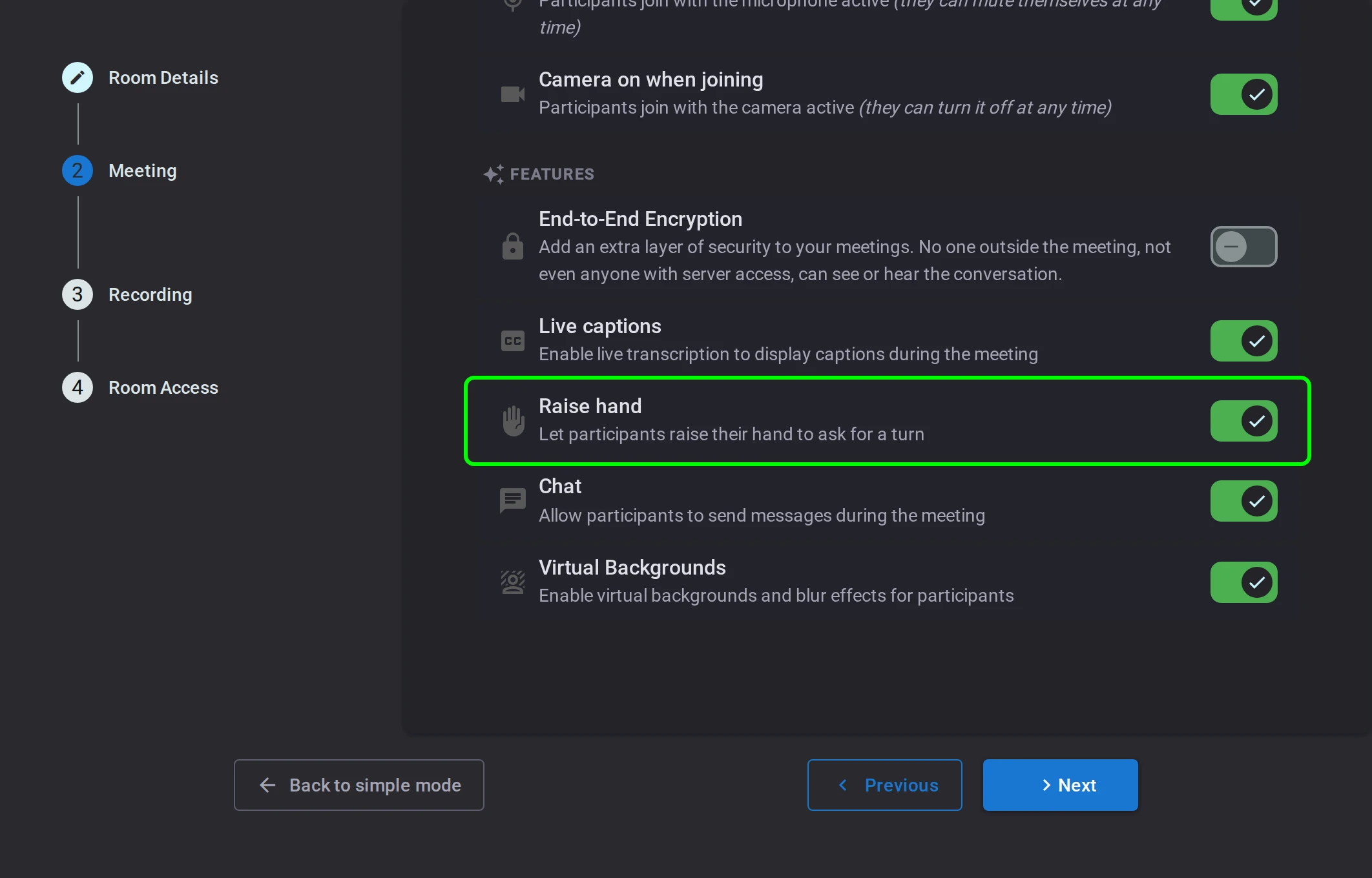
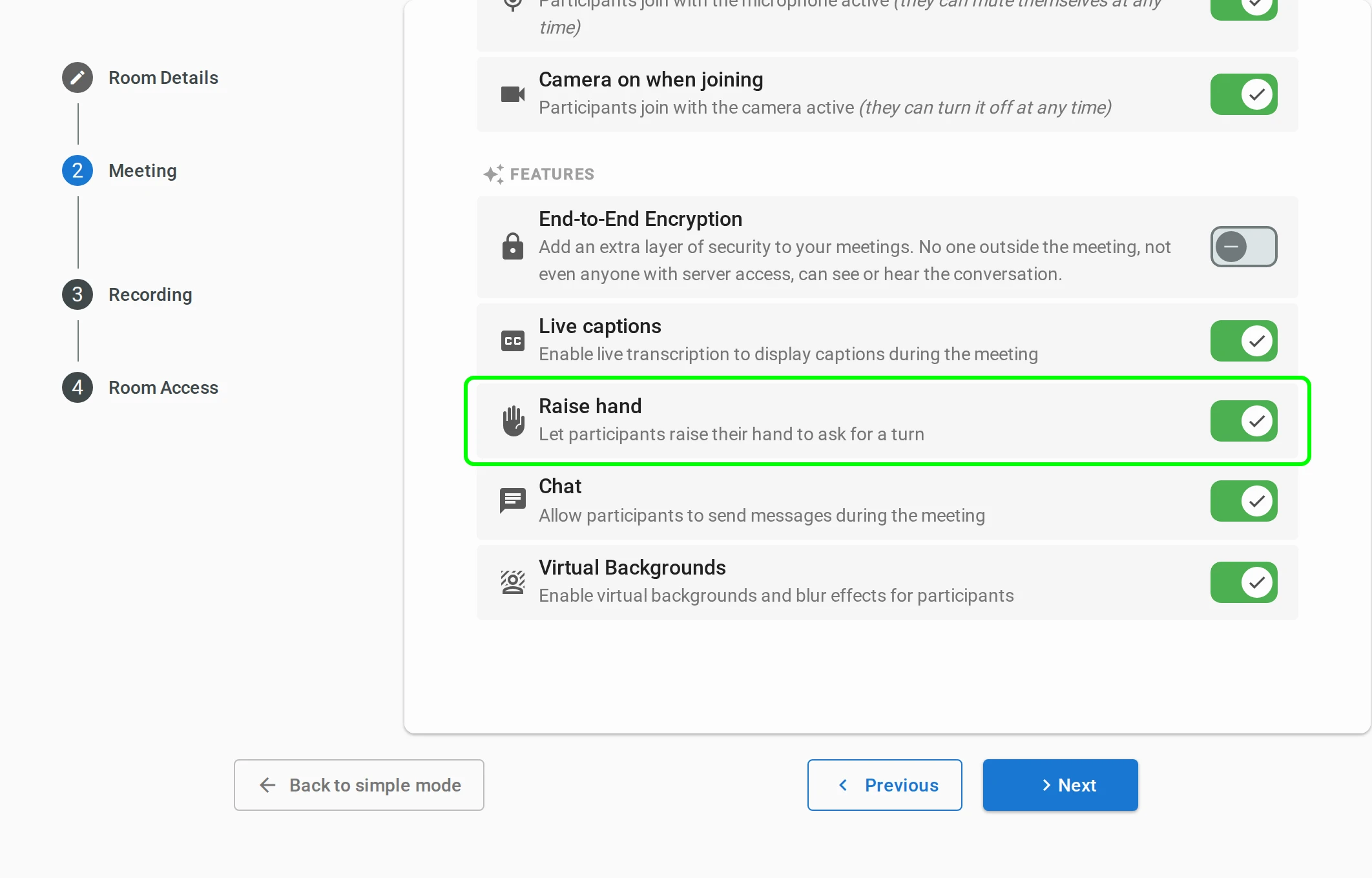
Raise hand is enabled by default when a room is created, whether through the UI or the REST API . It can be turned off per room from the Features section of the Meeting step of the room configuration wizard, using the Raise hand toggle, or with the room config raiseHand.enabled. In a room with raise hand turned off, the button is not shown and every attempt to raise a hand is rejected.
From your application#
When OpenVidu Meet is embedded, the host application raises and lowers hands with the participantRaiseHand, participantLowerHand and participantLowerAllHands commands of the Web Component and the iframe. They act on behalf of the local participant: lowering another participant's hand, or every hand, requires the participantLowerHand permission. The participantHandChanged event tells the host every time a hand goes up or down, with when it went up, which orders the queue, and who lowered it.
REST API reference#
Hands can also be raised and lowered from your backend with the Meetings REST API. A request authenticated with a room member token acts as that participant: anyone can raise or lower their own hand, while lowering someone else's requires participantLowerHand. A request authenticated with the API key can lower any hand, but raise none, since only its owner raises a hand. The participants of a meeting report whether their hand is raised and since when, and the participantHandChanged webhook reports every change.
| Operation | HTTP Method | Reference |
|---|---|---|
| Raise or lower hand | PUT | Reference |
| Lower all hands | PUT | Reference |
| List participants | GET | Reference |