Smart Layout#
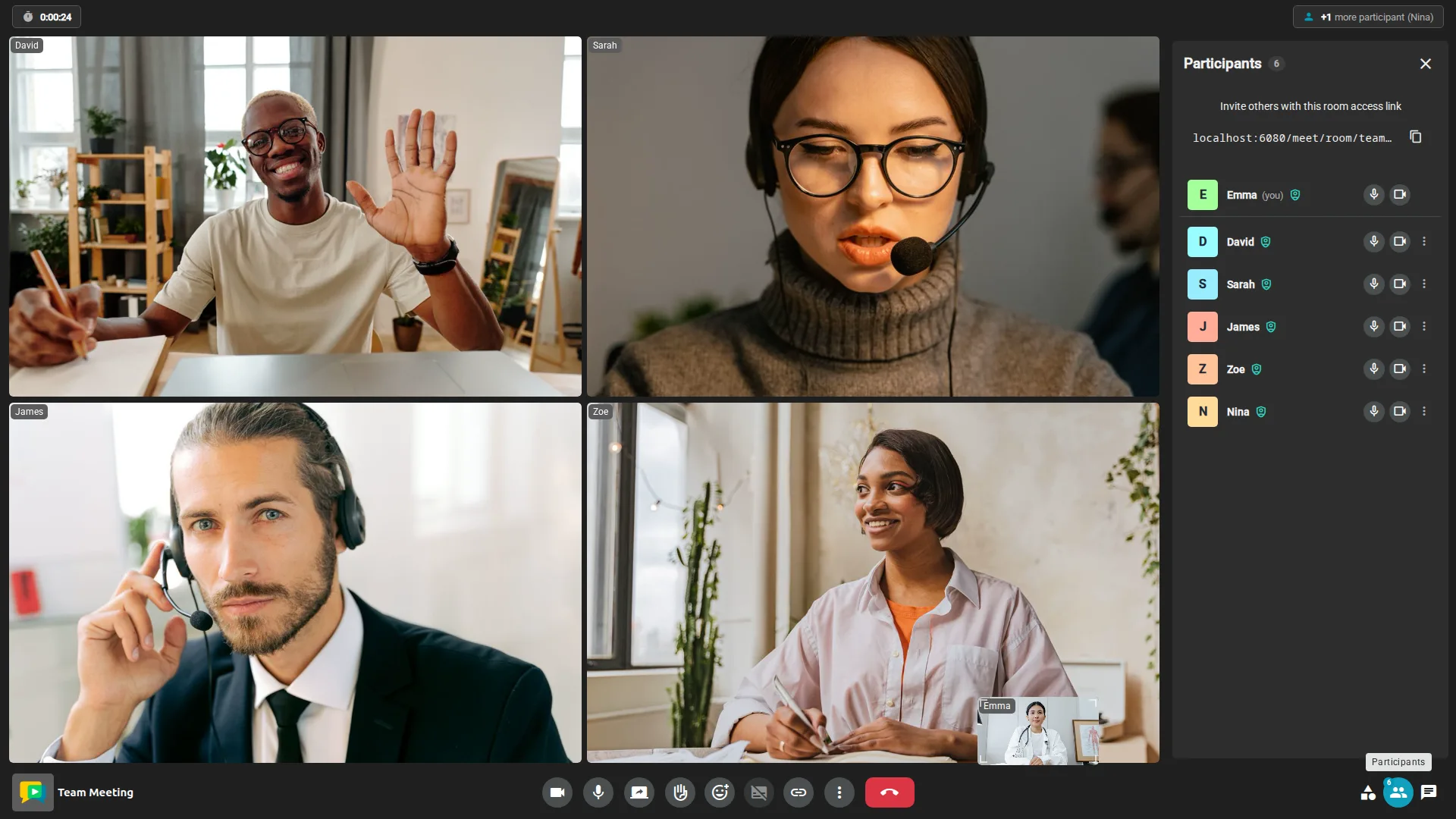
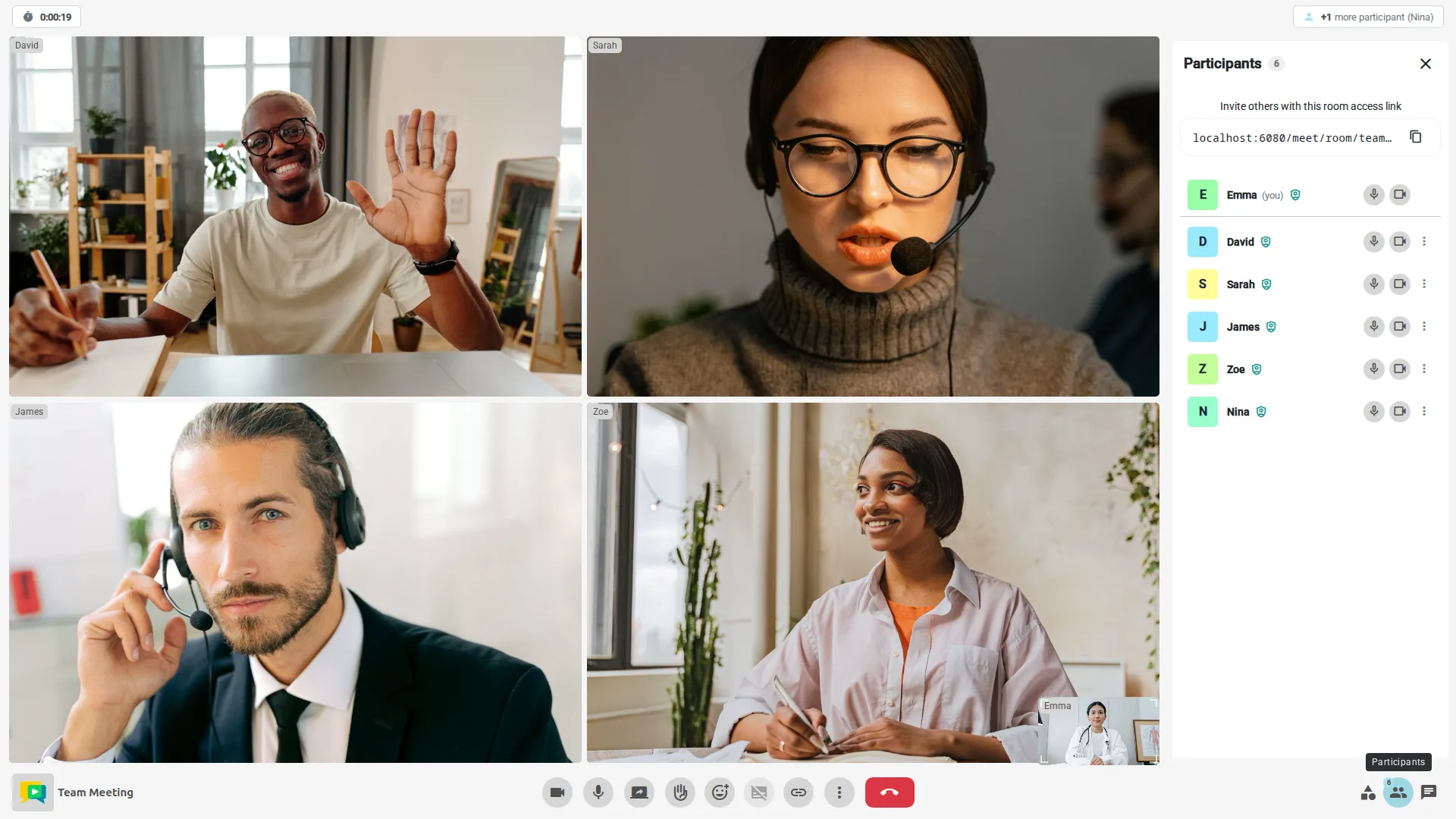
The meeting view uses a responsive grid that automatically adapts to the number of participants, maximizing available space so each video tile remains as large and clear as possible. No manual configuration is required: the layout continuously adjusts as participants join or leave the meeting.
Choosing a layout#
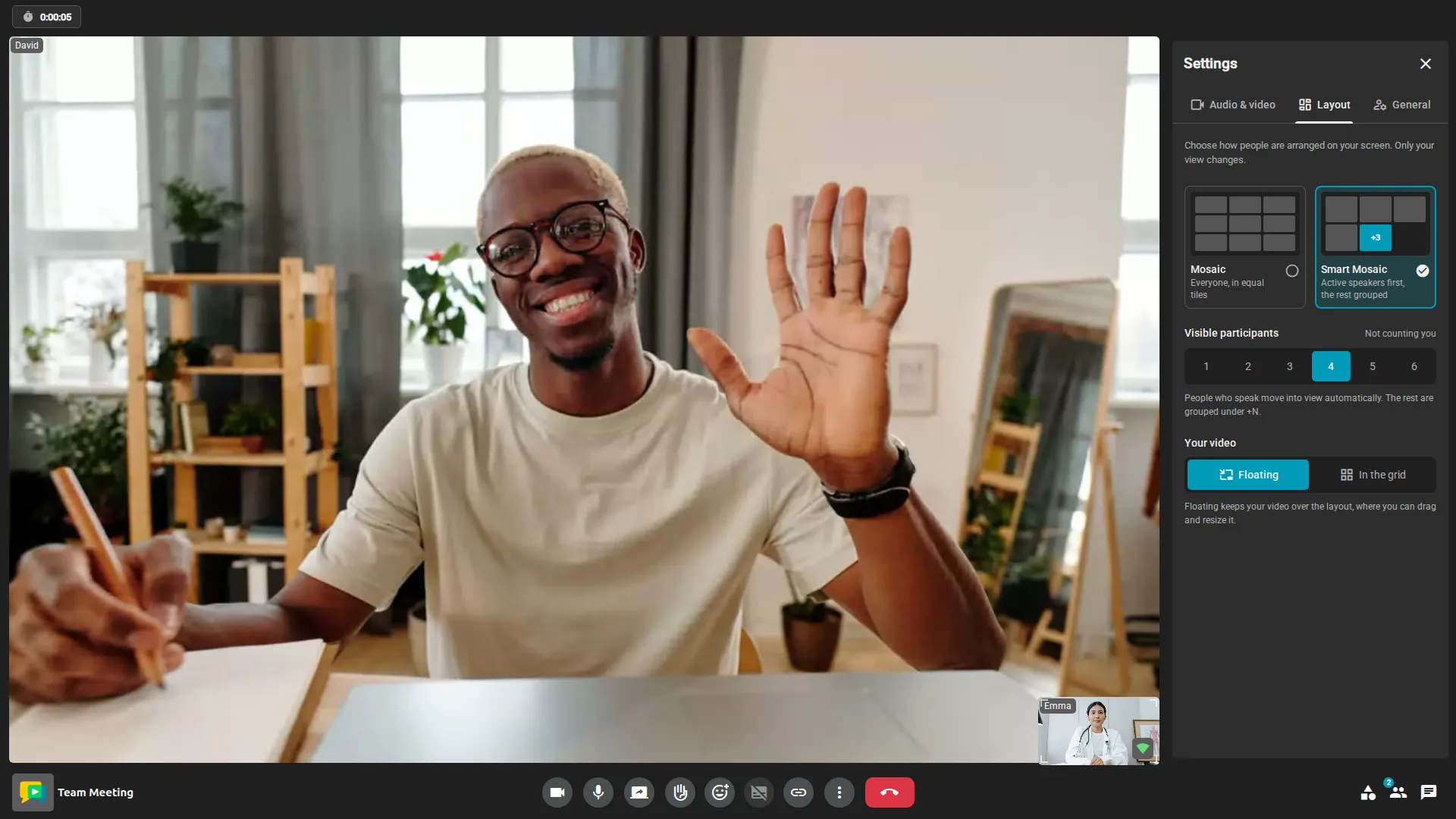
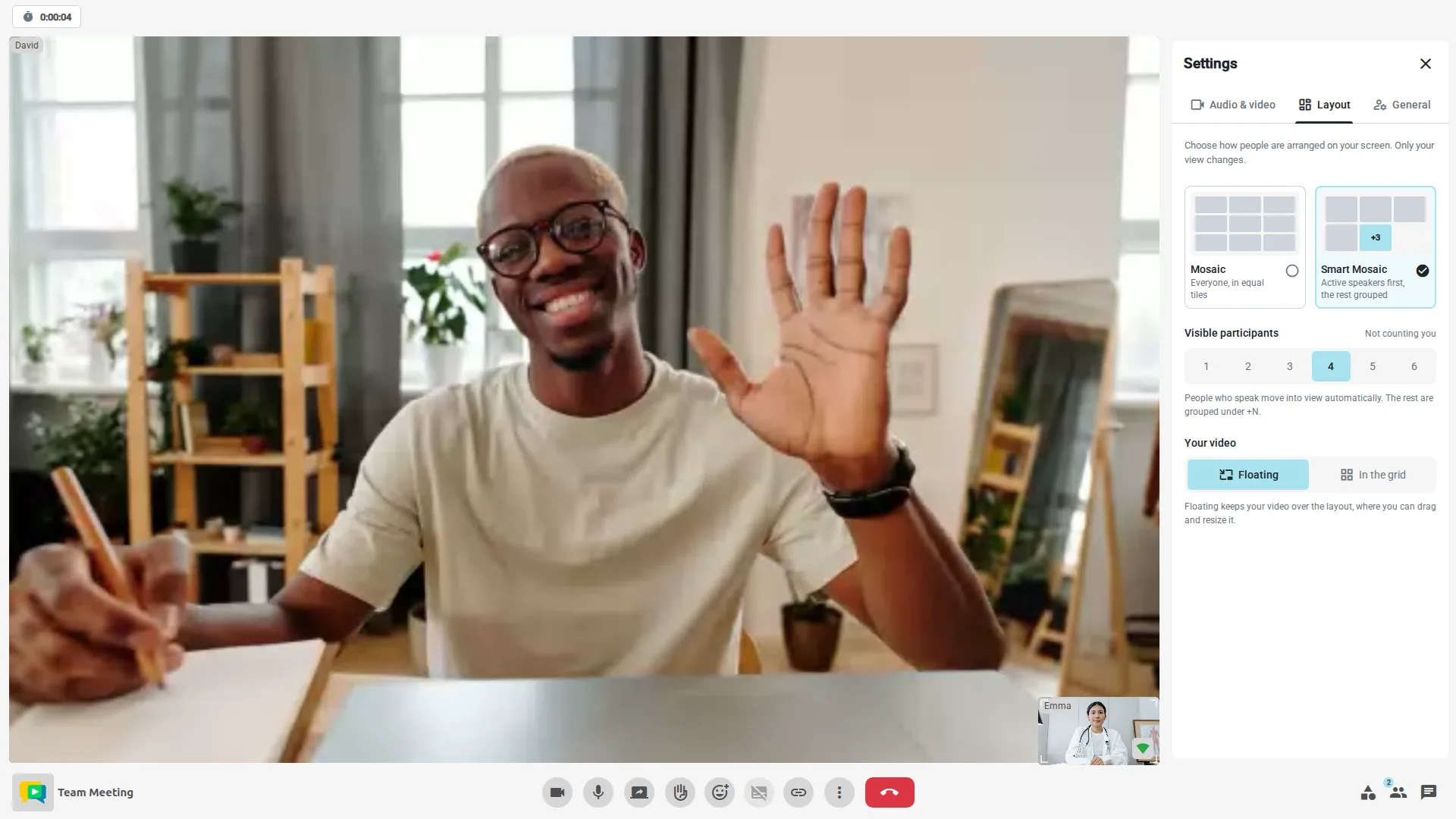
Each participant can change how the grid is built from the Layout tab of the meeting settings panel, which More options → Adjust Layout opens directly. Only your own view changes: the other participants keep the layout they chose.
- Mosaic: shows all participants in a single grid, in equal tiles.
- Smart Mosaic (default): displays a limited number of participants (up to 4 remote participants by default, 2 on phones and tablets) and prioritizes active speakers, keeping the current conversation in focus.
Smart Mosaic also includes speaker prioritization: participants who have spoken recently remain visible, ensuring continuity in the conversation flow.
Participants who are not currently displayed are represented by a visible badge showing the number of hidden participants, providing a clear visual reference of how many people are still in the meeting.
The Visible participants selector sets how many remote participants appear in the grid (from 1 to 6), so you can tailor the layout to the size and dynamics of each meeting. Your own video is not counted. The selector is only available with Smart Mosaic and stays disabled with Mosaic.
Your own video#
When there are other participants in the meeting, your own video floats over the layout by default, as a small tile that you can drag and resize. Under Your video in the same tab you can choose In the grid to dock it as one more tile of the grid, and Floating to float it again. The same switch is available from the float button that appears when you hover over your video tile, and the choice is remembered in your browser for the next meetings.
While your video is pinned, the option is disabled. Unpin it first to float or dock it.