Meeting moderation#
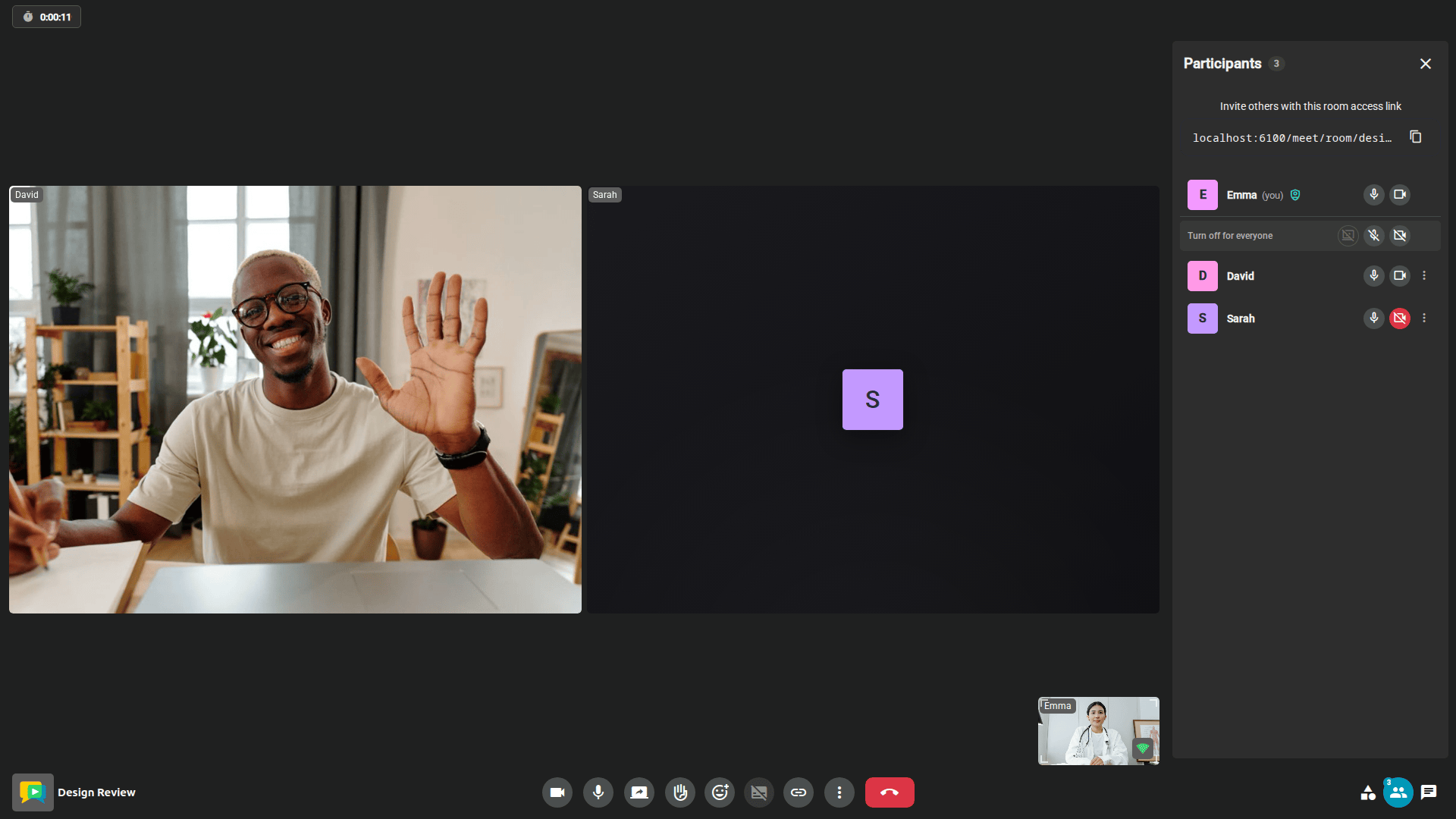
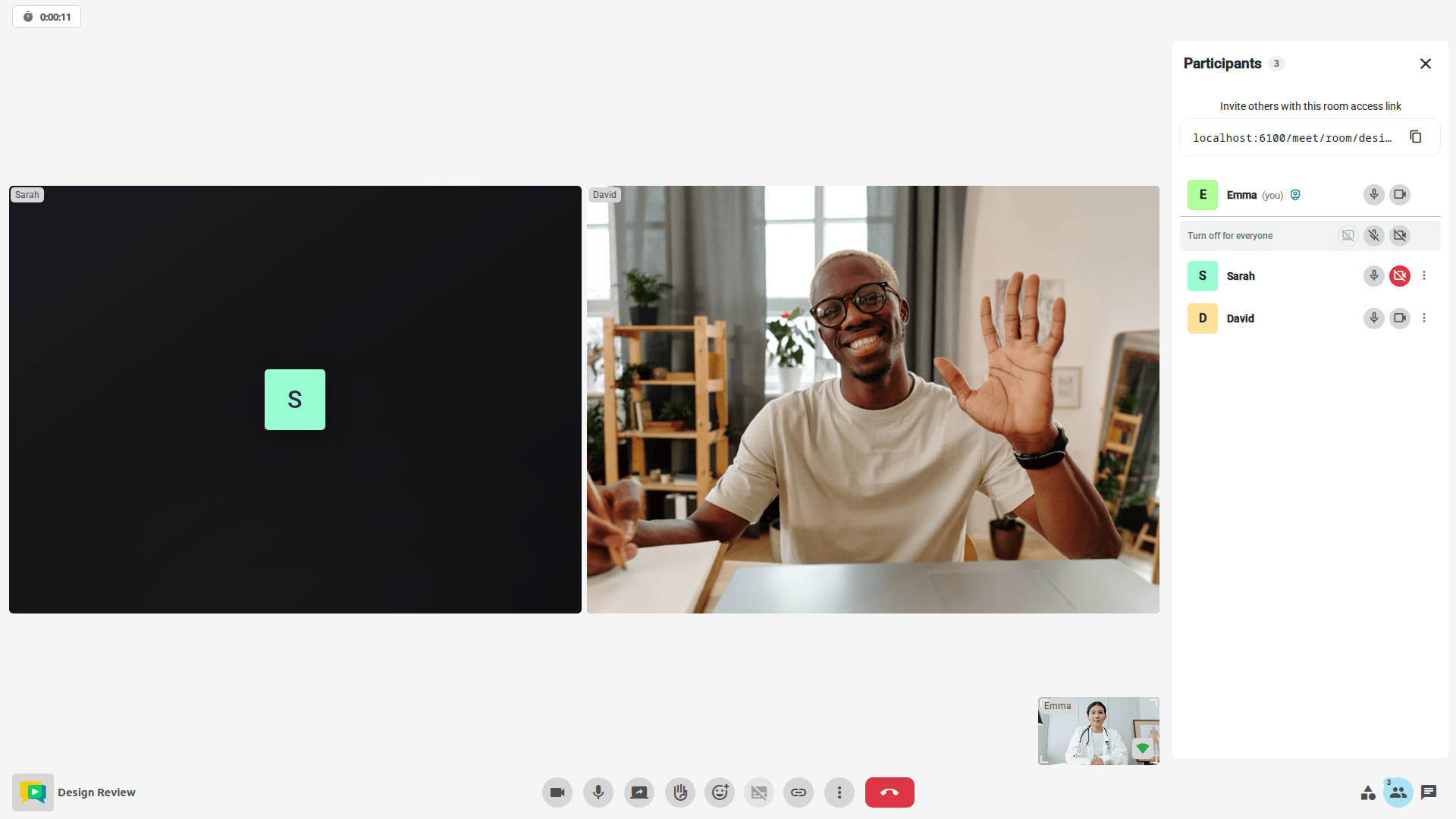
The Participants panel of the Meeting view lists everyone in the meeting, with the current state of their microphone, camera and screen share. Participants with the right permissions act on the others from there:
- Mute another participant's microphone, turn off their camera or stop their screen share, one device at a time (
participantMutepermission). - Turn off for everyone: mute every microphone, turn off every camera or stop every screen share at once (
participantMutepermission). - Lower a participant's raised hand, or every raised hand at once (
participantLowerHandpermission). See Raise Hand. - Remove a participant from the meeting (
participantKickpermission). - Promote a participant to moderator, or demote them back (
participantPromotepermission). See Role Management.
Muting participants#
Muting only ever turns a device off: a moderator can never turn on somebody else's microphone or camera. The affected participant is told that a moderator turned off one of their devices, and may turn it back on at any time. Moderators cannot be muted, and turning off a device for everyone leaves the moderators alone.
participantMute is granted by default to the Moderator predefined role of every room created. Rooms and room members that existed before start without it, so it has to be granted explicitly in the room's role permissions or in the member's custom permissions.
Removing participants#
A participant with the participantKick permission can remove other participants from the meeting. The Participants panel offers Remove from meeting for every participant who is not a moderator in their own right, and for every participant promoted to moderator during the meeting, but never for original moderators, the room owner or administrators. The REST API and the participantKick command can remove any participant. The removed participant is taken to the End view, which tells them they were removed, and both the participantLeft webhook and the participantLeft embedded event report participant_kicked as the reason. Removing a participant does not block them: the tokens they held stop working, so they come back only by opening their link again, which gives them a new one.
Removing a participant does not take away their access to the room: with the same link, room member record or user account they can join the meeting again at once. The exception is a locked room, where a removed participant without the accessBypassLock permission asks to join again and waits to be admitted. To keep someone out, revoke that access: delete their room member record, or disable the access link they entered with. Access links can only be changed while no meeting is running, so a participant who entered through an anonymous link can join again until the meeting ends.
From your application#
When OpenVidu Meet is embedded, the same actions are available to the host application as the participantMute, participantMuteAll, participantKick and meetingEnd commands of the Web Component and the iframe. They act on behalf of the local participant, so they require that participant to hold the corresponding permission.
REST API reference#
Live meetings can be read and moderated from your backend with the Meetings REST API. Reading a meeting or its participants requires the meetingRead permission, and each moderation action the permission named above; a request authenticated with the API key is not subject to them. Reading a meeting can also return its participants in the same request, with extraFields=participants. In a locked room, a request authenticated with a room member token also needs its holder to have been let into the meeting, besides meetingRead and the permission of the action.
| Operation | HTTP Method | Reference |
|---|---|---|
| Get a live meeting | GET | Reference |
| End a meeting | DELETE | Reference |
| List participants | GET | Reference |
| Get a participant | GET | Reference |
| Kick a participant | DELETE | Reference |
| Mute a participant | PUT | Reference |
| Mute all participants | PUT | Reference |
| Update a participant's role | PUT | Reference |