Room Access#
Only room members can access a room — to view its recordings or to join a meeting in it, becoming a participant. Room members can be users, identified guests or anonymous guests, all described in detail in the Room Members feature.
Each kind of member reaches the room through a different kind of access link, and gets a set of permissions determined by a role:
- Anonymous guests access the room through a shared anonymous access link tied to a predefined role —
ModeratororSpeaker— and always get that role's permissions. - Users and identified guests are added to the room explicitly with a base role that sets their default permissions, which can then be customized individually for each member.
Anonymous guest access#
Anonymous guests access the room through shared anonymous access links that require no OpenVidu Meet account. There is one link per role:
- The
Moderatorlink, which grants the moderator role. - The
Speakerlink, which grants the speaker role.
These links can be shared freely with anyone, unless anonymous access for that role has been disabled for the room. You can enable or disable anonymous access per role when creating or editing a room. Before joining the meeting, each anonymous guest is asked to choose a name.
Sharing the anonymous links#
From the OpenVidu Meet app#
Users with permission to manage a room or share access links can copy and share the anonymous access link for each role from the "Rooms" or "Room Details" page. A user who shares access links without managing the room is offered only the links whose permissions they hold: a user with the Speaker permissions and roomShareAccessLinks can share the speaker link, never the moderator one.
From an active meeting#
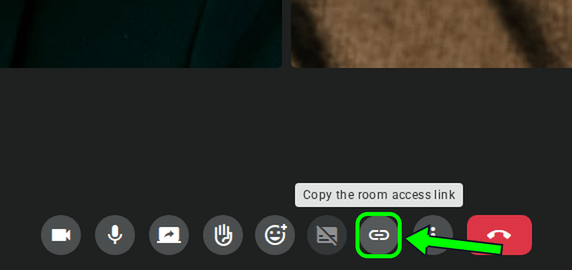
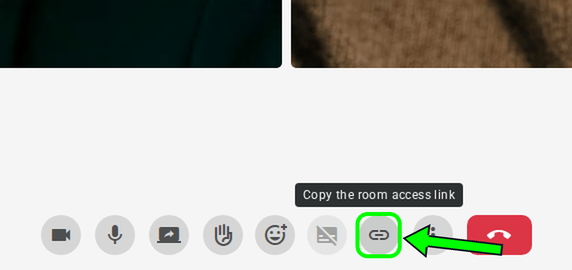
Participants with the roomShareAccessLinks permission can share the room's anonymous speaker link from the active meeting view, provided they also hold every permission of the Speaker role. Otherwise no link is offered, as when the anonymous speaker link is disabled.
Info
Links copied from the meeting view grant anonymous access with Speaker role. Participants with the participantPromote permission can promote others to Moderator during the meeting. See Role Management.
From the REST API#
The anonymous access links are available in the properties access.anonymous.moderator.url and access.anonymous.speaker.url of the MeetRoom object.
User and identified guest access#
Unlike anonymous guests, users and identified guests are explicitly added to the room as members — from the "Room Members" tab or the Room Members REST API. They access the room through different links:
- Users all access the room through the same user access link (property
access.user.urlof MeetRoom ). They must log in with their OpenVidu Meet credentials. - Identified guests each receive a unique personal access link (property
accessUrlof their member object) that grants access with no login and should be delivered privately to that person.
In addition to users added explicitly as room members, other users can also access the room:
- Admins and the room owner (the user who created the room) always have access to the room, with all permissions granted.
- If a room is configured to be accessible to all users, any user can access — even without being an explicit member — with
Speakerpermissions.
See the Room Members feature to add and manage users and identified guests, and the Users feature to manage the accounts themselves.
Locked room#
An access link lets a participant reach the room. Locking the room adds one more step before they enter the meeting: whoever lacks the accessBypassLock permission asks to join and waits until a participant with waitingParticipantAdmin admits or rejects them. Admins and the room owner never wait.
Lock a room from the Room Access step of the room wizard, or with the access.lock property of the REST API. See Locked Room for the whole feature.
Predefined roles#
Every room member has a role that determines their default set of permissions. The role comes from the link used (for anonymous guests) or from the base role assigned to the member (for users and identified guests).
Moderator#
Grants full meeting permissions by default:
- Meeting management: join the meeting, read its live state and end it for all participants.
- Recording control: start and stop recordings, and list, play, download and delete them.
- Live broadcast control: start and stop the live broadcast of the meeting to the room's destinations, and stream it to destinations the room does not have.
- Participant management: promote other participants to moderator, mute their microphone, camera or screen share, lower their raised hands, kick them, and share room access links.
- Locked room:
accessBypassLockto join a locked room without waiting andwaitingParticipantAdminto admit or reject the participants who wait. - Media publishing: publish video, audio, and share screen.
- Communication: send chat messages and reactions, change virtual background.
Speaker#
Grants basic participation permissions by default:
- Meeting access: join the meeting and read its live state.
- Recording access: list, play and download the room's recordings — but not start, stop or delete them.
- Locked room: neither
accessBypassLocknorwaitingParticipantAdmin, so in a locked room a speaker asks to join and waits to be admitted. - Media publishing: publish video, audio, and share screen.
- Communication: send chat messages and reactions, change virtual background.
Info
The default permissions for Moderator and Speaker can be customized per room when creating or editing it, and per member through custom permissions. Every permission is set independently: none is implied by another. A few only take effect together with another one: sending chat messages needs reading the chat, changing the virtual background needs publishing video, and streaming to destinations the room does not have needs live broadcast control. For the complete list of available permissions, see the MeetPermissions schema.