Virtual Background#
Virtual backgrounds help participants present a cleaner, more professional video appearance without needing to change their physical environment.
With a single click, individuals can replace distracting surroundings with a blur effect or a custom background image, making meetings more comfortable, consistent, and privacy-friendly.
This feature works both before joining a meeting and while already inside one, giving participants full flexibility at any moment.
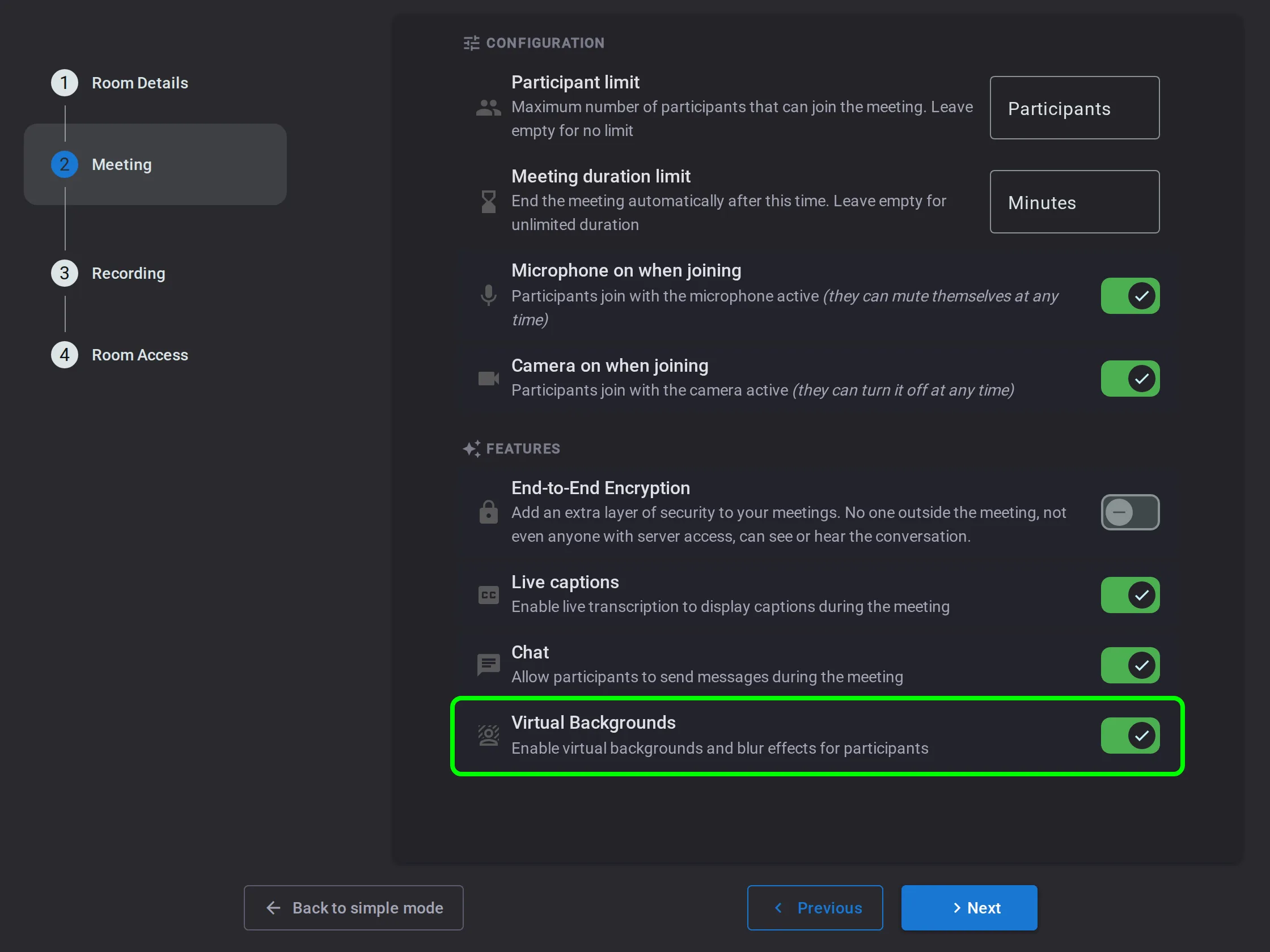
Virtual backgrounds can be enabled or disabled per room from the Features section of the Meeting step of the room configuration wizard, when creating or editing a room, allowing room managers to decide when and where the feature is available. The same step also sets the room's participant and duration limits, and toggles End-to-End Encryption, Live Captions and Chat.
Key Benefits#
- More professional meetings — reduce distractions and improve visual consistency across participants
- Better privacy — keep personal or sensitive environments out of view
- No setup required — works instantly with no external tools or configuration
- Flexible control — enable or disable per room depending on the use case
Available Effects#
Blur#
Quickly hide your surroundings while keeping the focus on you.
- Soft blur — subtle background reduction for a natural look
- Hard blur — stronger isolation for maximum privacy
Image Backgrounds#
Replace your environment with a ready-to-use image selected to match different meeting contexts:
- Professional — clean, formal environments for business meetings
- Home Office — comfortable, remote-work friendly settings
- Creative — expressive backgrounds for more informal or dynamic sessions
Using Virtual Background#
Before joining#
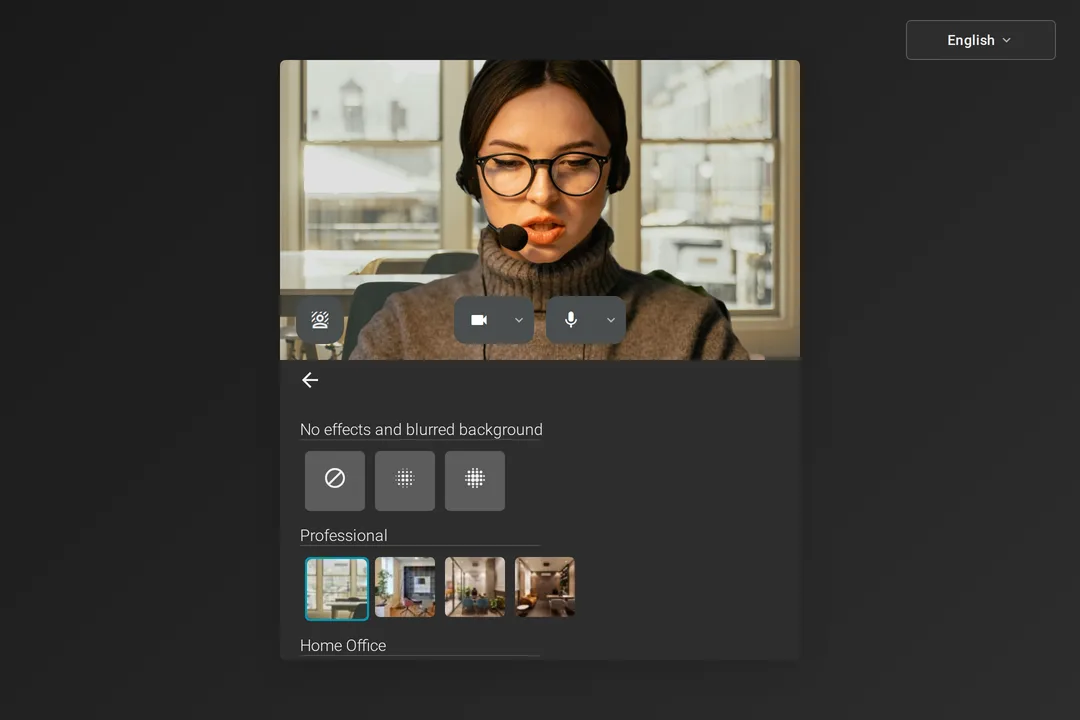
- Open the virtual background panel in the device preview screen
- Select a blur level or background image — changes apply instantly in the preview
- Your last selection is automatically remembered for future meetings
During a meeting#
- Open the More Options menu in the toolbar
- Select Virtual Background
- Choose an effect to apply it instantly
The background options will be disabled when the camera is turned off.