Meeting lifecycle#
Meetings consist of different views, shown to room members in sequence from the moment they open a room access link until the meeting ends.
Join view#
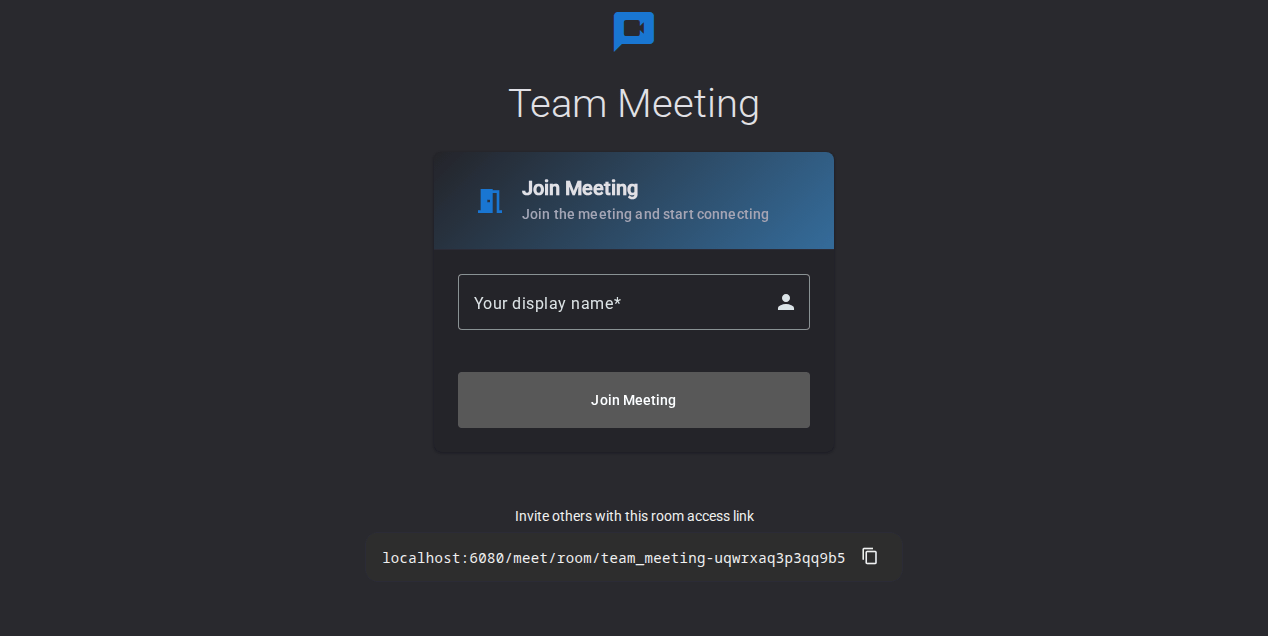
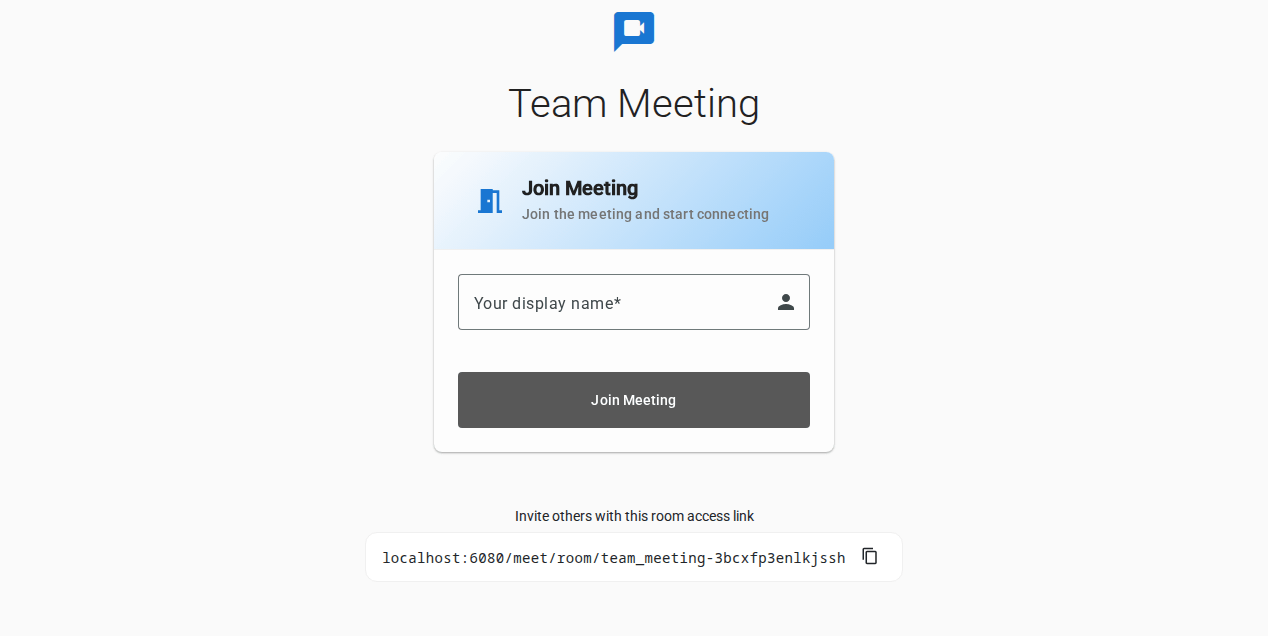
This is the first view members see when accessing a room. It allows setting a nickname before joining the meeting. If the member has the required permissions, they can also access the Recordings view of this room from here.
Device view#
This view allows members to tune their microphone and camera before joining the meeting, as well as setting a virtual background.


Meeting view#
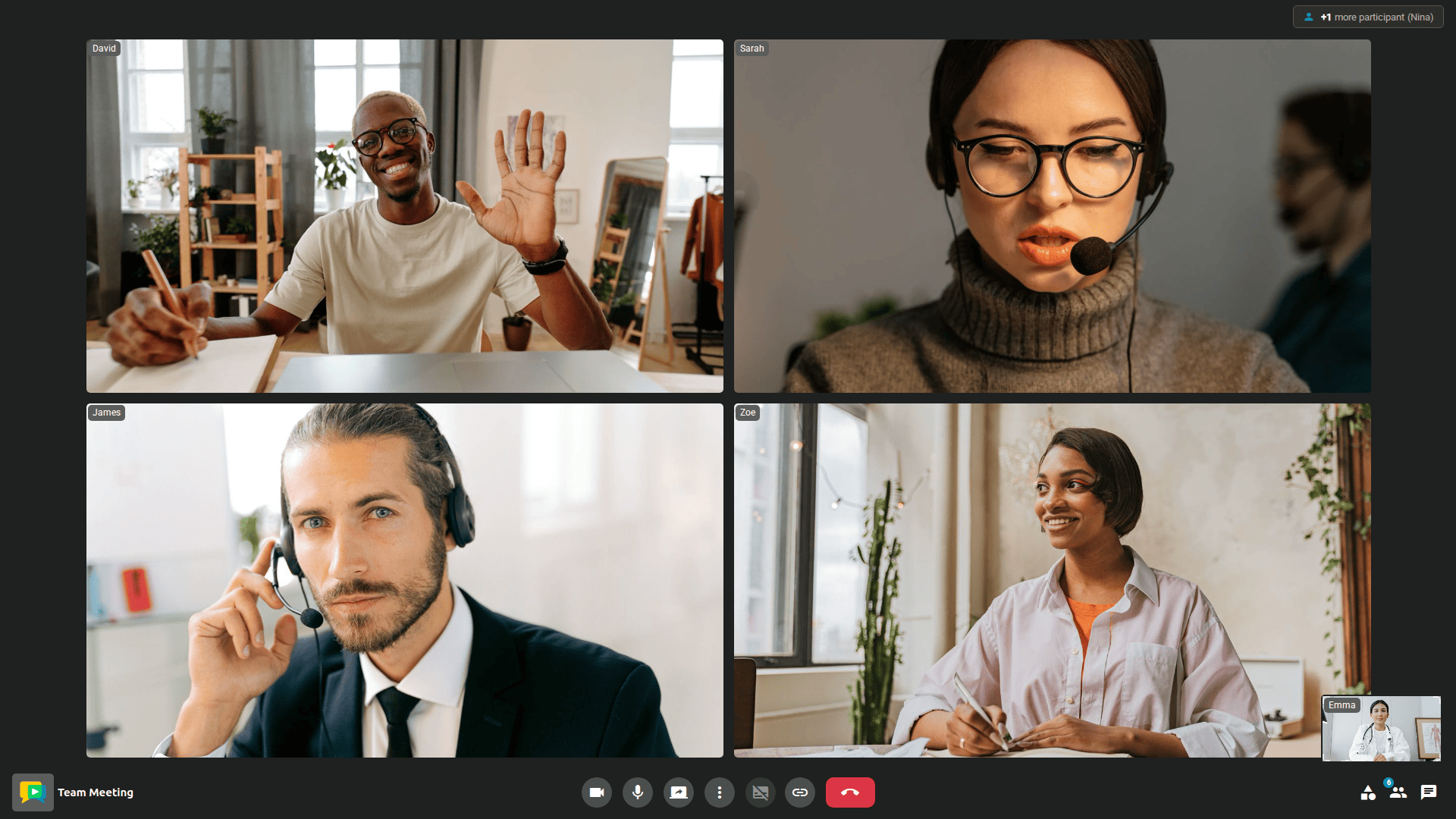
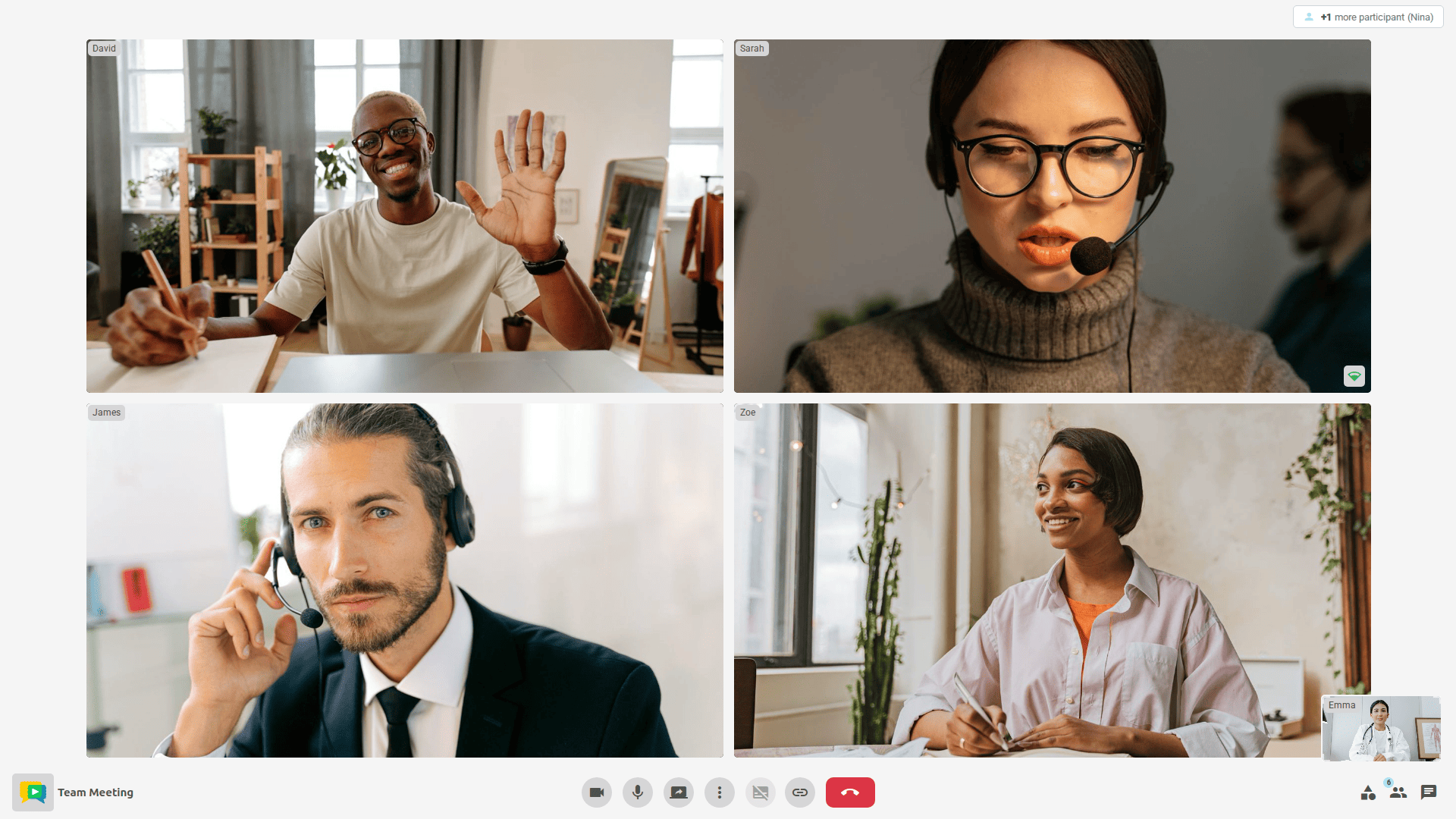
The Meeting View is the central interface where all participants can see, hear, and interact with each other in real time. It features a smart, dynamic layout that automatically adapts to the number of active participants, ensuring an optimal viewing experience at all times.
A status rail above the layout keeps the meeting-wide state in sight: a REC indicator with the elapsed time while the meeting is being recorded, the time remaining when the meeting is about to reach its duration limit, an encrypted badge in end-to-end encrypted rooms, and the number of participants the layout is not currently showing.
Participants are also told about what they may not notice by themselves: when a recording starts or stops, when they speak while their microphone is off, and when their microphone has been muted by the operating system rather than by OpenVidu Meet.
Recordings view#
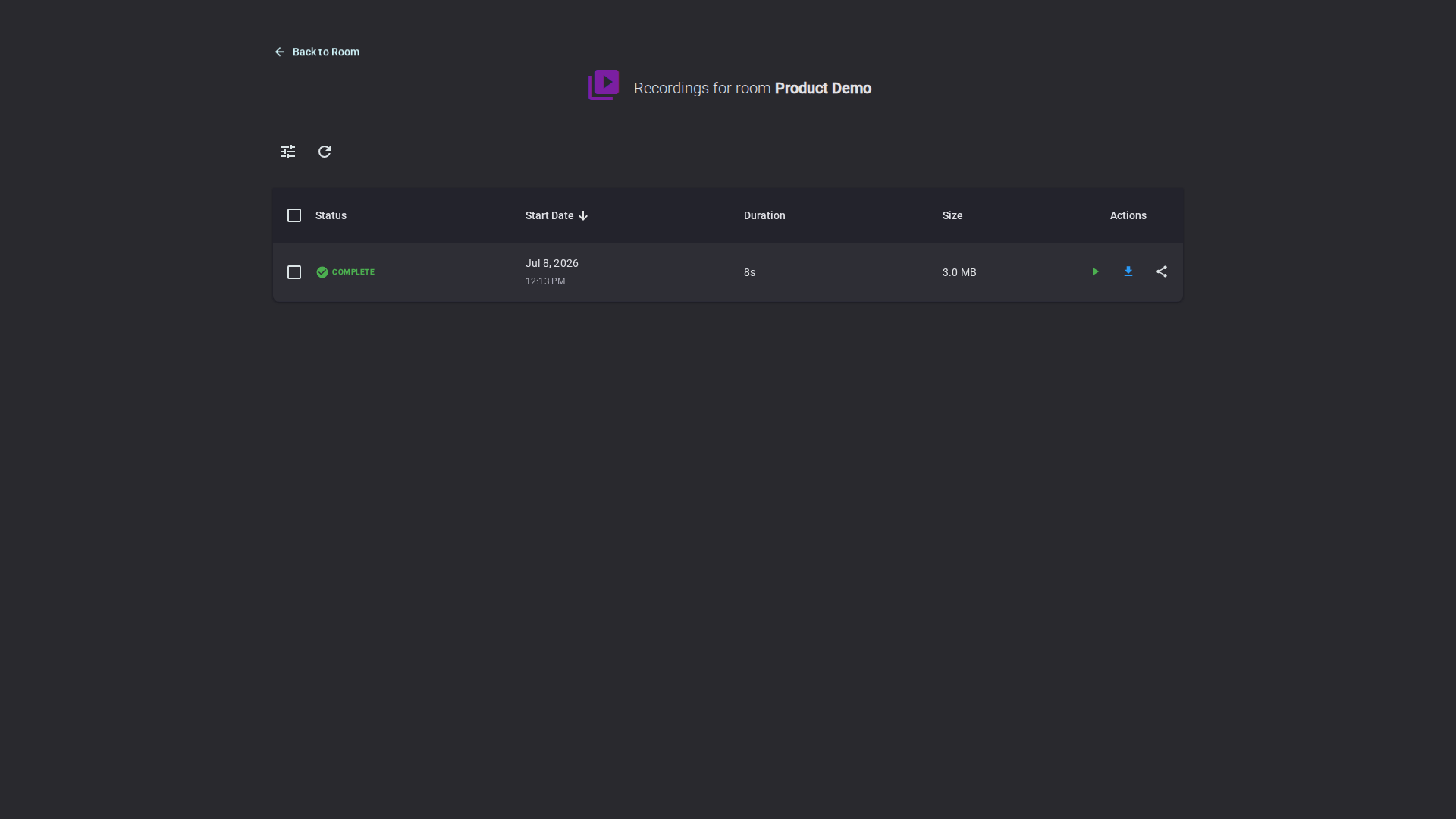
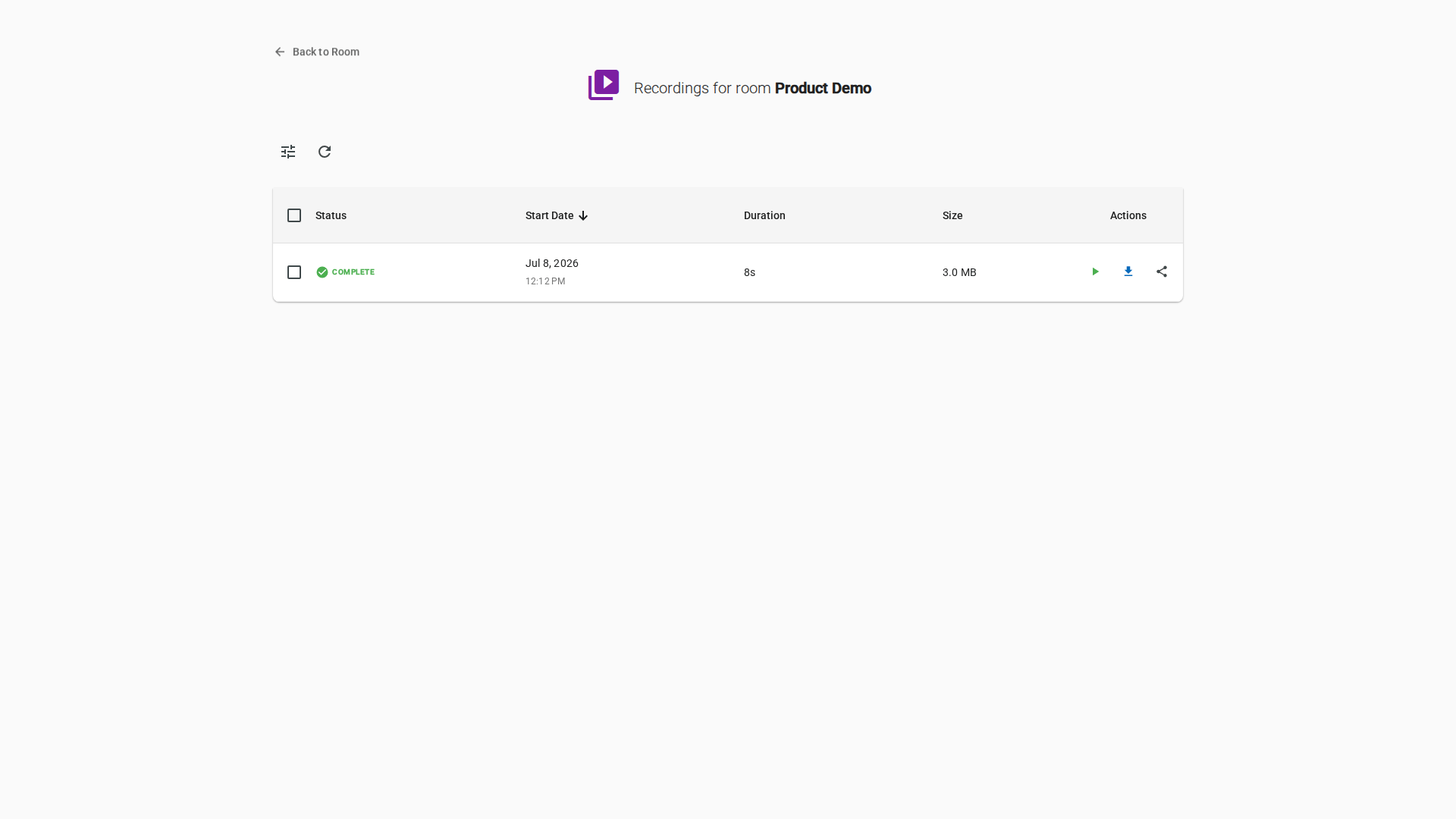
This view allows to manage all recordings of the room (from the current or past meetings). Members with the required permissions can review, play, download, and delete them, as well as share recordings via a link.
Info
Recordings can also be accessed from the "Recordings" page in OpenVidu Meet. See Managing recordings.
End view#
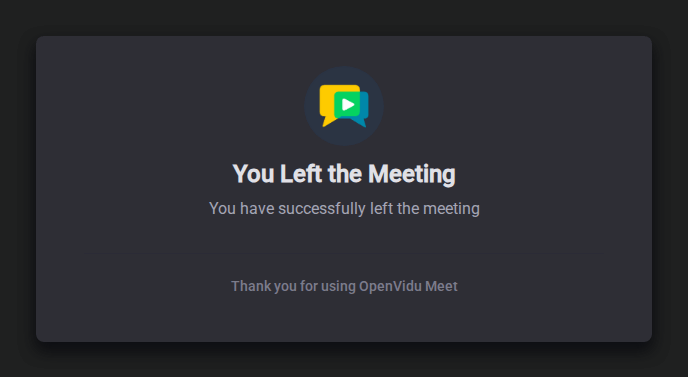
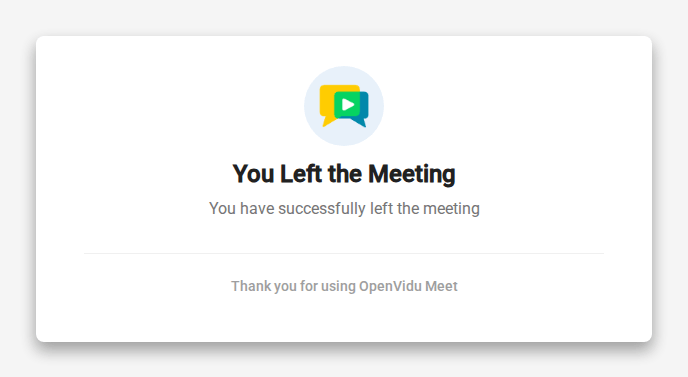
This view is shown to a participant when the meeting ends, at least for that participant. It informs about the specific reason why the meeting ended (a moderator ended it, the participant was kicked from the meeting, the meeting reached its duration limit, etc.).