How to choose a video codec for video conferencing#

Picking the codec that compresses best and eats the least bandwidth looks, at first glance, like the obvious call when you build a video conferencing application. And yet the codec that saves the most bandwidth can be the one that performs worst for your users.
The reason is that compression efficiency is only part of the problem. Choosing a codec also depends on device compatibility, hardware encoding support, available CPU, battery drain and the quality you end up with. And most importantly: no codec wins on all of those fronts.
TL;DR
There is no best video codec for video conferencing, only the one that offers the best balance between compatibility, efficiency, computational cost and quality on the devices your users actually have. As a starting point, we recommend H.264 when your users join from mixed devices and browsers, and VP9 or AV1 when you control modern devices that can encode them in hardware. Whichever you pick, confirm it on the worst device you have to support. The rest of this post explains why, and how to do it.
A codec can halve the data you need to transmit, but if a device cannot encode it in hardware, those savings can turn into more CPU, more battery and more latency. And when your users are on devices with very different capabilities, what runs perfectly on one can become a bottleneck on another.
So the question is not simply which codec compresses best, but which one offers the best balance between quality, bandwidth, device capability and infrastructure cost.
Before going further, one thing worth settling about the audio codec: that choice is pretty much already made. In WebRTC, Opus is the reference codec and it adapts to network conditions at a very low cost for the device.
On the video side, there is no winning decision. Every codec has its upsides and its downsides, and that is what we are going to look at in this post.
Which video codec should you pick?#
These are the five video codecs you will come across when you build a video conferencing application on WebRTC:
H.264(AVC): the most widely deployed video codec.VP8: Google's royalty-free alternative toH.264.H.265(HEVC): the successor ofH.264.VP9: Google's successor ofVP8.AV1: the newest of the five, royalty-free, from the Alliance for Open Media.
The obvious first criterion to compare them is how much each one compresses. When we say a codec is 30% more efficient than another, we mean it needs 30% less data to reach a similar quality. If H.264 needs 1 Mbps, a codec that is 30% more efficient could reach comparable quality with around 700 Kbps.
Comparisons usually take H.264 and VP8 as the baseline: they are the oldest and least efficient of the five, roughly on par with each other, and every newer codec was designed to improve on them. These are the figures you will usually see:
| Codec | Released | Approximate data reduction |
|---|---|---|
H.264 / VP8 |
2003 / 2010 | Baseline |
H.265 / HEVC |
2013 | 40–60% |
VP9 |
2013 | 23–50% |
AV1 |
2018 | 24–52% |
Figures commonly quoted for each codec, compiled from different published comparisons , which is exactly why they are so wide and overlap.
Those ranges overlap, and that is the first thing worth understanding about them: they do not come from a single experiment. Each one is measured on different content, at different resolutions and with different encoder settings, so the table cannot be read as a ranking. H.265 looking better than AV1 here is an artefact of that, not a property of the codecs.
Compared head to head on the same material, the newer codec does come out ahead. A peer-reviewed analysis puts AV1 around 10–15% below H.265 in bitrate for the same quality, while also showing how much that figure moves with the resolution and the encoder settings.
And one shift matters especially here: these savings shrink at low bitrates. In one practical comparison , the saving of AV1 over H.264 drops from roughly 60% to about 23% once the measurement is weighted towards the low quality levels that mobile viewers actually receive. A video call lives exactly in that zone.
So the rule of thumb holds (newer codecs are designed to get more out of the same bitrate), but how much of it you actually get depends on your content, your resolution and your bitrate. And that efficiency has a price. More advanced codecs usually need more resources to encode and decode the video, especially when there is no hardware acceleration available.
Why H.265 is the odd one out
H.265 is in that table for its compression, not because it is an easy choice: its patents are split across three separate licensing pools , while AV1 is royalty-free . Chrome has shipped it for WebRTC since version 136, but only where the device can encode it in hardware : this post's argument, stated by the browser itself.
And this is where the choice stops being a comparison of percentages. Knowing how much a codec compresses is not enough; you also need to know whether your users' devices can handle it efficiently.
That is exactly what we will look at next.
Can your devices actually use the codec?#
Hardware acceleration can matter more than the codec#
In a video conferencing application, how that codec runs on the device can matter as much as how much it compresses.
Devices usually ship dedicated hardware to encode and decode video, but they do not all accelerate the same codecs. H.264, for instance, enjoys very broad hardware support for both encoding and decoding, and RFC 7742 makes it, together with VP8, mandatory for every WebRTC browser. That makes its behaviour fairly predictable even on older and mobile devices.
With VP9 and AV1 the situation is different. Hardware decoding is increasingly common on modern devices, but things are far more uneven when it comes to encoding. AV1 in particular can deliver considerable bandwidth savings, but if the device has no suitable hardware encoder, those savings can come at a steep cost in CPU, battery and latency.
And here comes an important distinction: a device supporting a codec does not necessarily mean it can encode and decode it efficiently. It may well play AV1 in hardware and still have to fall back to the CPU to encode it from the camera.
So when you evaluate a codec for video conferencing, asking whether the device supports it is not enough. You need to know how it supports it: whether it can encode and decode in hardware, and what performance you get in each case.
And the answer is not the same for every user you have, which is what makes a codec compatibility table insufficient on its own.
The least capable device sets the rules#
So far we have talked about codec support as if it were a property of the device. In practice, it also depends on the combination of hardware, operating system and browser, and that combination is different for every person who joins your call.
Which leads to the rule that should drive the whole decision: your codec floor is set by the least capable client you have to support, not by the average of your user base. If 5% of your users join from a four-year-old phone, that phone decides what you can publish.
Apple devices are usually where people notice this first, because the combination is easy to get wrong: a VP9 or AV1 that runs perfectly on your development Mac will not necessarily behave the same way on an older iPhone, and the OS version, the browser and the hardware acceleration available can change the outcome completely. But the same reasoning applies to a cheap Android phone, a locked-down corporate laptop or a Linux machine with no hardware encoder.
So proving that a codec works on your development machine is not enough. You need to check which combinations of device, OS and browser your users actually have, and which encoding and decoding path is available in each case.
The real cost of encoding video: battery, heat and stability#
The cost of encoding video is not necessarily constant throughout a call.
A 30 second test can show perfect performance. But if a phone has been encoding video in software for 40 minutes, the story can be different: battery drain and temperature go up and, if the device needs to lower its clock speed to keep the heat under control, performance can degrade.
In a video call this matters especially because the device is not only encoding video. It also has to capture it, process it, decode and handle real time communication. When CPU headroom shrinks, any extra task can end up affecting the stability of the call.
Latency comes into play as well. In a video call it is not only about how long the video takes to cross the network; it also matters how long the device takes to capture it, encode it, decode it and display it.
That is why a useful test should not stop at checking whether a codec works. You have to run it during a real call, for as long as a real meeting would last, and on the least powerful devices you have to support.
Our recommendations#
There is no single codec that is best in every scenario. That said, these are the codecs we recommend for each context:
-
Consumer application with mixed devices and browsers:
H.264. Its broad compatibility and hardware acceleration make it the safest pick when you do not know what your users will join from. -
Controlled environment with modern devices:
VP9orAV1. They offer interesting bandwidth savings, as long as the available hardware can encode them efficiently. -
Very specific ecosystems:
H.265. It can make sense when you control the hardware, now that Chrome negotiates it over WebRTC. But it only works on devices that can encode it in hardware, which makes it hard to justify as a universal choice.
Take them as a starting point, not a verdict: the devices you have to support and the real cost each codec has on them have the final say. To confirm your pick:
-
List the clients you have to support. The least capable device can set your compatibility ceiling.
-
Profile your worst supported device. Do it during a real meeting, not for thirty seconds. Watch CPU usage, temperature and which encoding implementation the browser is using through
encoderImplementation. -
Check hardware acceleration. Do not stop at checking whether the device "supports" the codec. Check whether it can encode and decode it in hardware, and how it behaves when it does.
-
Measure sustained performance. A short test can hide problems that only show up after several minutes: rising temperature, throttling, battery drain or degraded performance.
-
Test the real scenarios of your application. Resolution, camera, screen sharing and device type can change a codec's cost considerably.
-
Instrument and review. Do not settle for lab tests alone. WebRTC metrics can help you spot when a device is limiting performance, and why.
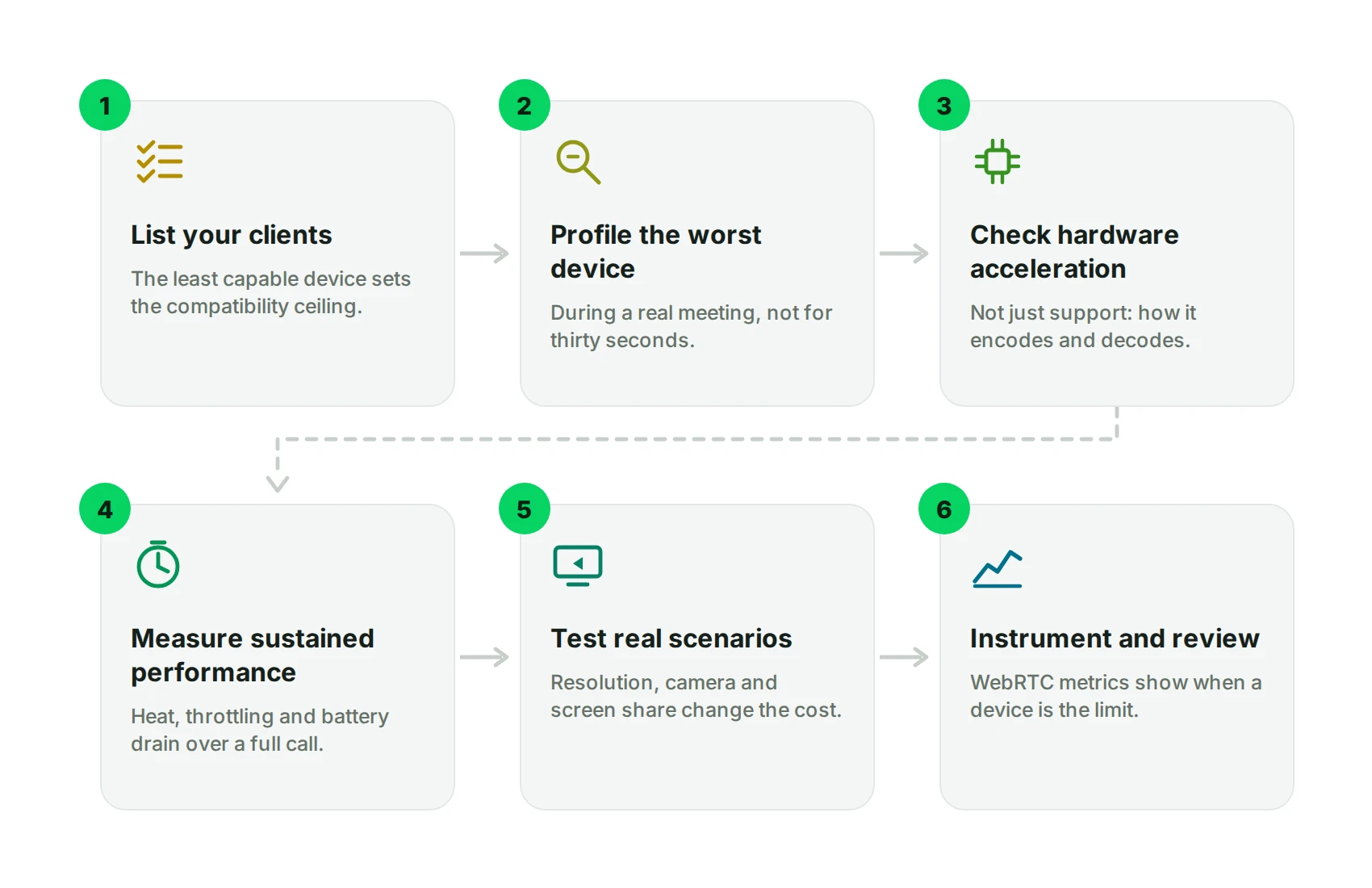
The important idea is that you do not have to pick the codec that is most efficient on paper. You have to pick the one that offers the best balance between compatibility, efficiency, computational cost and quality on the devices your users actually have.
And if your application has a very heterogeneous user base, the answer does not have to be a single codec either: you can publish more than one and let each client receive the one it can handle. Nothing is free here, because the publishing device ends up encoding both streams: you are trading CPU on the sender for compatibility on the receiver. The next section shows what that looks like in practice.
How to apply this strategy with OpenVidu#
Choosing the right codec means being able to try different configurations and measure how they actually behave. OpenVidu lets you do both without building that infrastructure from scratch.
You can set the publishing codec and configure a backup codec:
const room = new Room({
  publishDefaults: {
    videoCodec: "vp9",
    backupCodec: { codec: "h264" },
  },
});
This lets you, for example, use VP9 when possible and fall back to H.264 when a client is not compatible. You can also choose between prioritising compatibility or sending several codecs at the same time, through backupCodecPolicy .
On top of that, OpenVidu ships mechanisms like Simulcast and SVC to adapt video delivery to what each participant can handle.
And the observability tools together with LoadTest let you analyse WebRTC metrics and test the behaviour across different devices and conditions.
That way, choosing a codec stops being a single benchmark decision: it becomes testing, measuring, comparing and adjusting based on how your application actually behaves.
What to do next#
Every metric this post asks you to look at (encoderImplementation, the quality limitation reason, the frame rate under load) comes from WebRTC statistics you can already read in your own application. What you need is somewhere to run the tests:
- To get an environment to measure in, install OpenVidu on a single machine. You get the SFU, the observability stack and the client SDK in one deployment, and you can switch codecs from the publishing options
- If what you need is video calls inside your product rather than infrastructure to experiment with, look at embedding OpenVidu Meet, which handles the codec negotiation for you
Whichever route you take, run the test on the worst device you have to support. That is the one that decides.