Recording configuration#
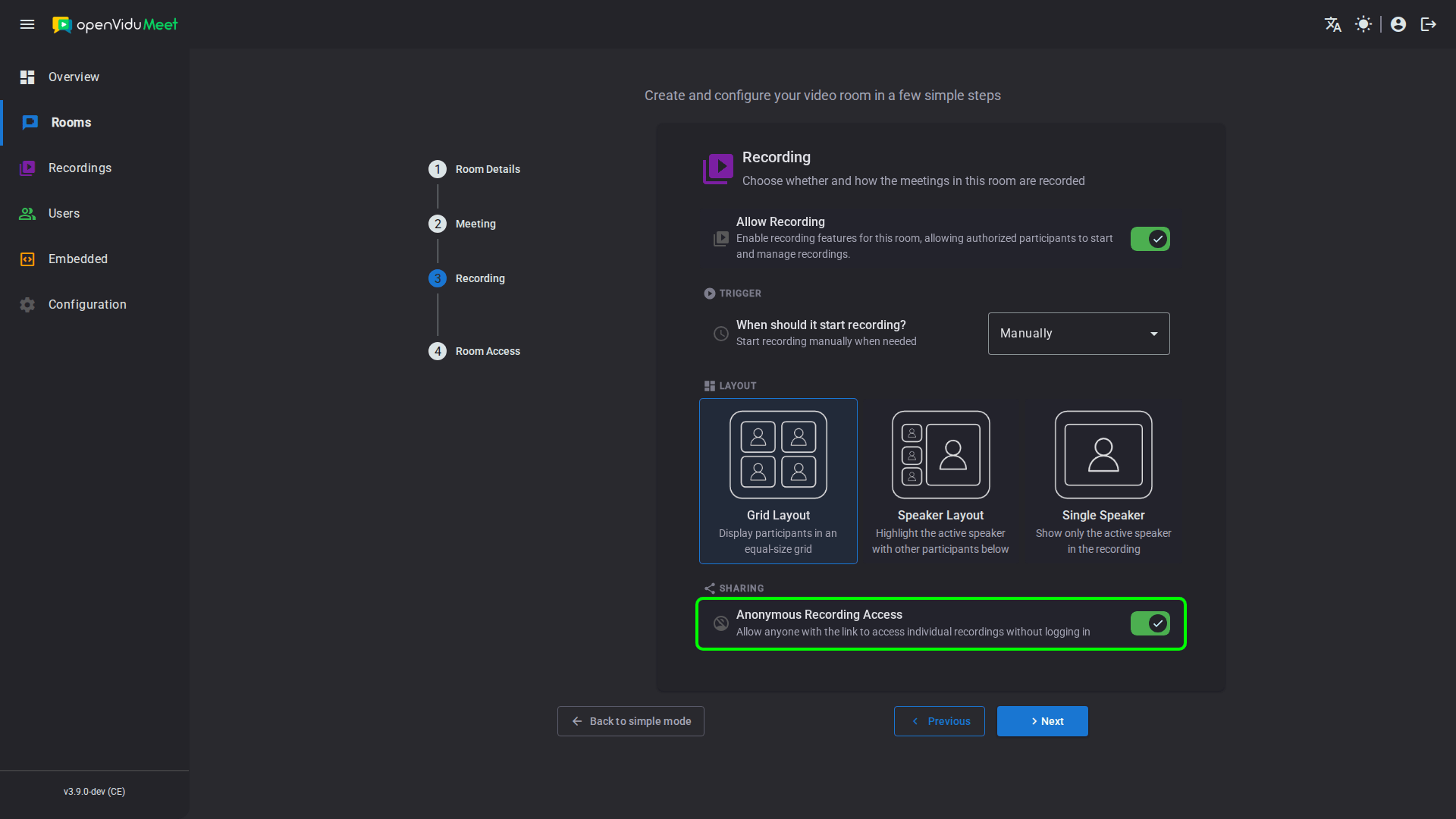
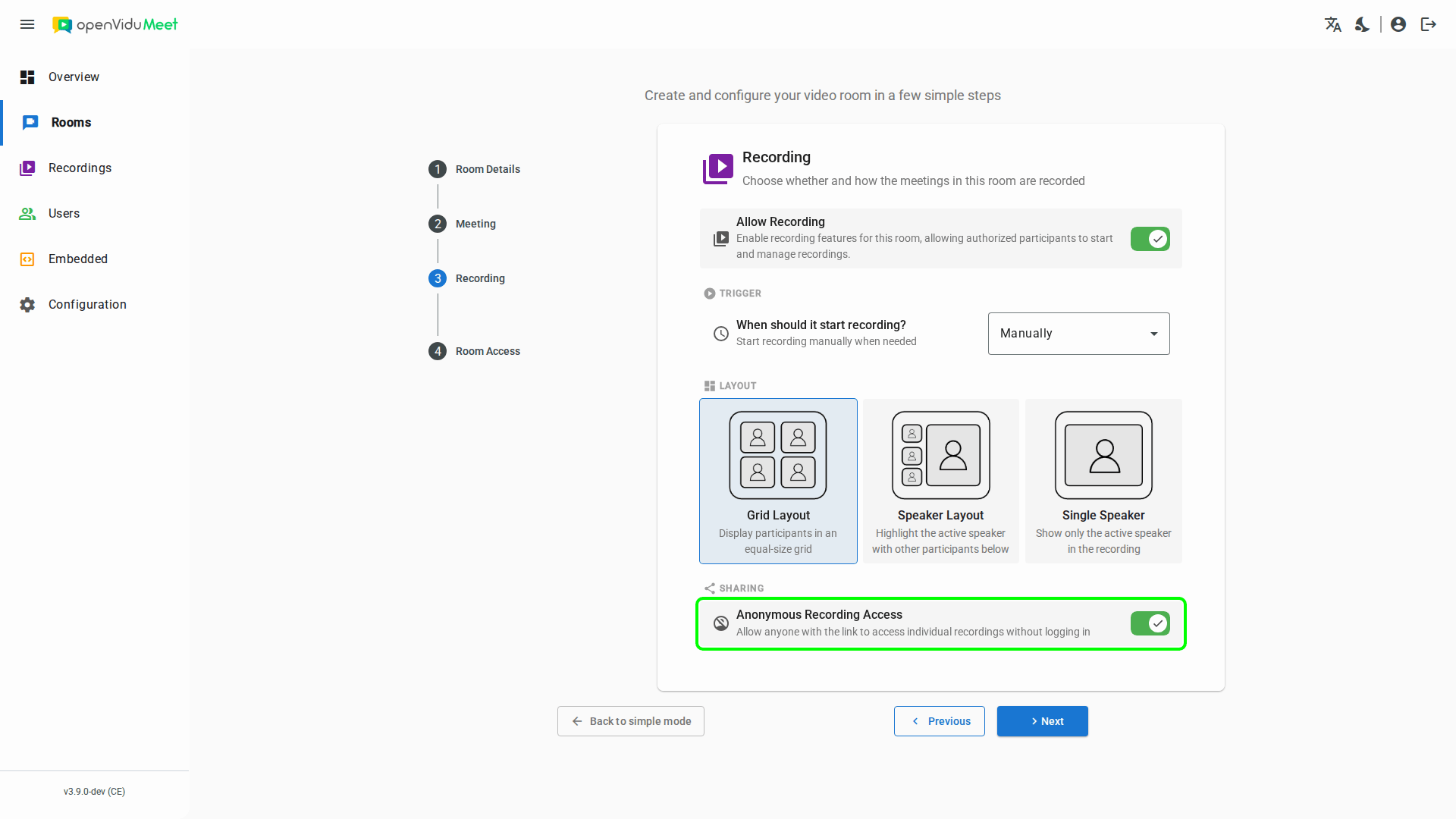
Recording behaviour is configured per room, in the Recording step of the room wizard when creating or editing it. The following aspects can be configured:
- Enabling recordings in the room.
- The recording trigger: manual, or automatic when a participant joins.
- The recording layout.
- The recording encoding — only available through the REST API.
- Anonymous recording sharing.
Enabling recordings#
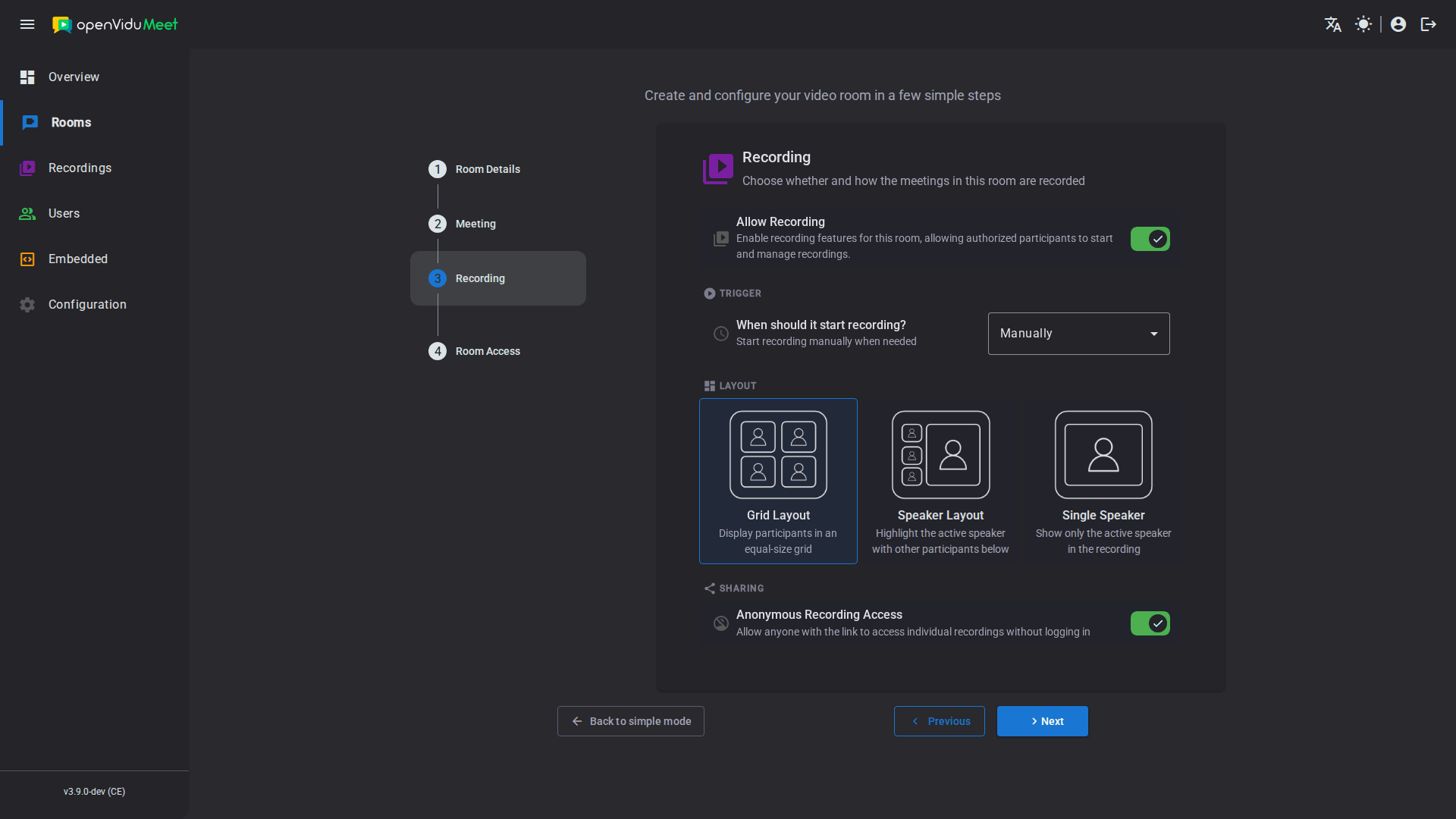
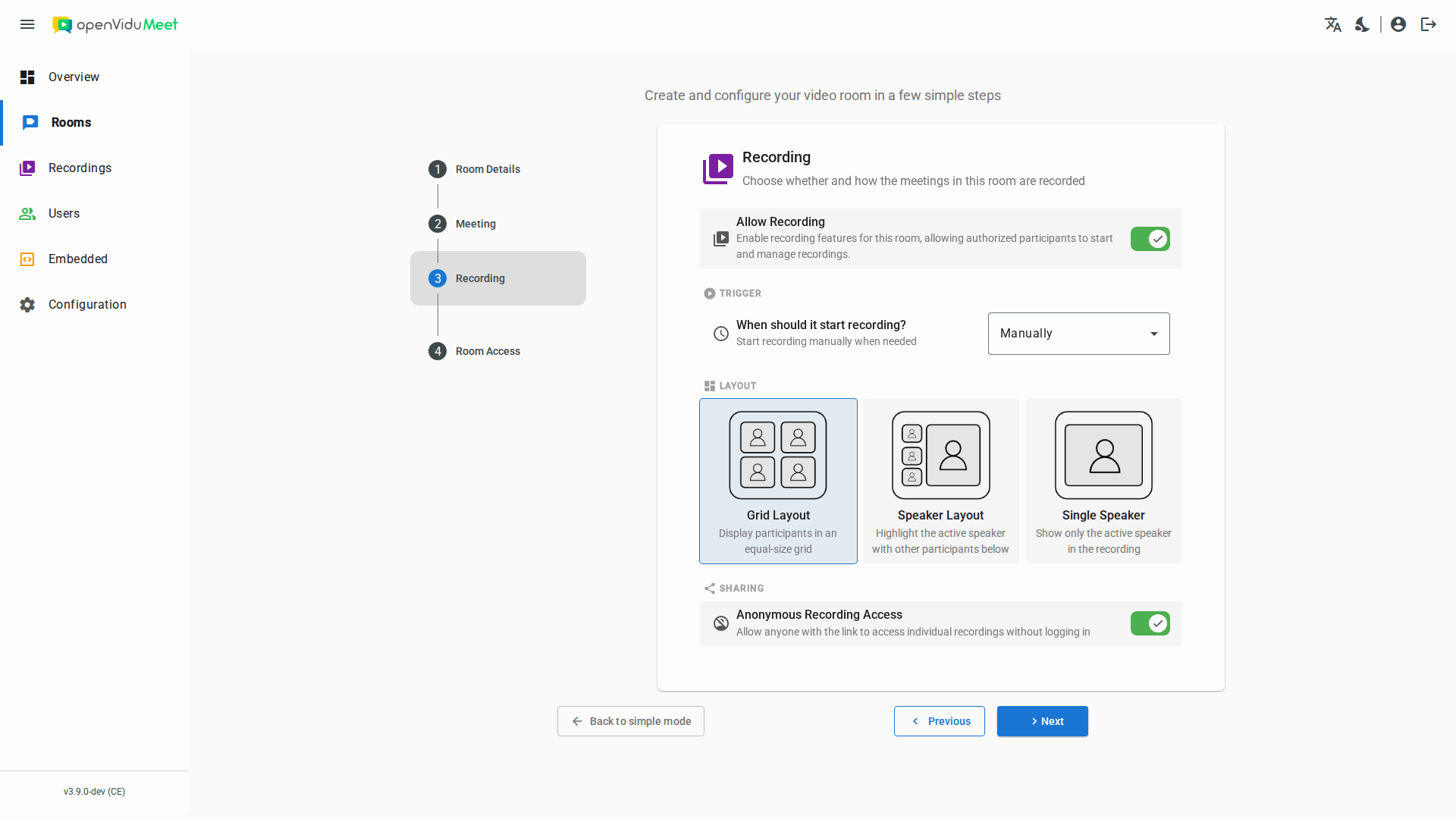
Recording must be enabled in the room before any meeting in it can be recorded. It is enabled in the Recording step of the room wizard, or with the config.recording.enabled property of the room configuration via the REST API.
Info
Recording and end-to-end encryption are mutually exclusive: a room cannot have both enabled at the same time.
Recording trigger#
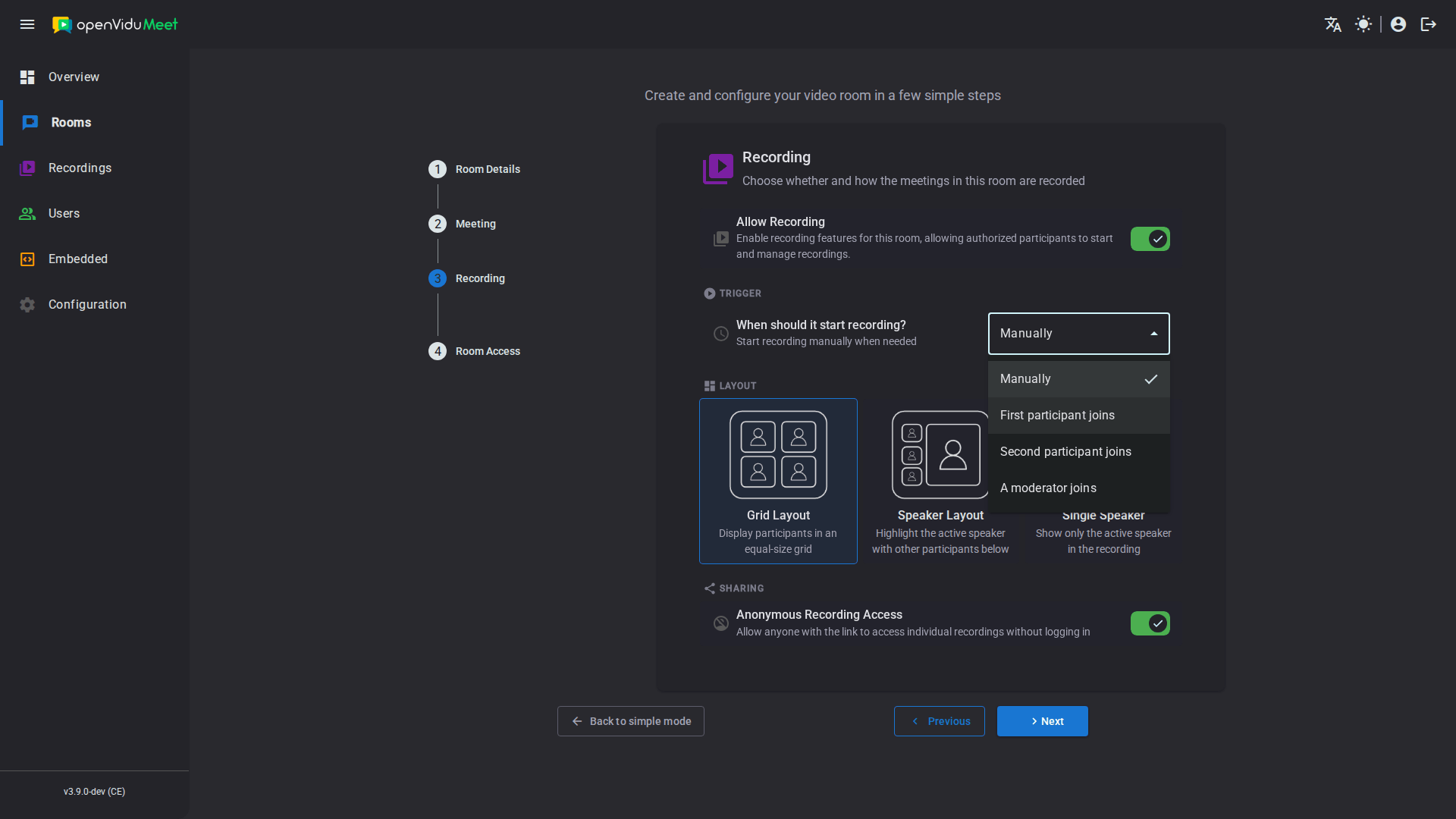
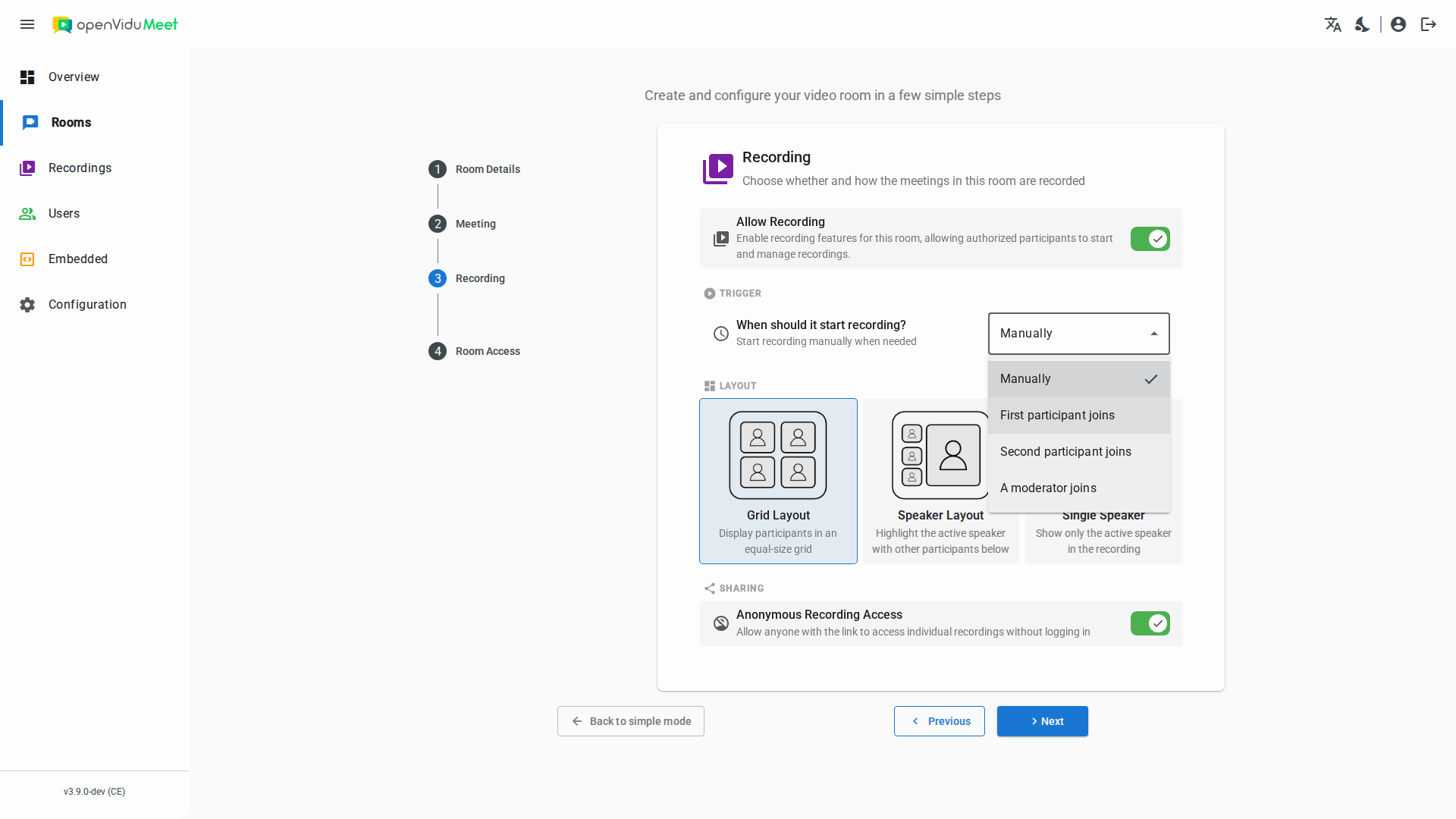
By default recordings are started manually, by a participant with the recordingControl permission or through the REST API. A room can instead start recording automatically, choosing when:
- First participant joins (
when_first_participant_joins): the recording starts as soon as the meeting begins. - Second participant joins (
when_second_participant_joins): the recording waits until somebody else joins. - A moderator joins (
when_moderator_joins): the recording starts as soon as a participant with the moderator role is in the meeting, whether they joined as moderator or were promoted during the meeting.
An automatically started recording is a regular recording that any participant with the recordingControl permission can stop. A room with a trigger refuses an on-demand start, from the app and the REST API alike, and stopping its recording turns the trigger off for the rest of that meeting.
The trigger is chosen in the Trigger section of the Recording step of the room wizard, or with the config.recording.autoStart property of the room configuration via the REST API (null for manual recording).
Info
A trigger that waits for a second participant is unreachable in a room whose participant limit is 1, so that combination is rejected.
Recording layouts#
OpenVidu Meet provides multiple recording layout options. These layouts determine how participants appear in the meeting recording, allowing you to choose the most suitable format for presentations, webinars, or collaborative sessions.
Available recording layouts#
-
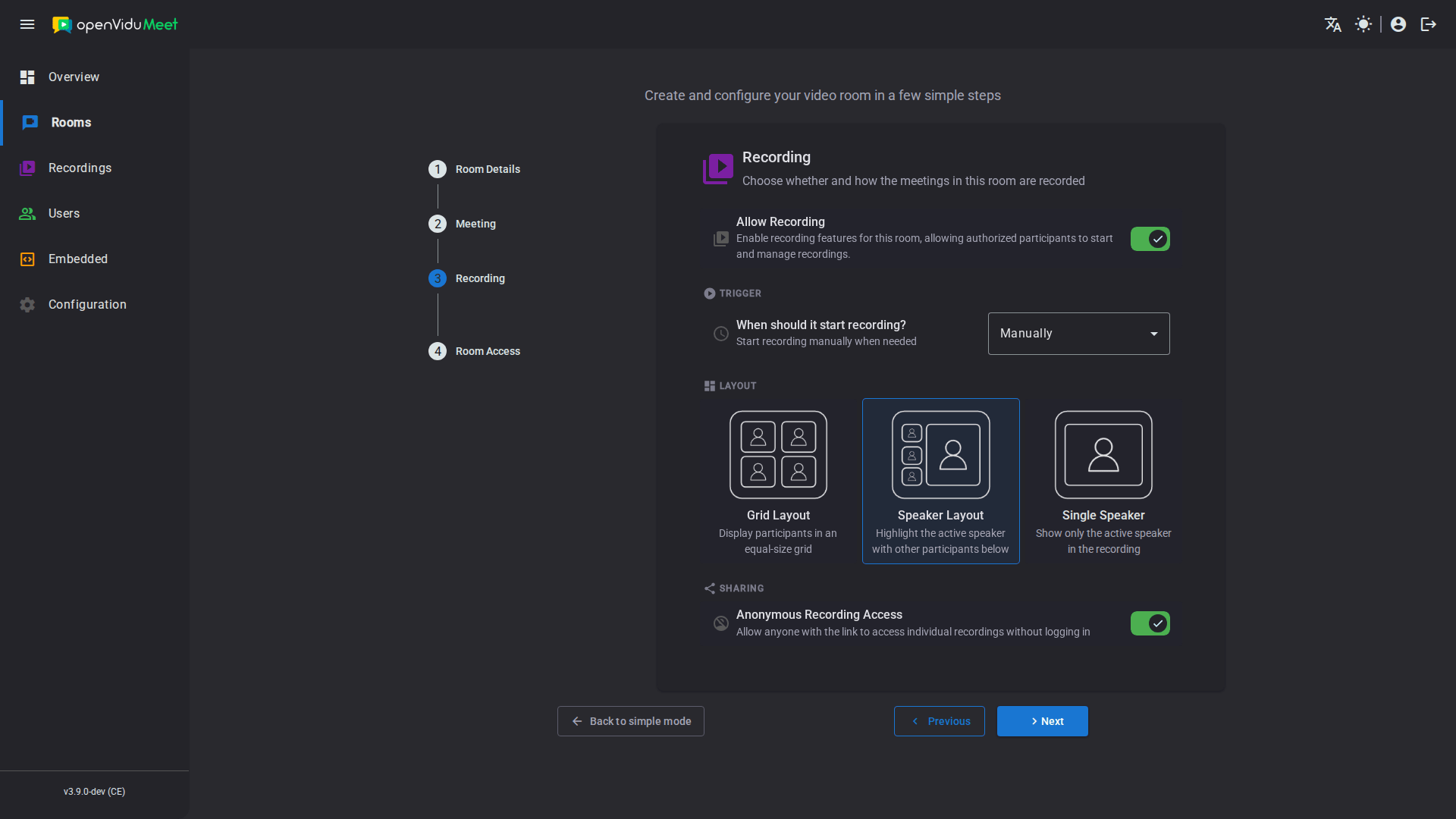
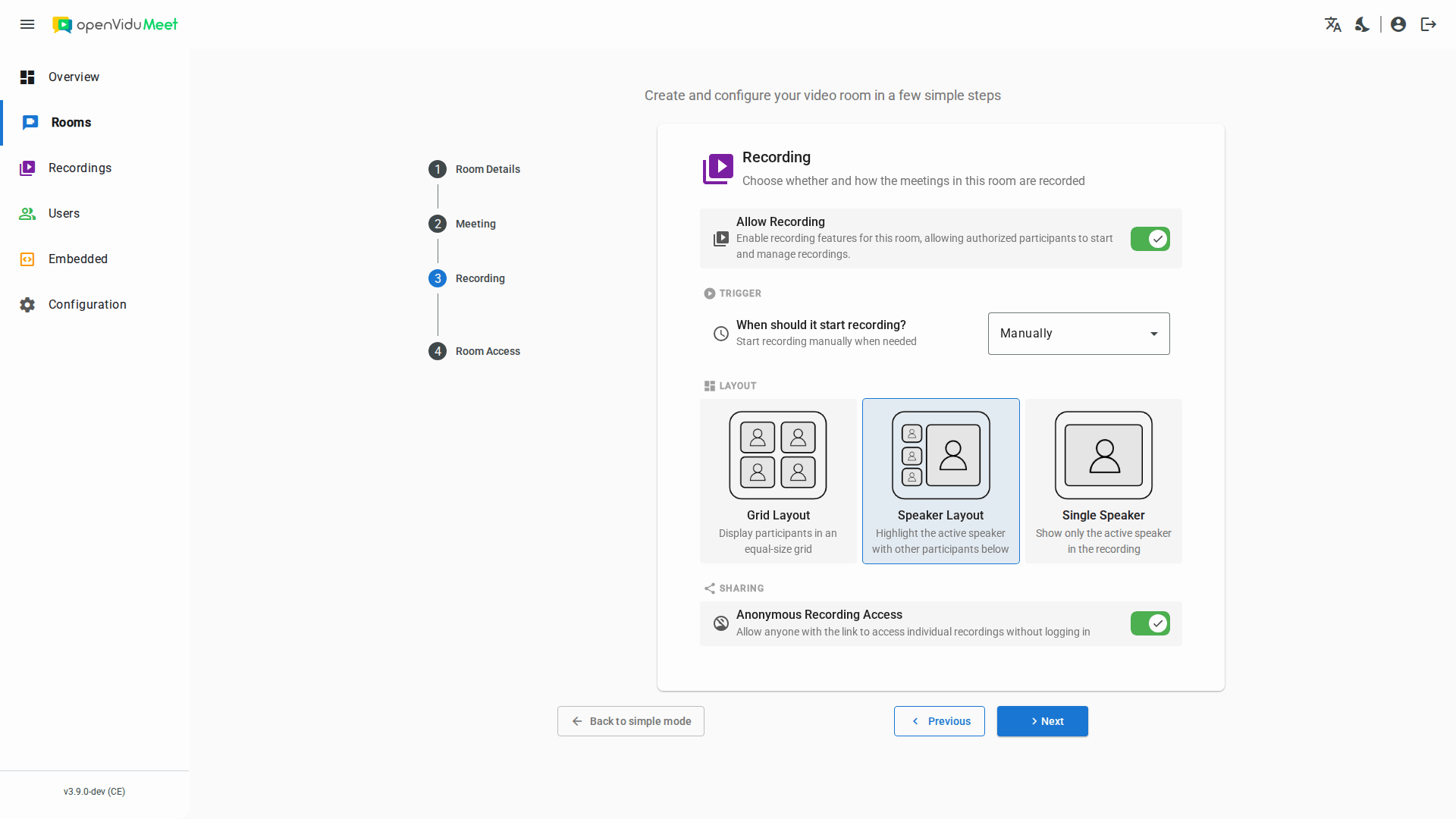
Grid layout (
grid) Displays all participants in an evenly spaced grid. This layout is ideal for team meetings, classrooms, or collaborative discussions where seeing all participants simultaneously is important. -
Speaker layout (
speaker) Highlights the active speaker in a larger frame while showing other participants in smaller thumbnails. This layout is perfect for interactive sessions where one participant speaks at a time, keeping the focus on the main speaker. -
Single Speaker layout (
single-speaker) Records only the active speaker, hiding all other participants. This layout is best suited for presentations, lectures, or interviews where the focus should remain entirely on the speaker.
The layout is chosen in the Layout section of the Recording step of the room wizard, or with the config.recording.layout property of the room configuration via the REST API.
Recording encoding#
The encoding determines the resolution, frame rate, codec and bitrate of the resulting recording. You can define it in two ways:
- A preset — a single string covering the most common scenarios.
- A full encoding options object — for fine-grained control over every video and audio parameter.
Encoding is configured through the REST API only
Unlike the other recording settings, the encoding is not part of the room wizard in the OpenVidu Meet app. It can only be set with the config.recording.encoding property of the room configuration via the REST API.
You set it with the config.recording.encoding property, as either a preset string or a full options object. For example, using a preset:
{
  "config": {
    "recording": {
      "enabled": true,
      "layout": "grid",
      "encoding": "H264_1080P_30"
    }
  }
}
The available presets and the full encoding options object (all video and audio parameters) are documented in the REST API specification .
Overriding per recording
The room's default layout and encoding apply to every recording of the room, but they can be overridden for an individual recording when starting it via the REST API.
Anonymous recording sharing#
A recording's shareable link can be created with one of two scopes:
- OpenVidu Meet users: any logged-in OpenVidu Meet user can access the recording through the link — even if they have no recording permissions in that room, or no access to the room at all.
- Anyone: any individual with the link can view the recording without logging in.
Anonymous recording sharing is enabled by default, so both scopes are available. You can disable it per room to restrict sharing to OpenVidu Meet users only — the "anyone" scope is then no longer offered. It is configured in the Sharing section of the Recording step of the room wizard ("Anonymous Recording Access"), or with the access.anonymous.recording.enabled property of the room configuration via the REST API.