Creation & Management#
Start / Stop recording#
Recordings are started from the meeting view by a participant with the canRecord permission (see Predefined roles). The room must have recording enabled in its configuration.
While the recording is active, all participants in the meeting will see an indicator in the bottom left corner.


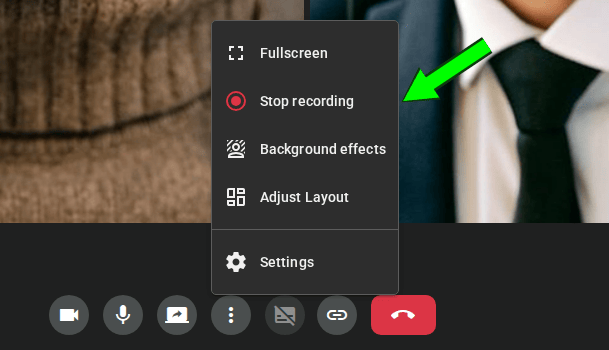
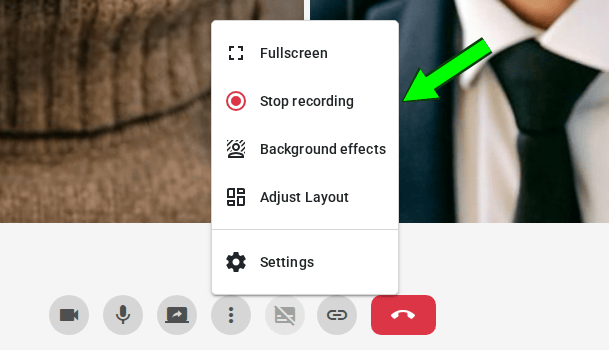
To stop the recording, a participant with the canRecord permission must simply click the "Stop recording" button. The recording is then automatically saved on the OpenVidu Meet server.
Starting and stopping recordings via REST API
Recordings can also be started and stopped with the REST API. There must be an active meeting in the target room — starting a recording in a room with no ongoing meeting returns an error. When starting a recording via the API, you may also override the room's default layout and encoding for that specific recording.
Managing recordings#
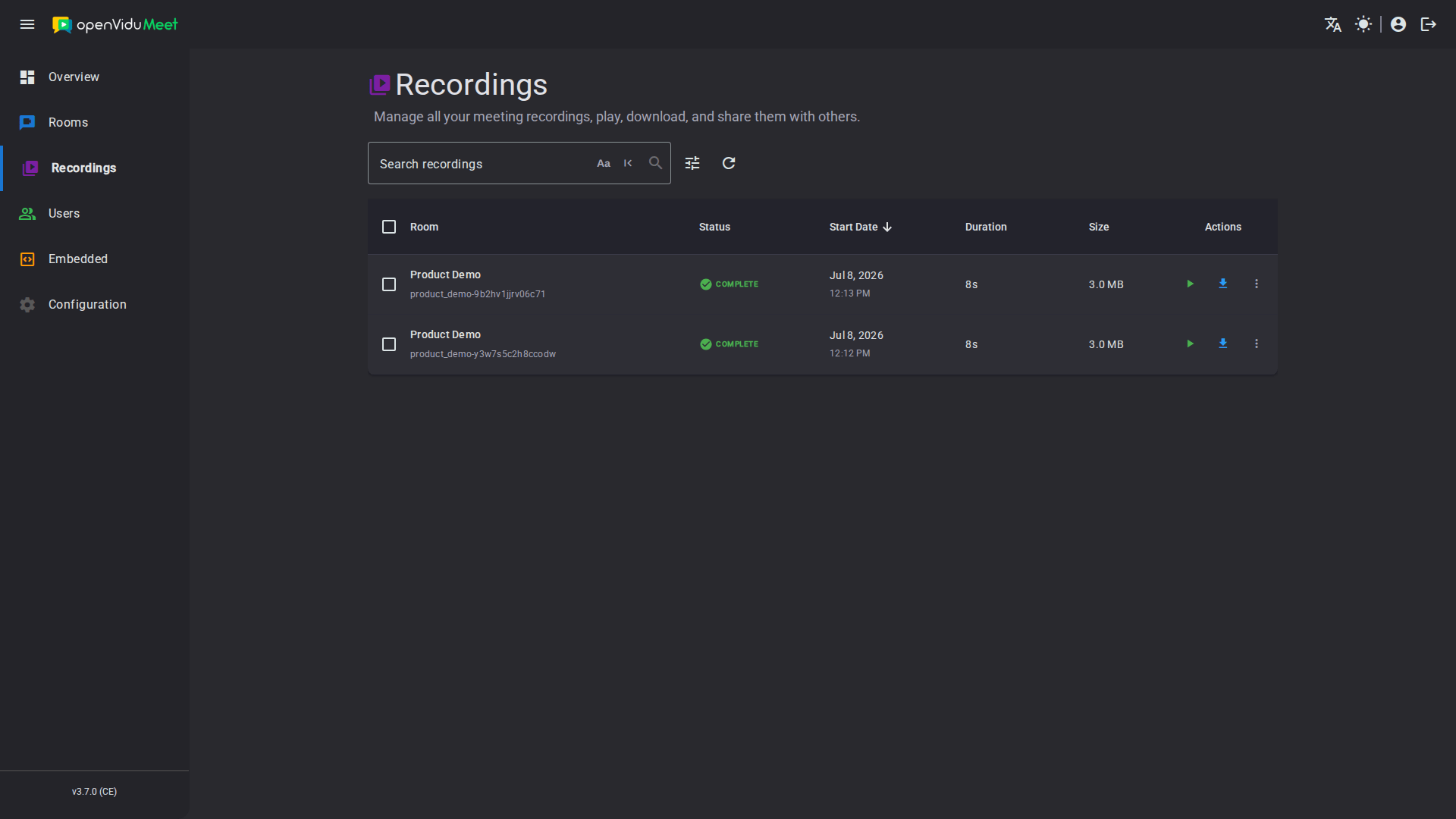
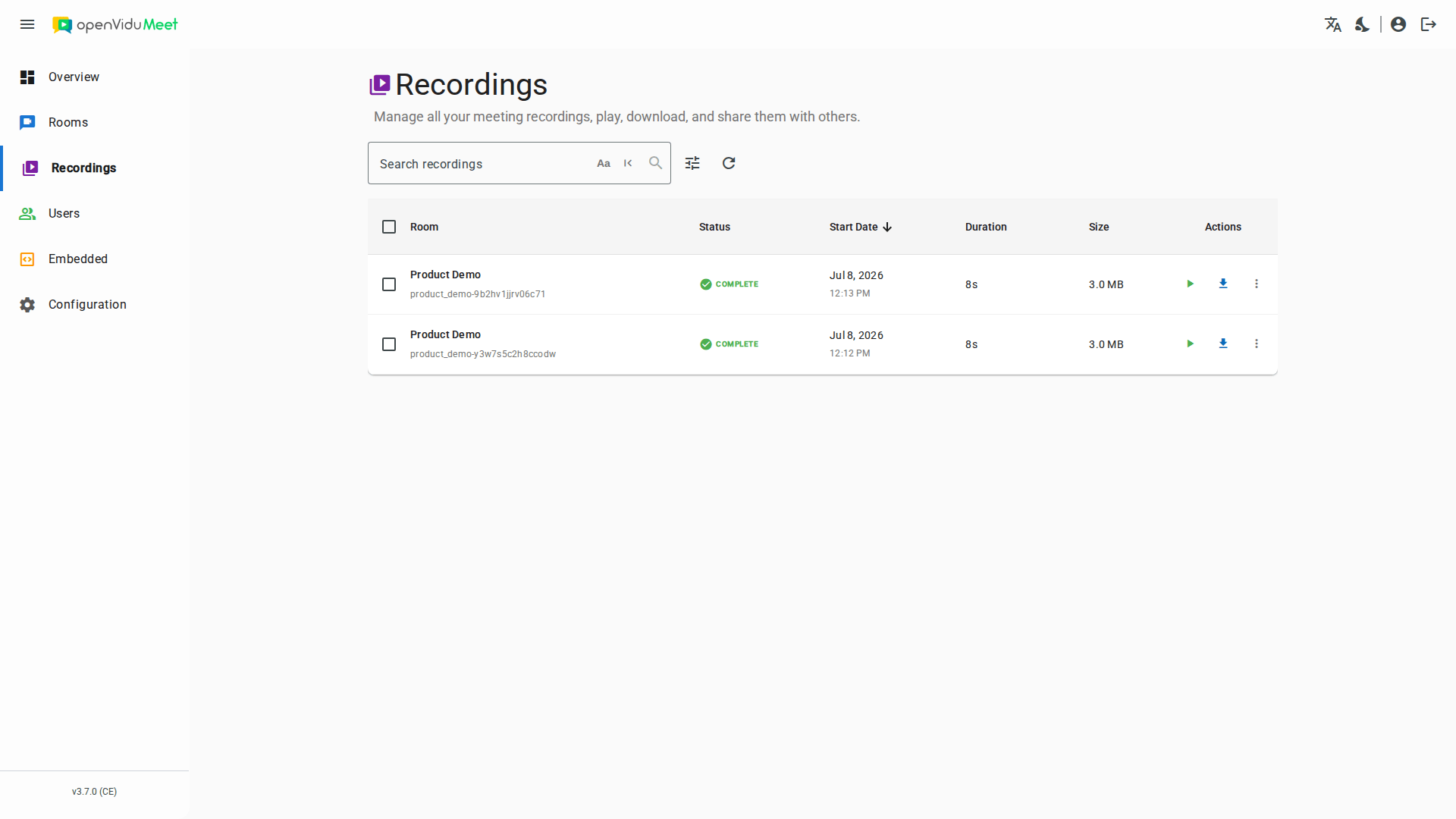
A saved recording can be listed, played, shared, downloaded and deleted (individually or in bulk). All of these actions are available — subject to your recording permissions — from any of the places where recordings appear in the app:
- The general "Recordings" page, which lists every recording you can access.
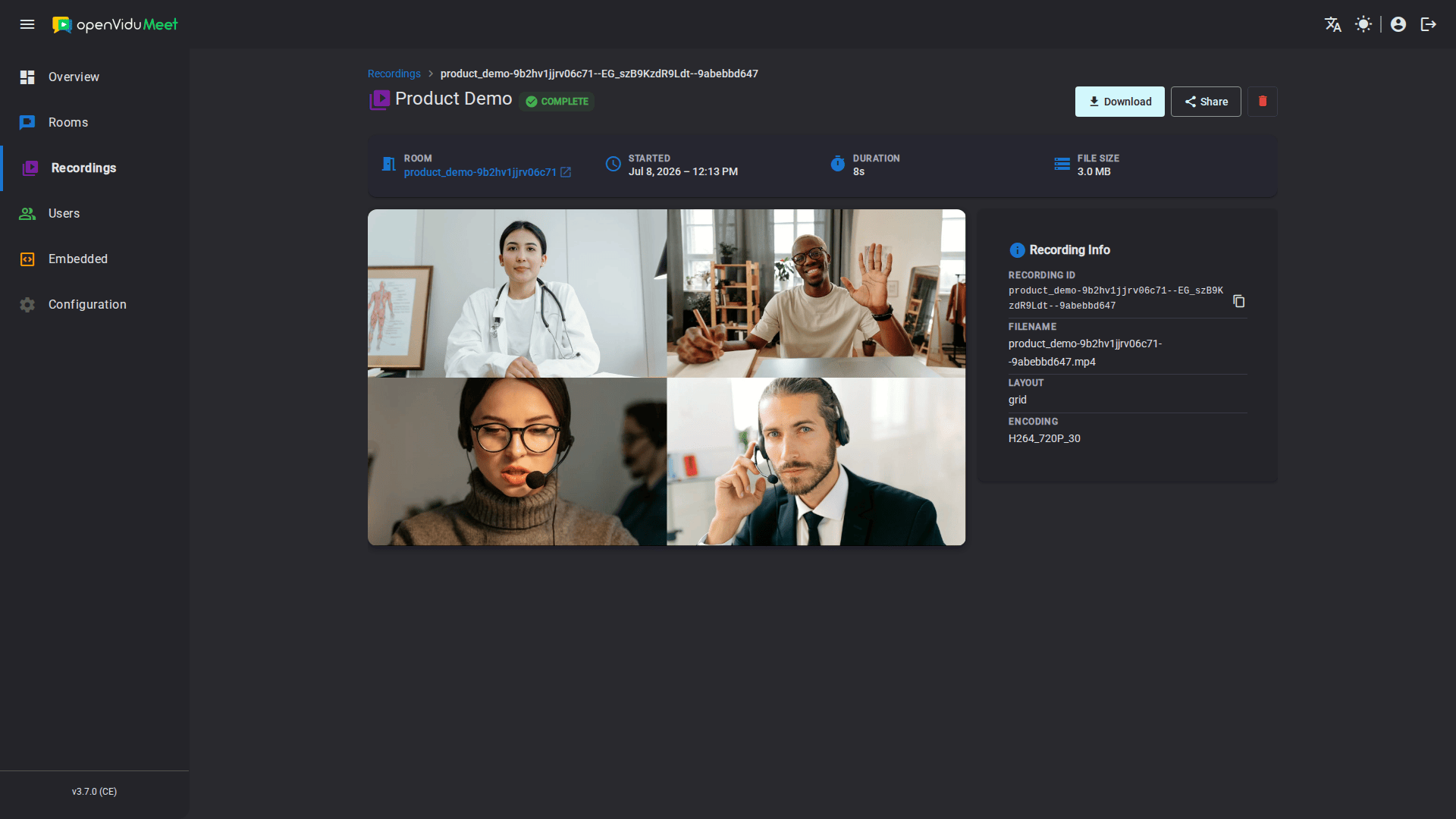
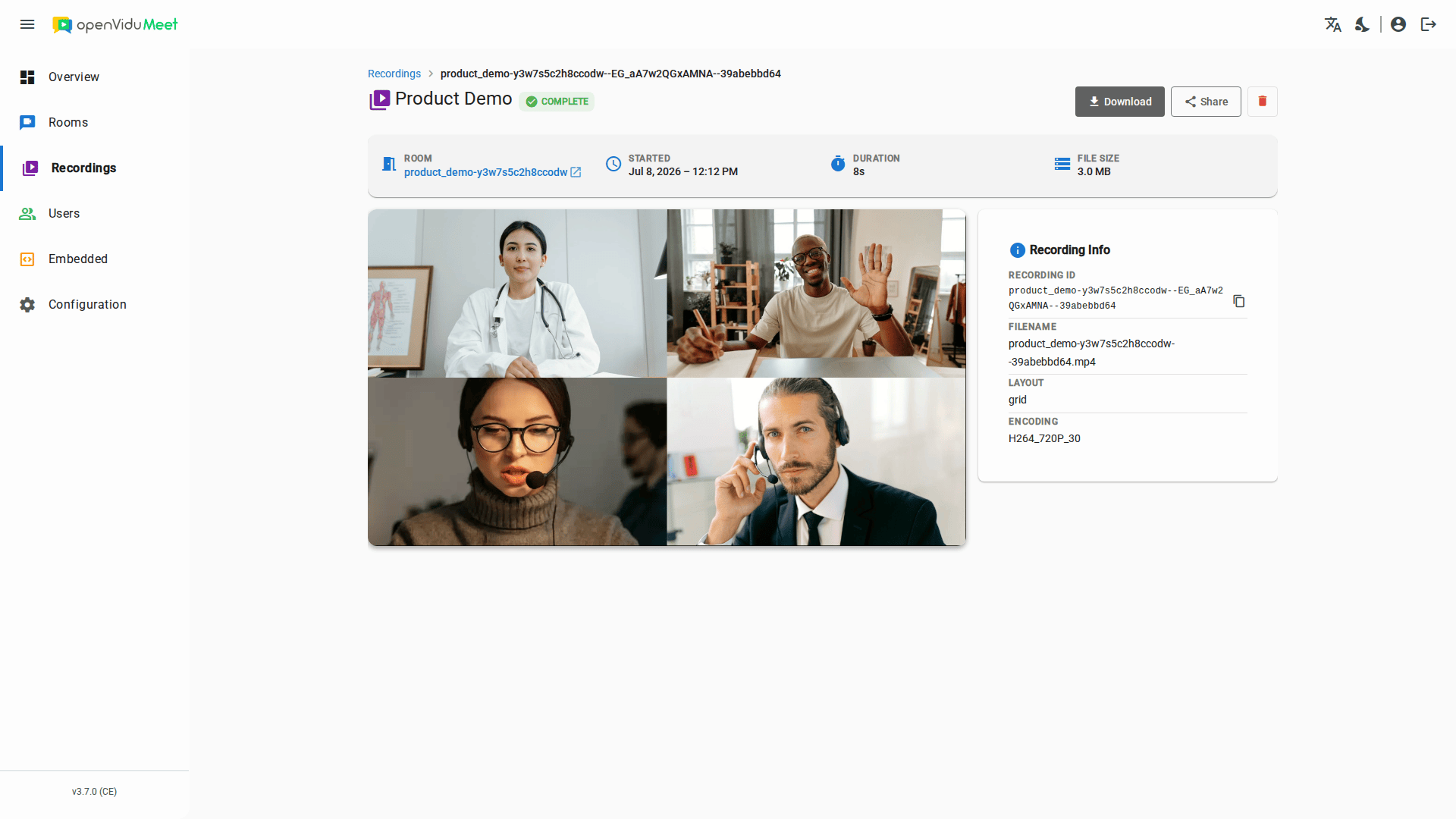
- The detail recording page — accessed from the general "Recordings" page when clicking a recording — which shows the recording's metadata and a player displaying it.
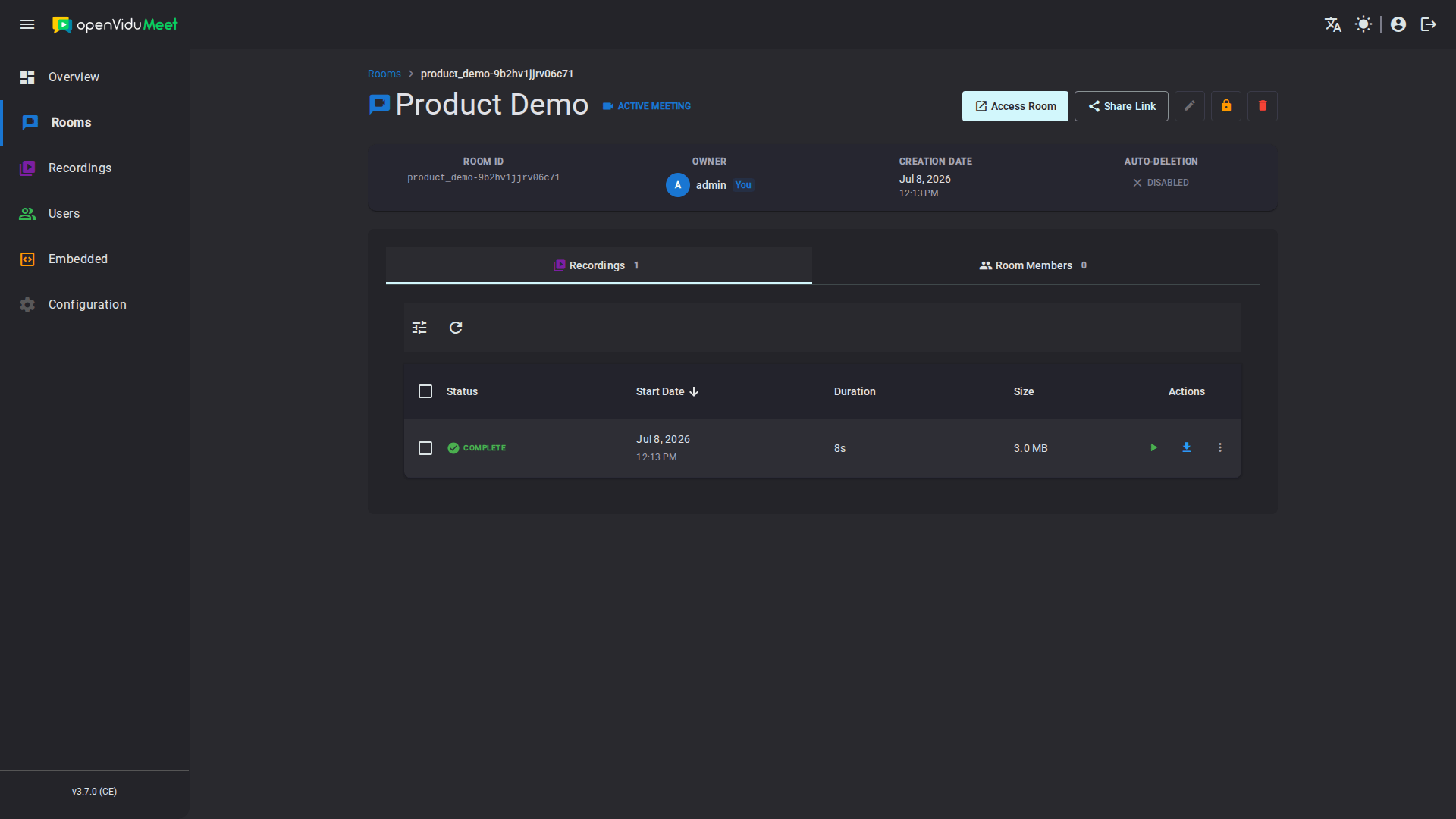
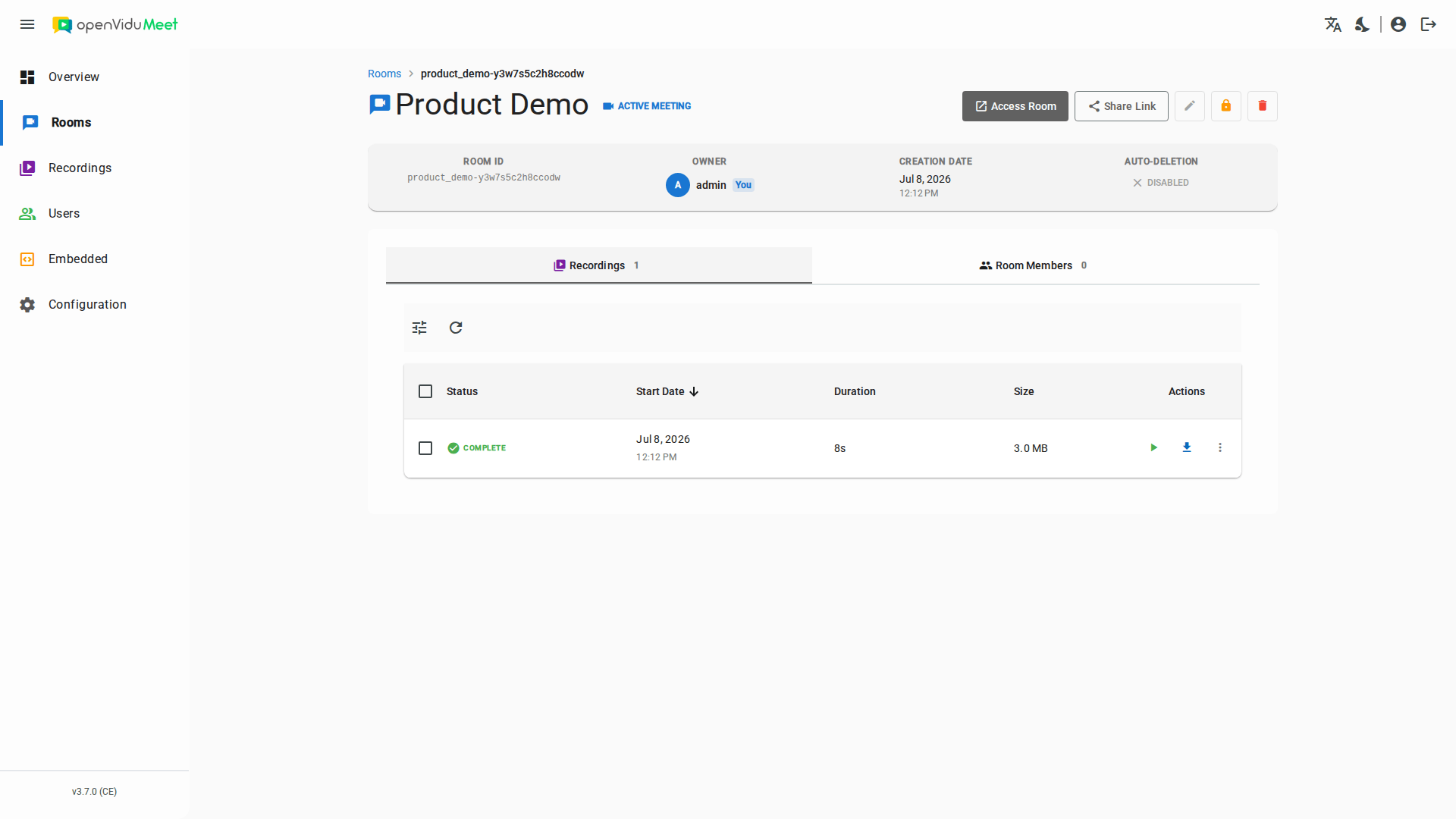
- The "Recordings" tab of a room's detail page, listing that single room's recordings.
- The room recordings view, reachable from within a meeting (and from the lobby view before joining).
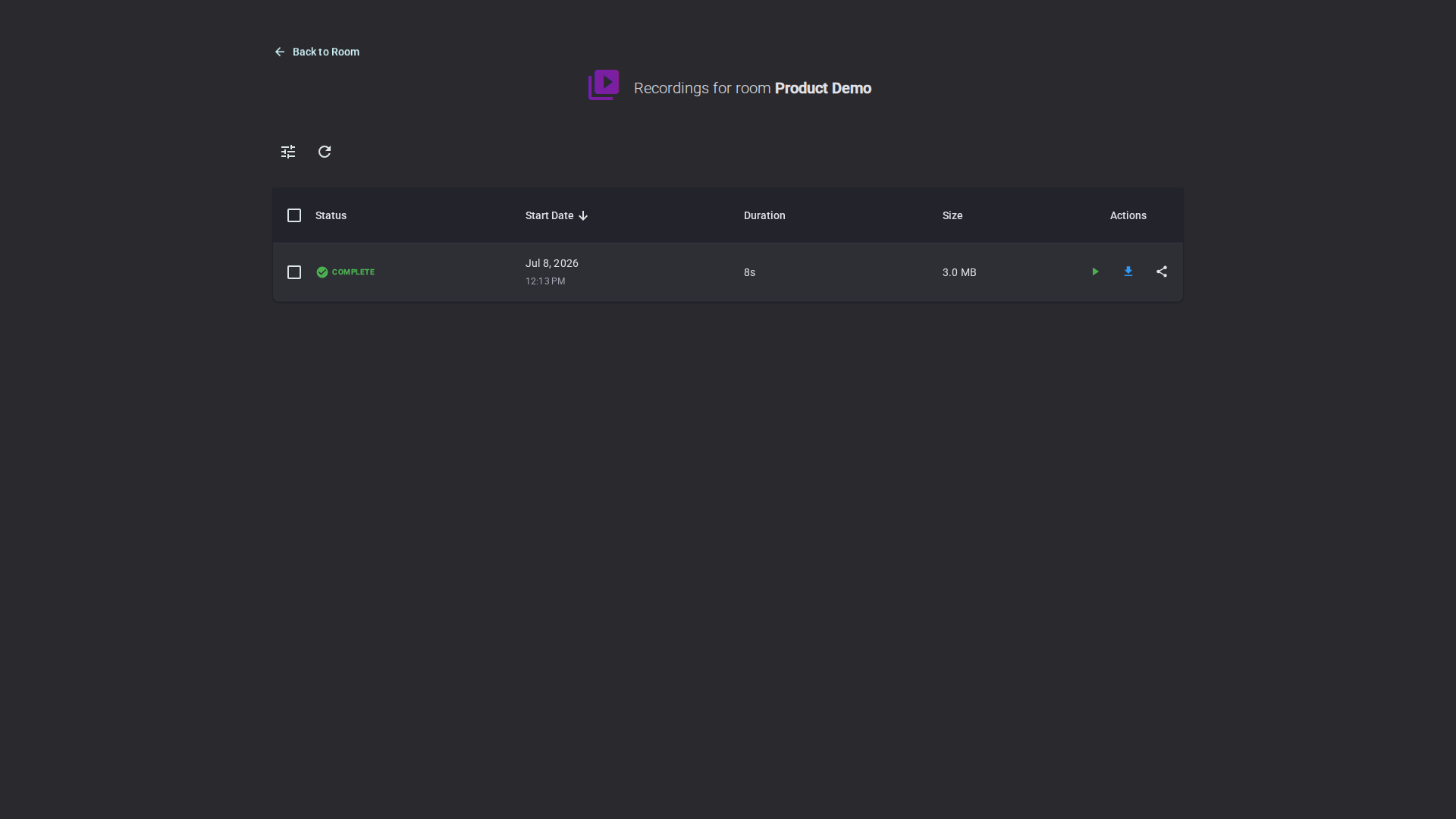
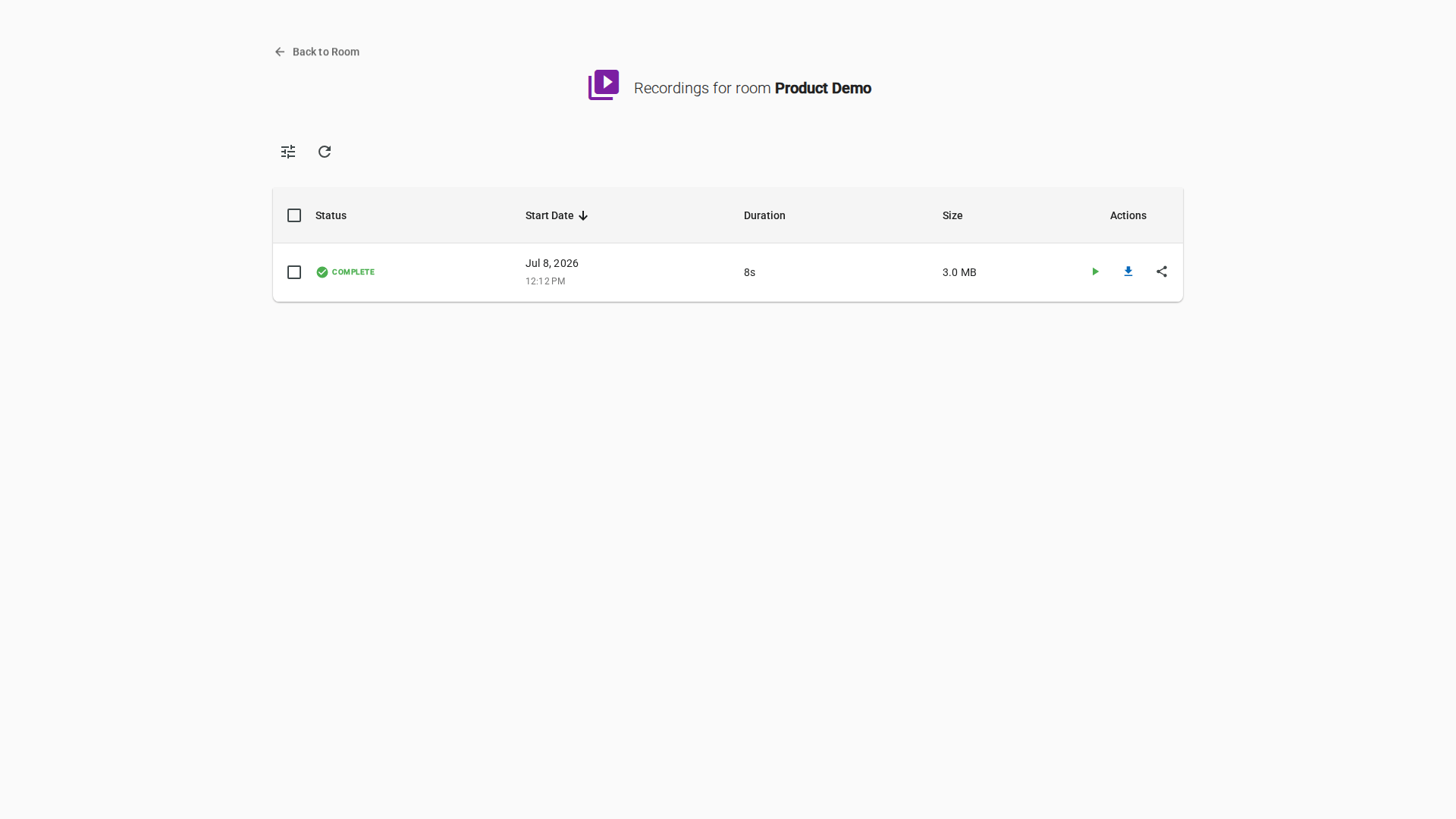
- The display recording view — accessed when clicking the play button for a recording — which displays the recording.


Sharing recordings#
When you create a shareable link for a recording, you choose who can access it:
- OpenVidu Meet users: any logged-in OpenVidu Meet user can view the recording — even if they have no recording permissions in that room, or no access to the room at all.
- Anyone: any individual with the link can view it without logging in. This option is available only when the room has anonymous recording sharing enabled.
REST API reference#
All of these operations can also be performed programmatically with the OpenVidu Meet REST API. See the REST API specification for the full list of available endpoints, request bodies and response schemas.
| Operation | HTTP Method | Reference |
|---|---|---|
| Start a recording | POST | Reference |
| Stop a recording | POST | Reference |
| Get all recordings | GET | Reference |
| Download recordings | GET | Reference |
| Bulk delete recordings | DELETE | Reference |
| Get a recording | GET | Reference |
| Delete a recording | DELETE | Reference |
| Get recording media | GET | Reference |
| Get recording URL | GET | Reference |